Agent Desktop notifications
The Agent Desktop displays visual notifications on the user screen to alert the user of incoming engagements or new customer messages, even when the Agent Desktop is out of focus. These notifications usually appear at the bottom-right corner of the screen. However, the location and appearance of the notifications can be influenced by browser and operating system settings.
Note: Administrators need to enable Agent Desktop notifications in the Portal. Please contact your Nuance representative for more information on enabling this feature.
The first time an agent logs into the Agent Desktop under an Agent Group enabled for notifications, the browser prompts the agent to allow notifications. The agent may choose to Allow or Block notifications. If an agent chooses to block notifications, regardless of the Portal setting, the agent does not receive them.
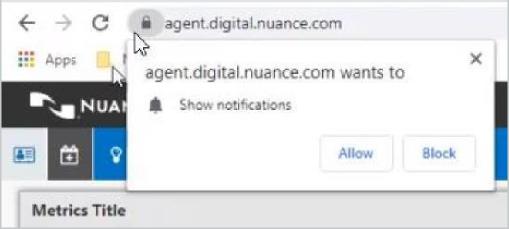
Once you enable the Agent Desktop notification functionality in both the Portal and browser, the agent receives a pop-up notification on the screen stating New chat assigned. The agent can receive new engagements even if the Agent Desktop is out of focus.

When an agent is assisting an engagement and the customer sends a response, the notification displays New message from customer.
You can click the notifications to highlight the Engagement, but they will eventually go away.

Note: The screen may display up to three notifications, with the oldest message appearing at the top.
