Summary landing page
After logging in, the Agent Desktop displays the Summary landing page. This page includes a menu bar and several tabs that enable the agent to quickly access relevant information.
The available tabs include:
-
Summary
-
Follow Up
-
Training
-
Nina Coach
Note: You can view the Nina Coach tab only when it is enabled.
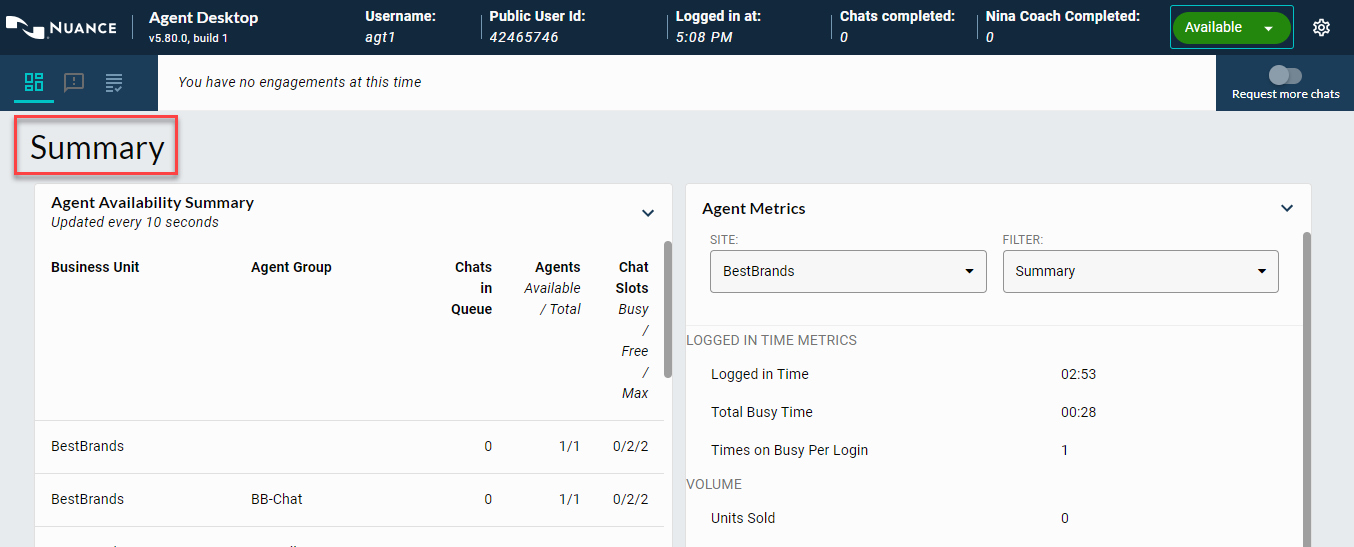
Summary tab
The Summary tab provides real time data with updates occurring every ten seconds.
This section includes the following metrics:
| Metric | Description |
|---|---|
| Agent Availability Summary |
It provides details on the Business Unit, Agent Group, Chats in Queue, Total number of Agents Available, and Chat Slots. |
| Agent Metrics | It provides an overview of the Agent Metrics, such as Logged in Time Metrics, Volume, Efficiency, and Utilization. Agents can filter the data to view site-specific information. |
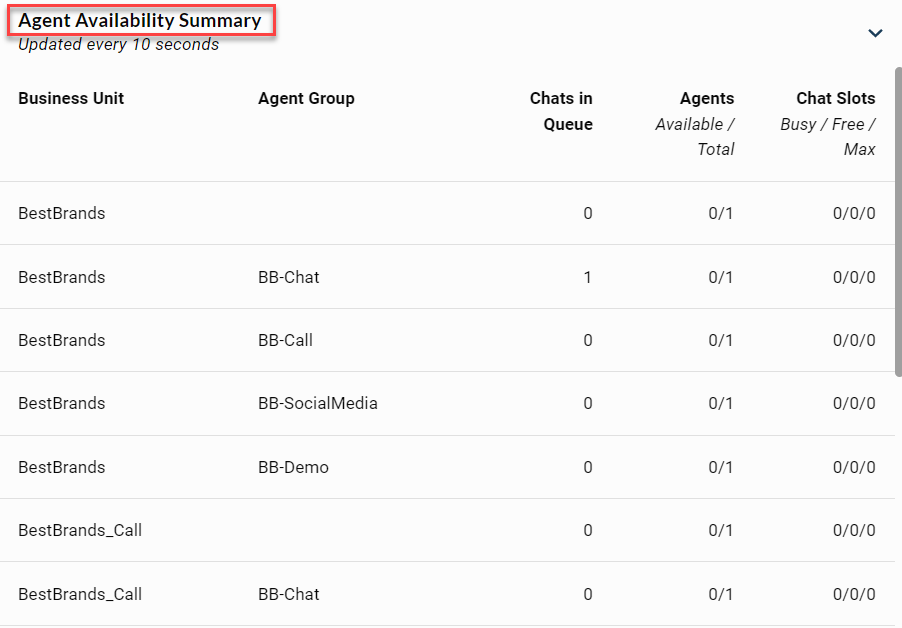
Agent Availability Summary
The following table outlines the components of the Agent Availability Summary page.
| Component | Description |
|---|---|
| Business Unit / Agent Group |
Displays the name of the customer and the Agent Group. For example,
|
| Chats in Queue |
Displays the number of engagements in the queue for each Business Unit or Agent Group waiting for an agent to be available. |
| Agents |
Displays the number of logged-in agents, their available status, and total. It includes:
|
| Chat Slots |
Displays the number of slot(s) that are Busy, Free, and Max. It includes:
|
Agent Metrics
Agents have the ability to view performance metrics in real time.
This section includes:
-
Efficiency metrics— Initial response time, Handle time, and so on.
-
Volume metrics— Conversions, Units sold, and so on.
Note: Nuance recommends you to display up to five metrics.
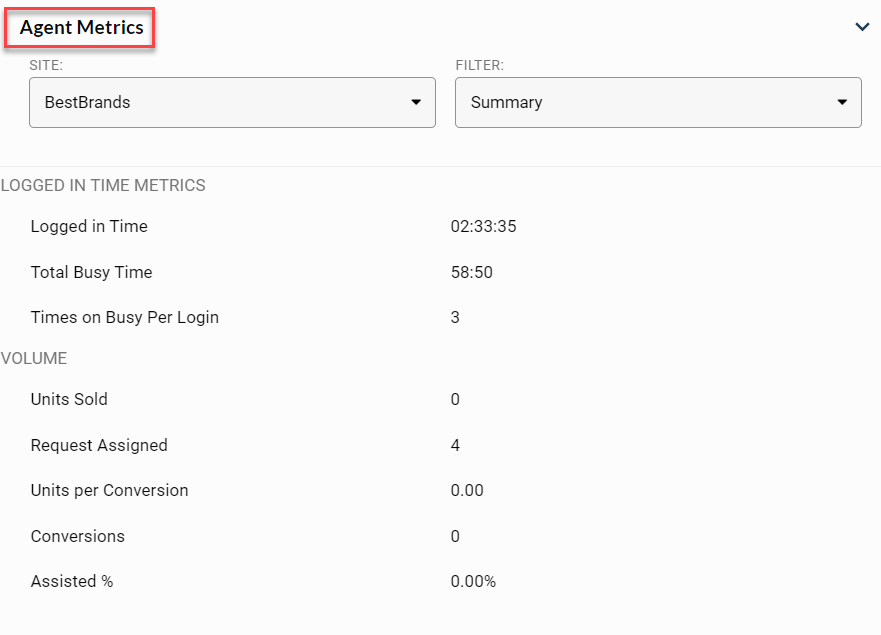
The following standard metrics can be configured to be displayed in the Agent Metrics table through the Portal at the Agent Group level. These are common metrics that are not necessarily used by all programs.
| Metric Type | Metric Name |
|---|---|
| Efficiency | Chat Handle Time |
| Chat Handle Time SLA % | |
| Average Disposition Time | |
| Average Initial Response Time | |
| Initial Response Time Within SLA (%) | |
| Logged in time | Logged in Time |
| Times on Busy Per Login | |
| Total Busy Time | |
| Utilization | Chat Slots Availability |
| Chat Slots Utilization | |
| Chats per Labor Hour | |
| Sales per Labor Hour | |
| Cumulative Labor Utilization | |
| Volume | % Ended by Customer |
| Assisted % | |
| Average Order Value | |
| Conversions | |
| Conversion % | |
| Request Assigned | |
| Units Sold | |
| Units Per Conversions |
Follow Up tab
The Follow Up tab provides asynchronous functionality that enables agents to manage and view engagements that are placed in the follow-up status, when additional research or processing time is necessary.
With the Follow Up tab, agents can keep track of all outstanding engagements, set reminders for themselves, and update their status as required.
Note: Refer to the Agent Desktop Asynch Follow Up learning guide for additional information.

Training tab
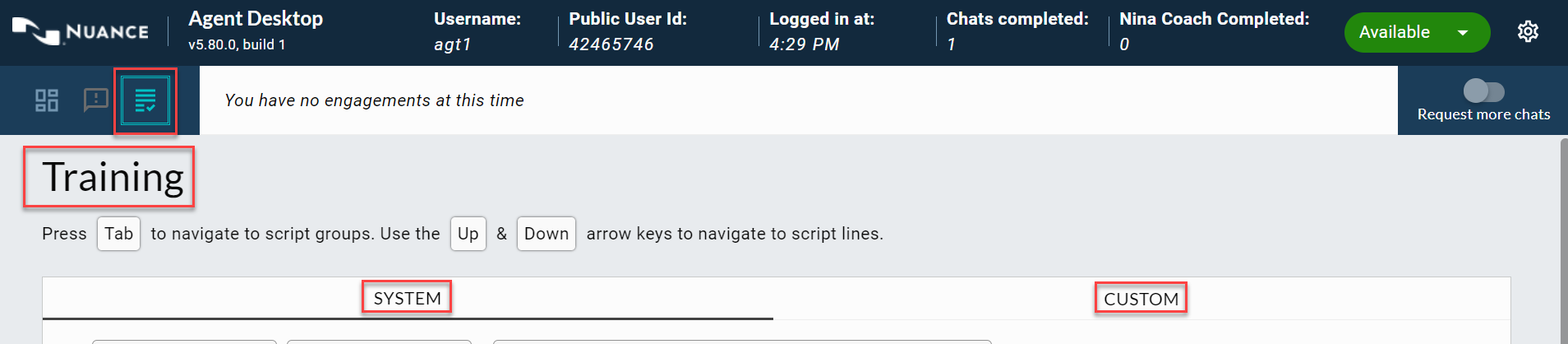
The Training tab enables an agent to access the project script library and the Custom Scripts (if enabled in the project) to review script menus, structure, and script lines to strengthen the script knowledge.
The Training tab script library is a copy of the production script library in the menu structure and script lines.
It includes the following script sub-tabs:
| Sub-tab | Description |
|---|---|
| System | It provides the project script lines in Agent Desktop that are available to all agents. |
| Custom | It provides the script lines each agent can develop in the Agent Desktop that are only available to that specific agent. |
Nina Coach tab
The Nina Coach tab enables an agent to access the project intent scripts. The purpose of this tab is to enable the agent to develop the knowledge of intent content.
Note: The content of the Nina Coach tab is automatically updated when the content is updated in production. This tab is only visible if the Agent Group supports Nina Coach.
Customizing Summary landing page
Agents can customize the Summary landing page by resizing the Metrics title and Agent Metrics windows based on their preferences.
To resize an existing window:
-
Left-click on the window divider.

-
Drag the window divider (left or right) to the desired size.
