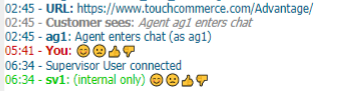
Basic emoji support for Agent Desktop
Users can configure Agent Desktop to allow agents to send emojis to customers during a chat session.
Configuring Portal for emoji support
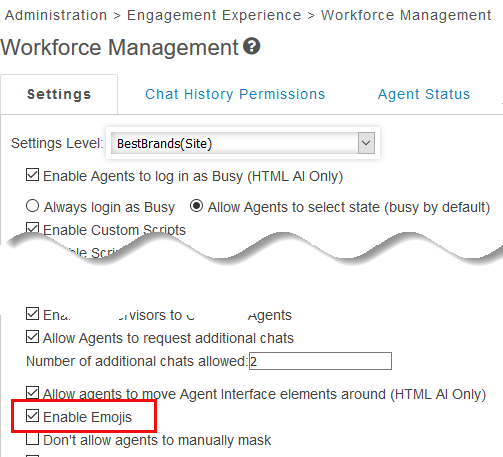
Support for emojis in Agent Desktop is set for each Agent Group in Portal on the Administration → Engagement Experience → Workforce Management page on the Settings tab.
-
Select the Agent Group from the Settings Level drop-down list.
-
Check the Enable Emojis box and click Save.
Emojis will be available for the selected Agent Group. Emoji support is disabled by default.
Using emojis in the Agent Desktop
When emojis are enabled in Portal, a “happy face” emoji displays in the Agent Desktop below the text input field.
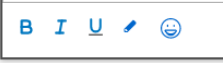
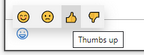
When a user clicks on the happy face, four emojis will pop-up: happy face, sad face, thumbs up, and thumbs down. Tooltips display the emoji’s name when the mouse pointer hovers over its icon. When a user clicks on one of the emojis, it will display in the text input field.
When a user clicks Send, the system sends the emoji to the customer and displays it in their chat interface.
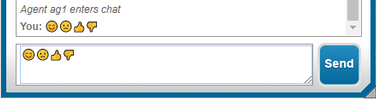
Emojis appear just as a text character would in the customer’s chat interface, in the agent’s transcript window, and in chat transcripts.