Export search data
Export transcripts by engagement ID
You can export transcripts by entering their engagement IDs. (If you know the engagement ID you are looking for, this is the easiest way to display its transcript.) When you select Multiple Engagement ID Search, a text field displays where you can enter one or more engagement IDs.
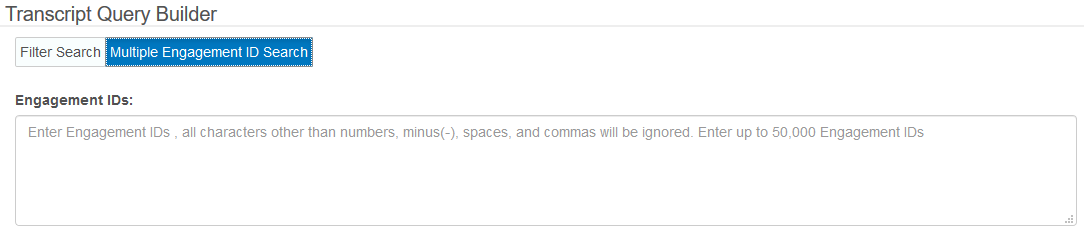
The Multiple Engagement ID Search feature exports search results to Excel or Email. The results do not display in the TQB Search Results table at the bottom of the page.
Summary data
You can export summary search results and transcript data into an Excel file format.
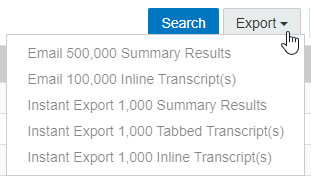
The first two options under the Export drop-down include summary results from your current search. Summary results are the same data that displays in the Search Results table on the Portal page.
The email option allows you to export your summary data and have it delivered via email. When you select the email option, the Email Summary Results pop-up displays where you can enter an email address and select a batch of up to 50,000 data rows.
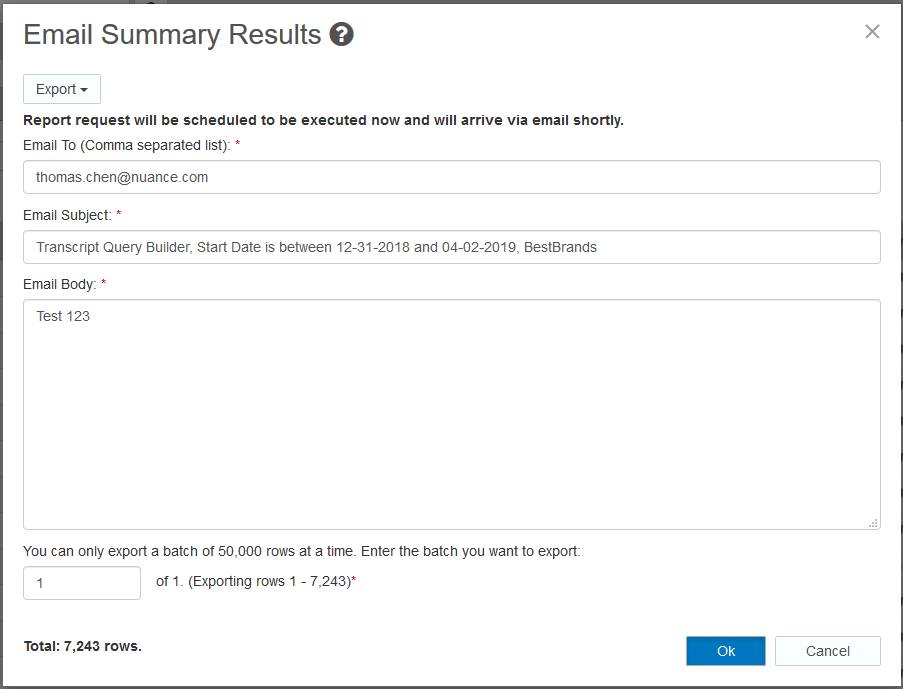
The summary search data will arrive via email in a zipped file. The file contains the search data in Excel format. The email summary results export typically takes a few minutes to arrive depending on how many results are in the search.
Instant Export
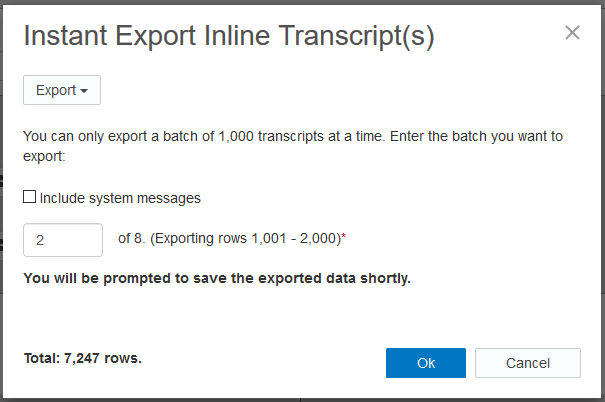
For a quicker response than email export for summary results, you can choose Instant Export. Instant Export is limited to 1,000 rows of data at a time. The Instant Export Summary Results pop-up displays so you can specify which batch of results will be exported.
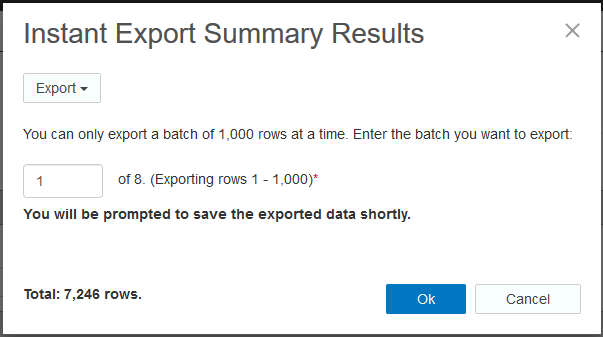
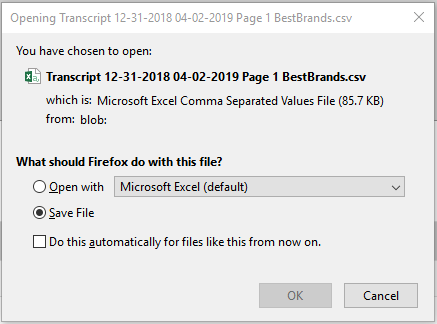
The summary search data is downloaded from Portal directly to your local device where you can open it or save it as an Excel file.
Transcript data
The third and fourth options under the Export drop-down allow you to export transcript results from your current search. The main difference between the two options is that they deliver transcript data in different Excel formats.
Tabbed transcripts
The Instant Export Tabbed Transcript pop-up shows two options. You can use the checkboxes to include system messages in your transcript data. You can also select to include all data fields.
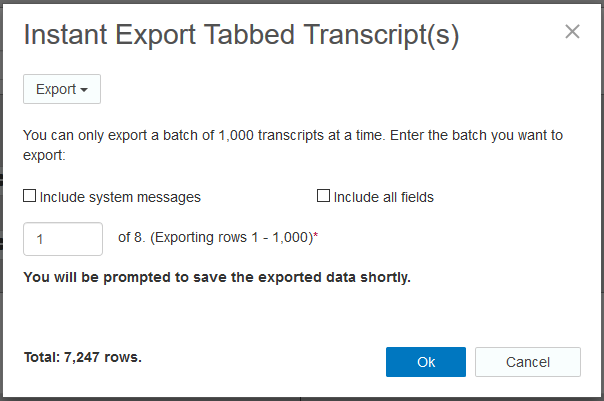
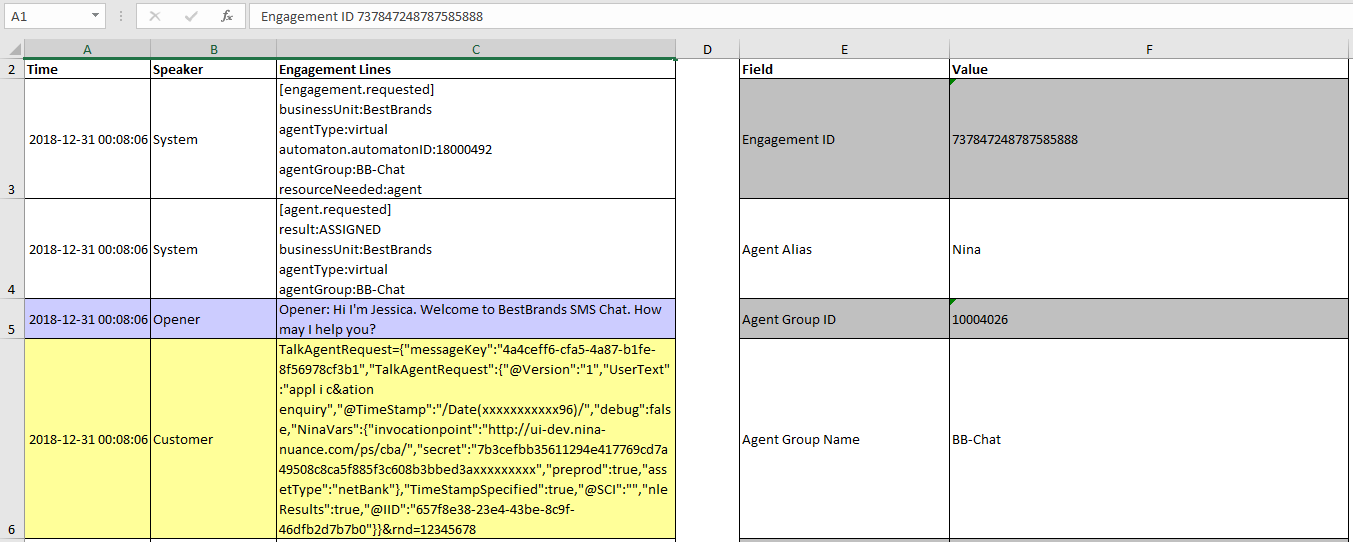
Each engagement displays in its own tab in Excel. This option results in a large Excel file with up to 1,000 tabs. In many cases, this option is slow to run. This option also allows you to include the metadata along with the engagement transcripts.
Inline transcripts
The Instant Export Inline Transcript pop-up gives the option of including system messages.
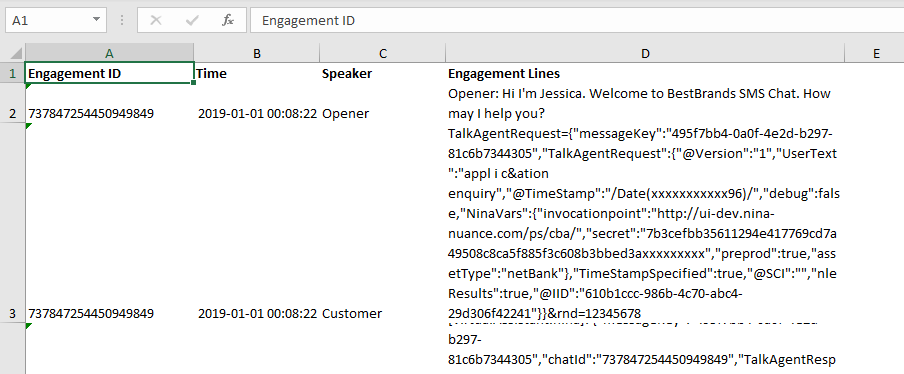
For this export, all of the data displays on one tab. Engagement IDs display in the first column and other data displays in the columns to the right.
Select engagements for export
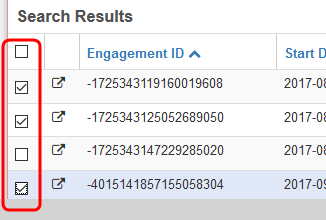
You can use the checkboxes in the first column of the Search Results table to select engagements for export.