Run a search
To view the results of your filter, click the Search button. The results will display in a table at the bottom of the page. If your search does not yield any results, a No Records Found message will display.
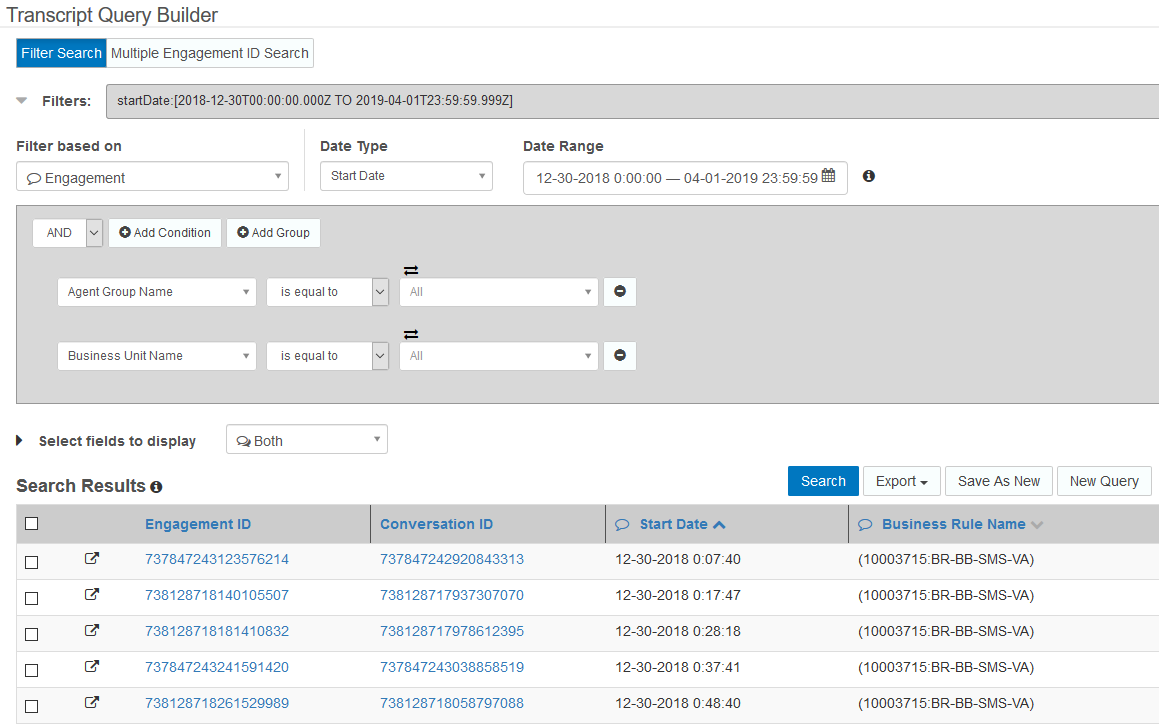
The Engagement ID and Conversation ID columns display as links in their table columns. When you click on a Conversation ID link, the search result data displays in JSON. Clicking on an Engagement ID link displays search results on a new page.
View results
Engagement information is displayed in a summary table at the top of the page. The Key Metrics label icon indicates whether the engagement was handled by a virtual agent or a live agent. More details are displayed below in sections under tabs on the page. No matter which tab you are viewing, the summary table displays at the top.
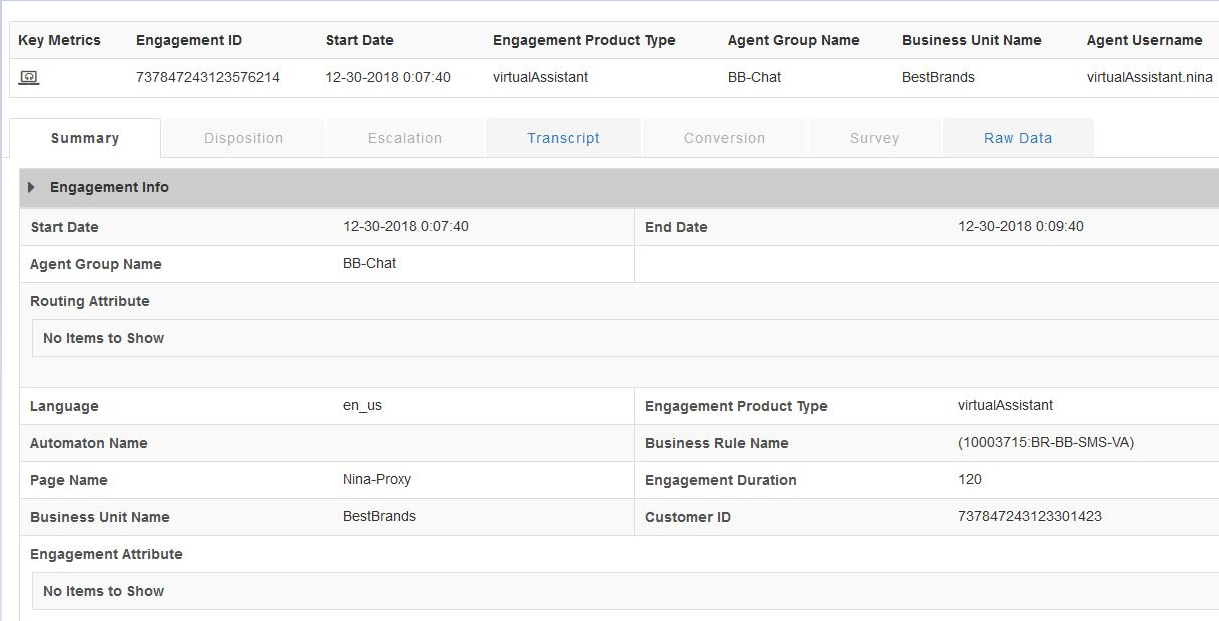
The Summary tab displays the most common fields for the data returned by the search. The other tabs (Disposition, Escalation, Transcript, Conversion, Survey, Raw Data) hold data as described by the section tab label. If the search returns no data for a tab, the label displays grayed out.
The Conversion tab is similar to a receipt. It shows the item which was purchased, the quantity and price and other relevant information.
The Survey tab shows questions and answers.
The Raw Data and Conversation tabs display data in JSON.
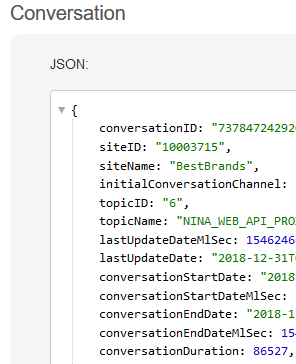
Together, the tables show every field that the search brings back from the API. Any field that does not go into a section tab displays under the Not Categorized fields at the bottom of the page.
Transcript tab
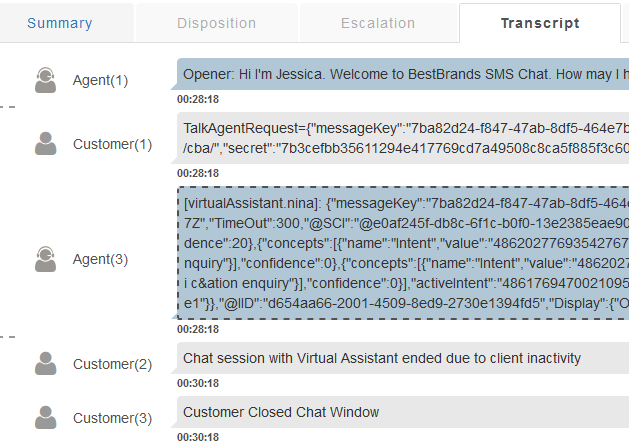
To see the actual transcript itself, select the Transcript tab.
Show control
You can customize how the transcript data is displayed by using the Show control at the top of the page. The Show control only displays when the Transcript tab is selected.
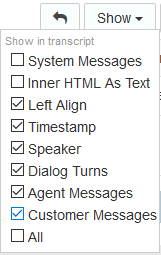
You can include or exclude system messages, timestamps and speaker icons. The Inner HTML as Text sets the hyperlinks to display a shorter domain name instead of the longer address including https:/ etc. If you clear the Left Align checkbox, the transcript displays the agent text on the left and the customer text is on the right, similar to an SMS message display. You can also display only agent or only customer messages or only system messages. The Dialog Turns option displays brackets that group customer lines with agent responses.
Return to Search Results
When you are viewing engagement details, you can return to the Search Results table by using the TQB back-arrow button. If you use the browser’s back-arrow button or the New Search icon, the TQB will go back to its starting page and you will have to run your search again.

