Agents tab
The Agents tab displays agent-specific information for all agents currently logged into Agent Desktop along with engagement-specific information about their active engagements.
The views available in the sub-tabs are:
-
Statuses
-
Engagement Metrics
Agents tab: Statuses
The Statuses sub-tab displays a list of agents logged into the Agent Desktop and their status, including the total number of chats and the time logged in.
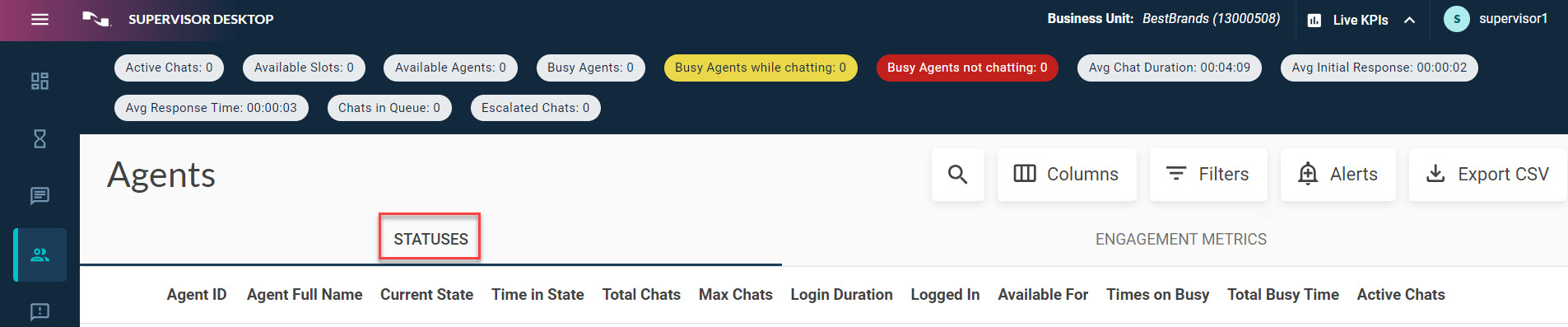
The Statuses sub-tab has the following columns.
|
Column |
Definition |
|---|---|
|
Agent ID |
The Agent ID of agent. |
|
Agent Full Name |
The full name of the agent handling the engagement |
|
Current State |
Status state the agent has selected in the Nuance Agent Desktop. Default states are Available and Busy. Status states are customizable. |
|
Total Chats |
The total number or engagements that the agent has serviced. |
|
Max Chats |
Total number of engagements an agent is allowed to receive. |
|
Time in State |
The total time the agent has spent on their current state. |
|
Login Duration |
The total time the agent has been logged in for. |
|
Logged In |
The date and time the agent logged into the Agent Desktop. |
Agents tab: Engagement metrics
The Engagement Metrics sub-tab displays a list of agents and data for their active engagements. Columns displayed in this sub-tab are similar to those displayed in the Statuses sub-tab with some additional columns.
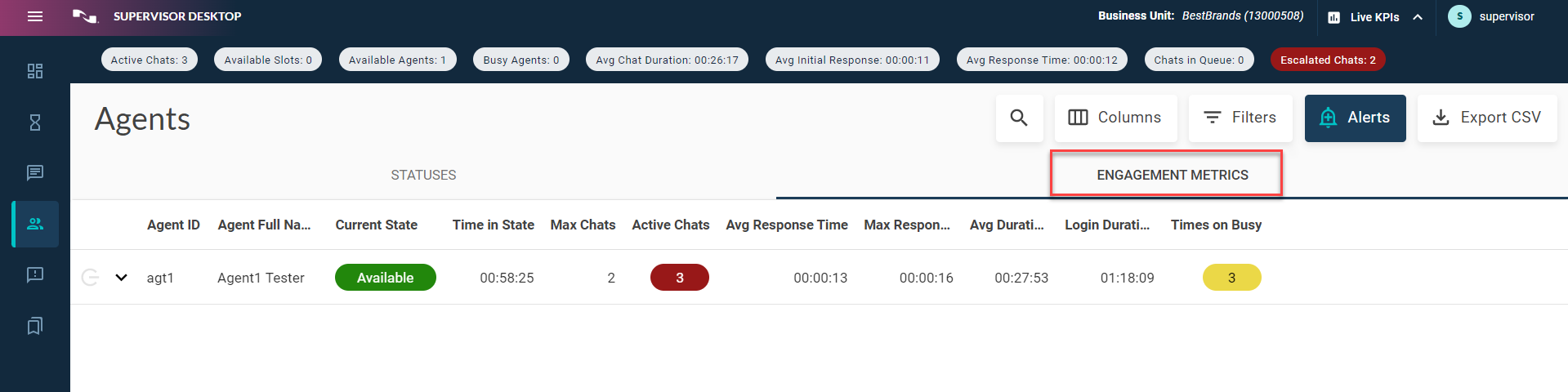
Additional columns available in the Engagement Metrics:
|
Column |
Definition |
|---|---|
|
Max Response |
The maximum response time for engagements. |
|
Avg Response Time |
The average response time for engagements. |
|
Average Duration |
The average duration of engagements assisted by agent. |
You may select an agent from the table to display additional information about the engagements the agent is currently supporting.
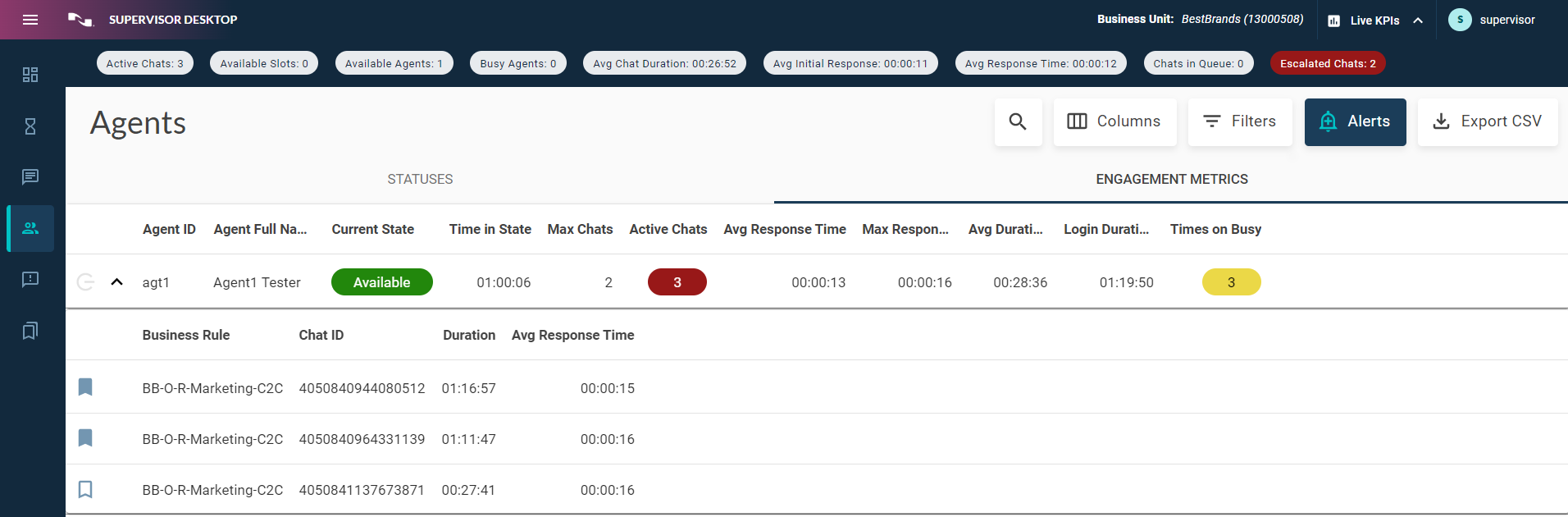
Agents tab: observation and coaching
You may observe engagements in real time and chat in real time to coach the agent as they are managing chats. This is similar to the Chat to Agents feature.
To launch a real-time observation session:
-
Navigate to the Agents tab and click a row to expand the selected agent's list of active engagements.
-
Select an engagement to view live. The engagement transcript will display in a new window to the right and will update in real time as the chat progresses.
-
You may close the Observation window by clicking the X at the top right of the chat window.
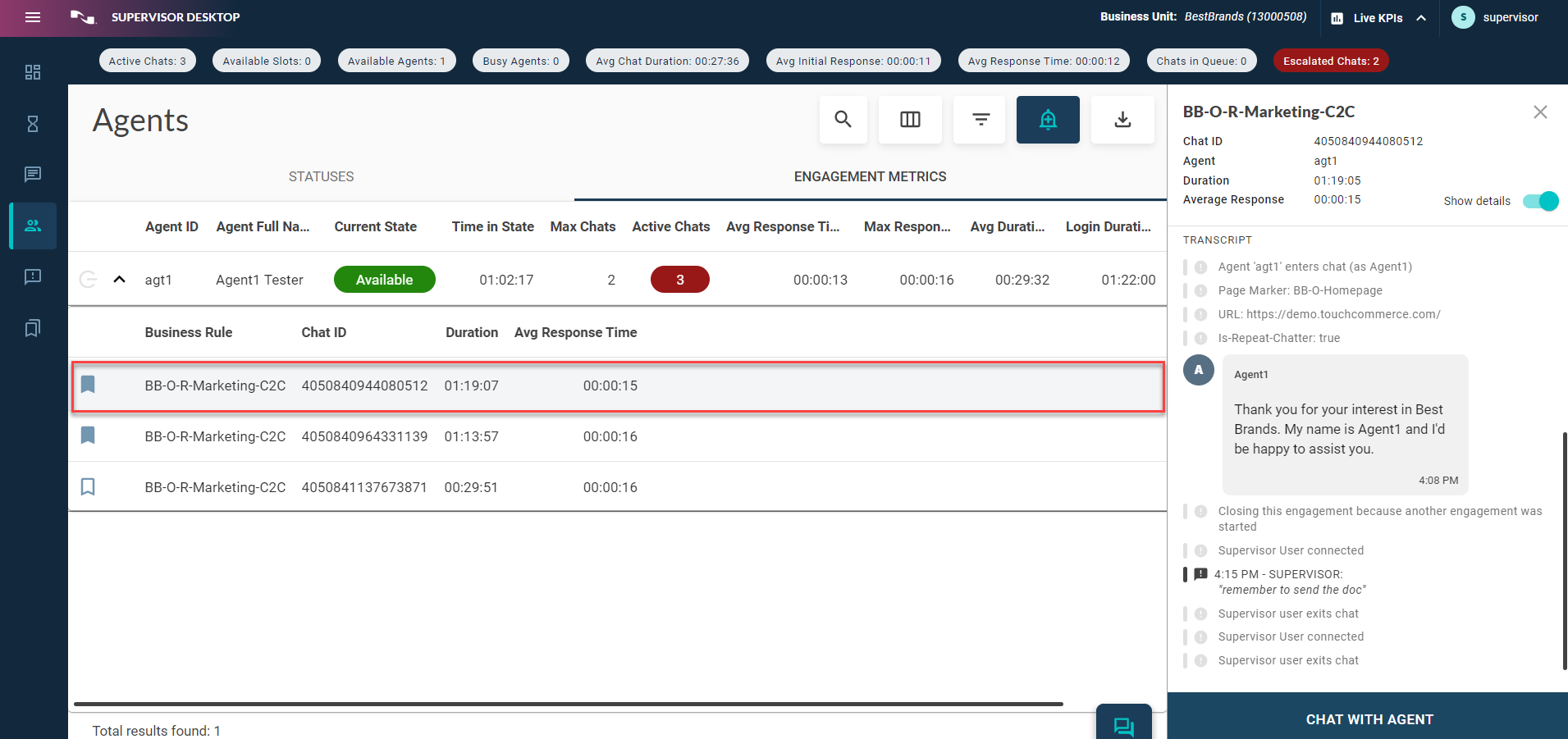
Just like with the Active tab, the engagement transcript window also allows supervisors to internally communicate with the agent handling the engagement.
Agents tab: Agent forced logout
You can select a specific agent from the Agents tab and forcibly log them out of Agent Desktop. But you cannot log out an agent that has an active engagement.
Note: This option is only available in the Agents tab.
-
Navigate to the Agents tab and select the agent you would like to log out.
-
Click the button to the left of the Agent ID.
-
Click Log Out when confirmation dialog opens.
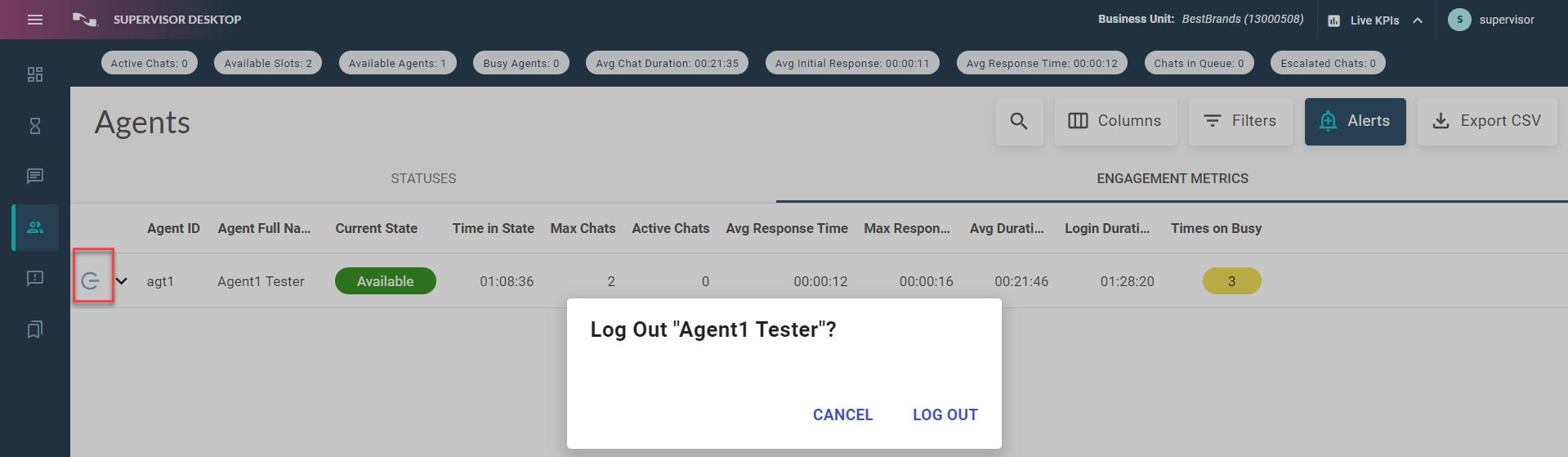
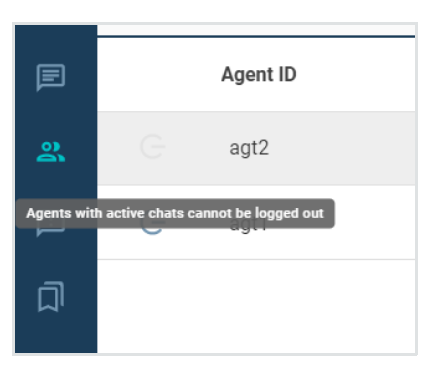
If you attempt to log out an agent that has an active engagement, the system will prevent the action and display the following message: "Agents with active chats cannot be logged out".
Here's an example: