Collapsible script headings
Agents have the ability to collapse all and expand all headings in the Scripts modal of Agent Desktop.
Agents can control how script headings display in Agent Desktop in two ways:
-
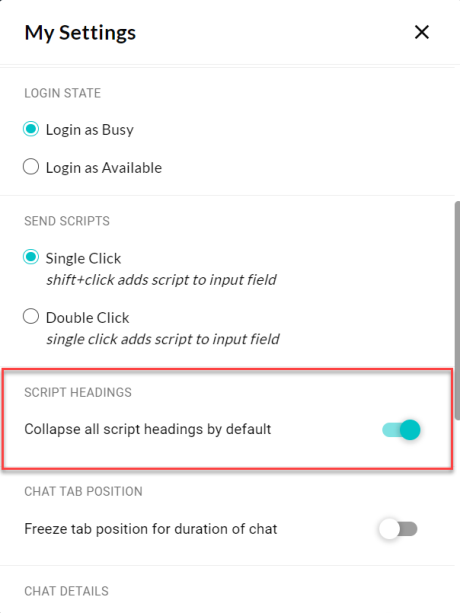
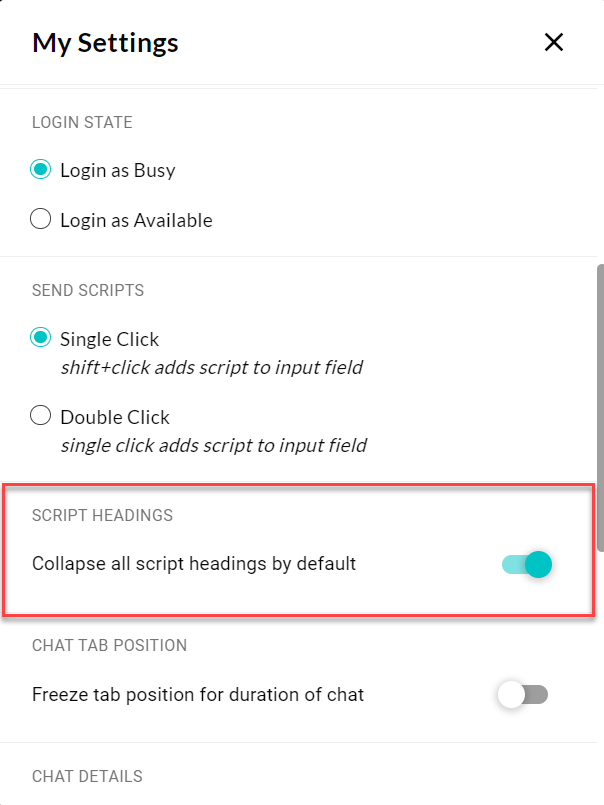
Use the Collapse all script headings control on the My Settings modal.
-
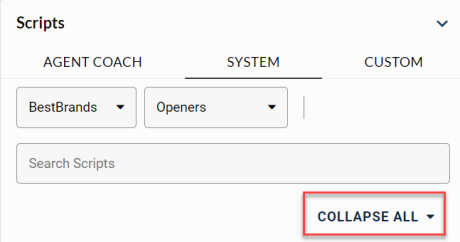
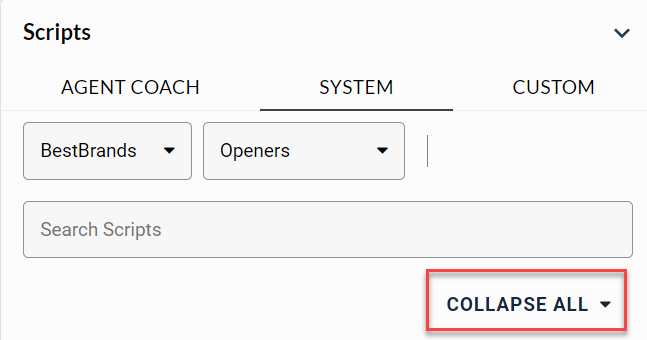
Use the Collapse All and Expand All settings on the Scripts modal.
Collapsible script headings assists agents by allowing them to control how script headings are displayed in one of two ways:
-
Using the Collapse All Script Headings control on the My Settings menu, which impacts all engagements.
-
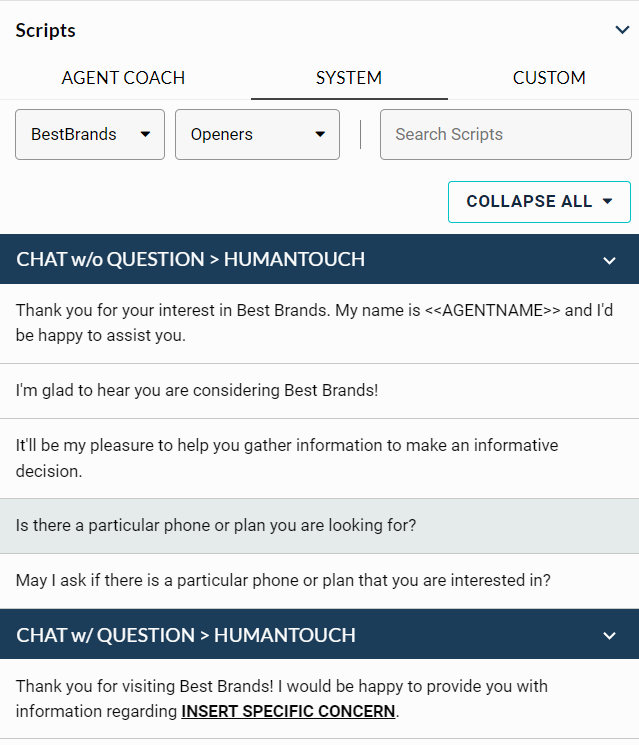
Using the Collapse All and Expand All settings in the Scripts section, which only impacts current engagement. When all headings are expanded, a Collapse All setting feature will display. This can be used to collapse all script lines and only display the script headings.
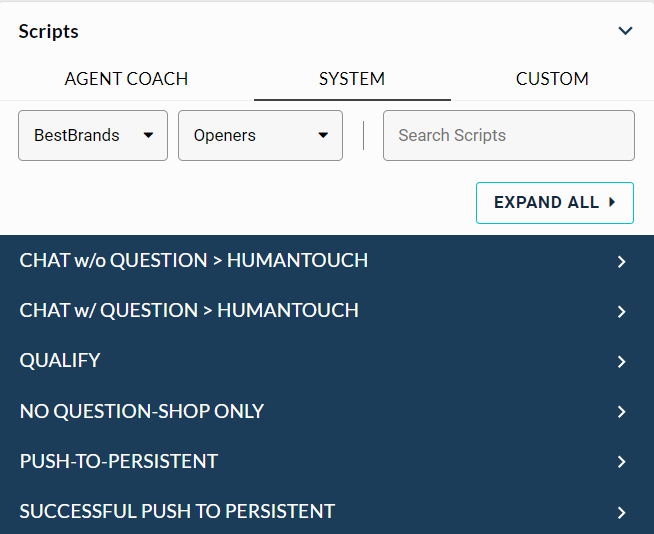
When headings are all collapsed, an Expand All setting displays which can be used to revert the scripts to their default state and expand all script headings along with their respective script lines.
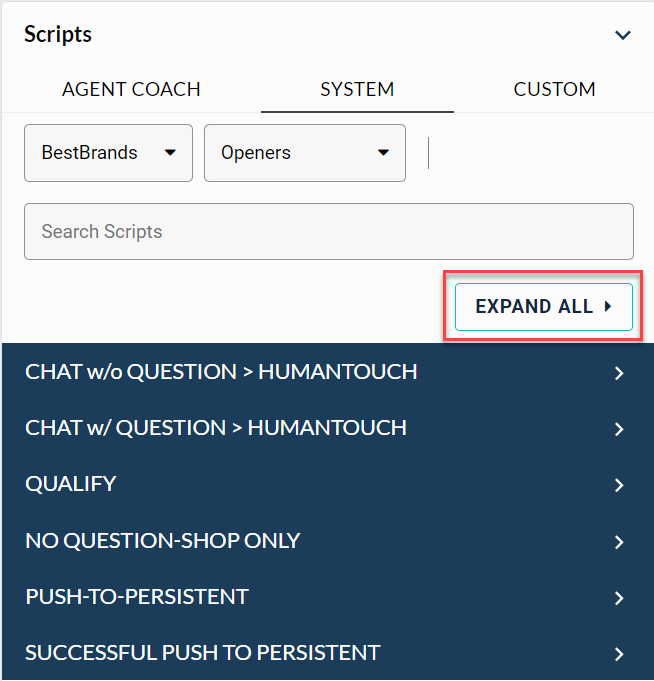
When some script headings are collapsed and some are expanded, both options to Expand All and Collapse All are shown. When the Collapse All and Expand All settings are used, changes for expanded or collapsed headings will persist on a per-engagement basis until the engagement is closed or the agent switches between script trees. In this case, scripts revert to their default state with all script headings expanded.

Collapse all script headings
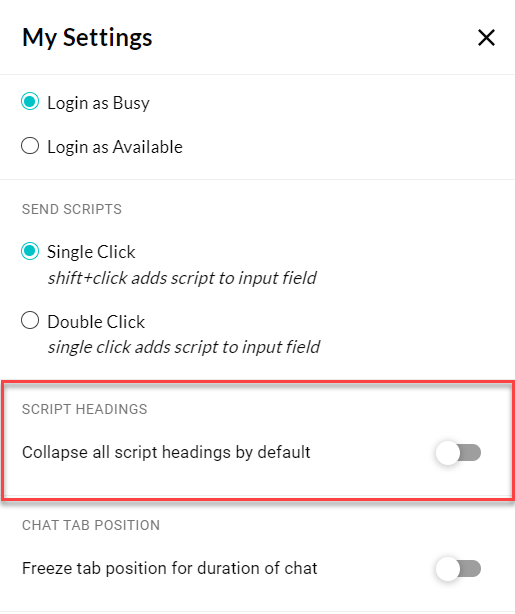
Agents can set script headings to display collapsed upon login. The My Settings modal shows a Scripts Heading control that causes all script headings to display collapsed upon login.
Collapse All and Expand All settings
By default, all script headings are expanded when a new chat is assigned. When all headings are expanded, a Collapse All control displays on the Scripts modal.
When headings are all collapsed, an Expand All option displays.
When some script headings are collapsed and some are expanded, both options to Expand All and Collapse All are shown.
Workflow
When an agent receives a chat and clicks on the chat tab, the Scripts modal displays with all headings expanded. The agent can use the Collapse All control or click on individual headings to expand and collapse script groups individually. The Agent Desktop will hold all of the script tree adjustments until the agent either switches to another script tree or until the chat is closed.
When the agent receives a new chat and clicks on the chat tab, the Scripts modal for the new chat will display the default setting with all headings expanded.
Note: Script group headings can be expanded or collapsed individually.
Persisting behavior
Changes for expanded or collapsed script headings will persist on a per-chat basis in the following cases:
-
The agent switches between script tabs (System Scripts to Custom Scripts) for the current chat.
-
The agent switches from one chat tab to another and then returns to the original chat tab.
Changes for expanded or collapsed script headings will not persist in cases where the agent switches between script trees and then returns. In such cases, the Scripts modal reverts to its default state with all script headings expanded.
Example 1: An agent switches between two different chats
When an agent receives chat 1 and clicks on the tab, the Scripts modal displays the default setting with all headings expanded. As the agent works on chat 1, the script headings can be expanded or collapsed by the agent as needed.
When the agent receives chat 2 and clicks on the tab, the Scripts modal displays with all headings expanded. When the agent clicks on the tab for chat 1, the settings made to the scripts heading display persist. In this case, chat 1 shows the settings the agent made and chat 2 shows the default with all script headings expanded.
Example 2: Agent switches script trees within a single chat
When an agent receives a chat and clicks on the tab, the Scripts modal displays with all headings expanded. The agent can expand or collapse the script headings as needed. If the agent switches to another script tree and comes back, the Scripts modal reverts to it default setting with all script headings expanded.
