View notifications in Agent Desktop
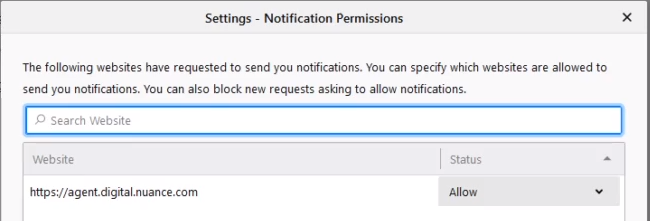
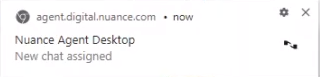
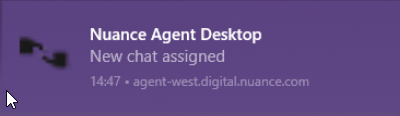
Once the Administrator enables notifications in Portal and the agent allows them in the browser, the agent will see a pop-up notification on their screen whenever they receive a new message while Agent Desktop is out of focus. When the agent receives a new chat, the notification will display “New chat assigned.”
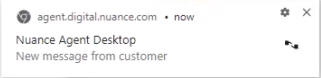
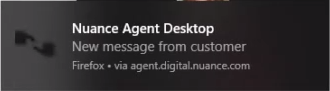
When an agent is working on a chat and their customer sends a response, the notification will display “New message from customer.”
Clicking on notifications
When an agent clicks on a notification, Agent Desktop and the chat come into focus.
Notifications behavior
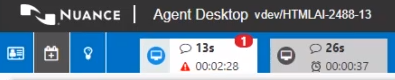
Notifications display when chats and messages come into Agent Desktop. Up to three notifications can display on the screen with the oldest message shown on top.
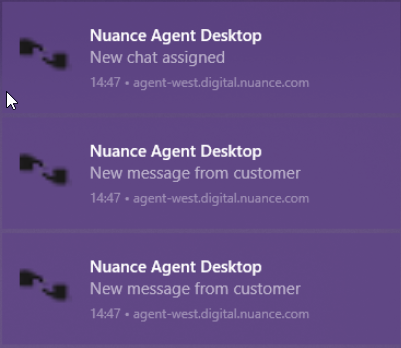
Agents can click the notifications to bring the chat into focus. However, if agents take too long to respond to the notification, the notification will eventually time out and disappear.
Notification settings
Notifications typically display at the bottom-right corner of the screen. However, notification settings are browser specific. Browser and operating system settings affect both the location of the notification as well as their look and feel.
Browser settings
If different agents use the same machine and the same operating system log-in, the browser setting will probably be the same for each user. In this case, the first agent to log in after notifications have been enabled in Portal will be prompted to “allow” them. Subsequent agents that log in will not be prompted to allow notifications.
If an agent logs into a machine with notifications “allowed” but they belong to an agent group that has not been enabled in Portal, the Agent Desktop will not display notifications to that agent.
The setting to allow notifications is specific to the browser. Agent Desktop users can go into their browser settings at any time to Allow or Block notifications.