Manage conditions for a business rule
The Conditions tab of the Create Rule or Edit Rule page specifies the conditions for the business rule to launch a chat, survey, or other targeted content.
To open the Conditions tab:
-
Navigate to Administration > Program Management > Business Rules.
-
Do one of the following:
-
To create a rule, click the New button and select a rule type. The Create Rule page opens.
-
To edit a rule, double-click it in the table. The Edit Rule page opens.
-
-
Click the Conditions tab.
-
View the Conditions tab for a
 launch rule
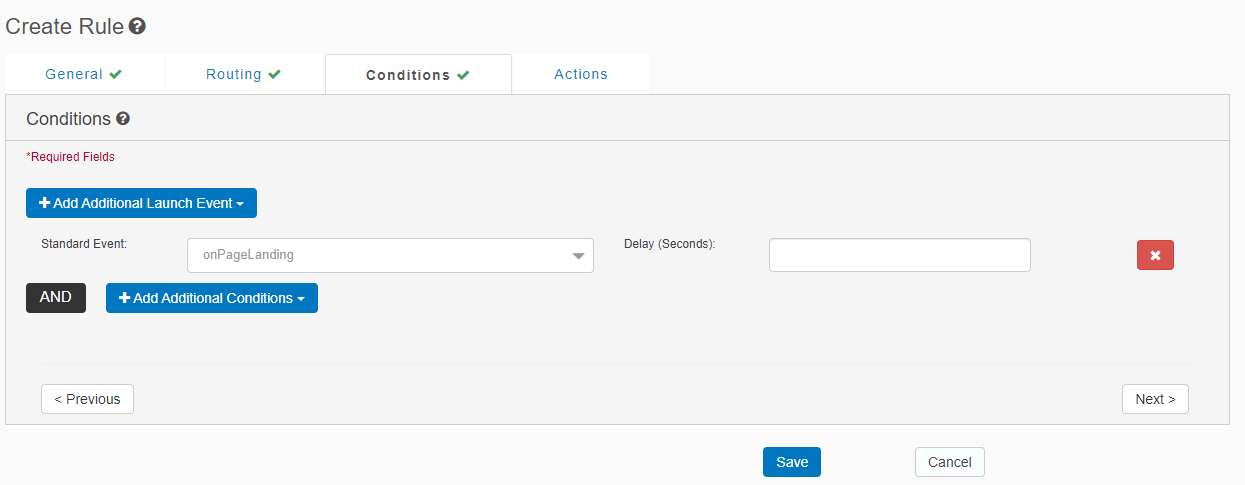
-
View the Conditions tab for anoverride rule or a worker rule
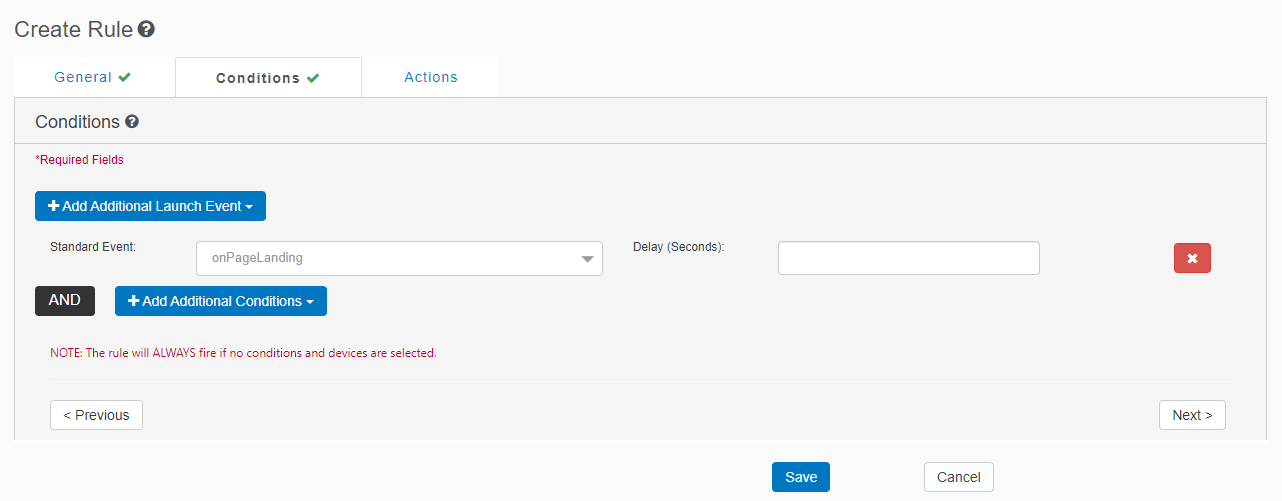
-
In the Conditions tab, you specify the launch event, which is the event that launches the business rule.
Note: If no conditions are specified, then the rule always launches.
| Field | Description |
|---|---|
| Standard Event |
Select a standard event that launches this business rule, such as on If you do not want to use a standard event as a launch event, you can leave this blank. |
| Delay | You can set a time delay in seconds for launching the rule. |
If you want to add a non-standard event instead, or additional launch events, click + Add Additional Launch Event, and select one of the following event types from the dropdown list:
-
Custom Event: Events defined in the business rules XML, which you can edit in the Source tab of the Business Rules page. For details, see Manage business rules in XML.
-
DOM Event: DOM (Document Object Model) is an API that represents and interacts with any HTML or XML document, as described in: https://developer.mozilla.org/en-US/docs/Glossary/DOM. NDEP can use a JavaScript tag on Web pages to capture these events. For information on DOM events, see: https://developer.mozilla.org/en-US/docs/web/api/event. For a list and descriptions of supported DOM events, and DOM elements, which you can add to events, see DOM events and elements.
-
Service Event: Supported for override rules and worker rules only. For a list and descriptions of service events, and service types, which you use with events, see Service events and types.
-
Standard Event. For a list and descriptions of standard events, see Standard events.
For each event, you can set a time delay in seconds for launching the rule.
To add additional conditions for launching the rule, click + Add Additional Conditions, and select a condition type from the dropdown list. The supported condition types are listed in the following table.
Note: To add multiple conditions that are joined by AND or OR operators, select Add Group from the + Add Additional Conditions dropdown list.
| Field | Description |
|---|---|
| Add Group |
Adds a new subgroup of conditions, joined by an |
| Boolean Value | Select a stored Boolean variable to evaluate. |
| Browser Type | The user’s web browser type. |
| Check for Existence | Check to ensure that a program variable, cookie, or JavaScript variable on the customer’s web page exists. |
| Content Group View Count |
Select a content group and Boolean operator and indicate the number of views. You can create new content groups on the Content Groups page. Note: This is not a standalone option. |
| Date Compare | Compare two dates. The dates that can be compared must be stored as a variable, as a constant, or the current time at rule execution. |
| Device Type | The type of device the user is currently using. |
| Launch Location | Select the web pages that will launch this rule. If you leave this blank, the rule will apply to every web page on the site. |
| Number Compare | Compare two numerical values. |
| OS Type | The user's current operating system. |
| Page View Count |
Sets a condition based on the customer visiting a web page. Apply a Boolean operator and indicate the number of views the customer must have before this condition applies. Note: This is not a standalone option. |
| Previous Page |
Sets a condition based on the previous web page visited by the customer. Note: To apply the condition if the previous page is not the one visited by the customer, select Not. |
| String Compare | Compare two text values. |
| URL RegExp |
Evaluate the current URL based on the regular expression Note: To return the opposite of the result, select Not. |
-
Click Save. This saves your changes, but it does not publish them to the production environment. To publish all rules to the production environment, on the Rules tab of the Business Rules page, click Publish.
