Manage routing for a business rule
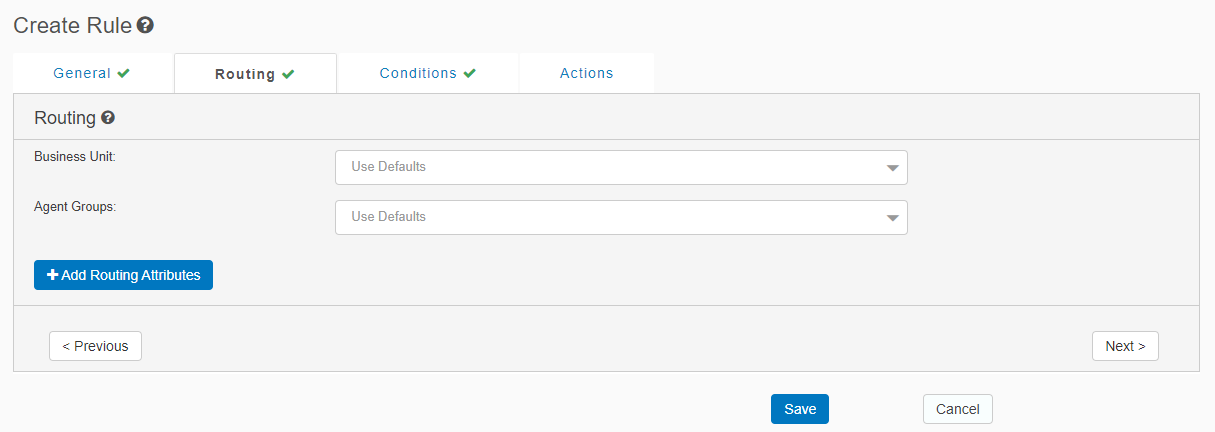
The Routing tab of the Create Rule or Edit Rule page defines where to route engagements that a business rule triggers.
To open the Routing tab:
-
Navigate to Administration > Program Management > Business Rules.
-
Do one of the following:
-
To create a rule, click the New button and select a rule type. The Create Rule page opens.
-
To edit a rule, double-click it in the table. The Edit Rule page opens.
-
-
For a launch rule, click the Routing tab.
Note: The Routing tab is not available for an override rule or a worker rule.
 launch rule
-
Enter or update the following fields in the Routing tab.
| Field | Description |
|---|---|
| Business Unit |
For routing the engagement triggered by this business rule, select one of the following:
If you leave this blank, the default value is specified in the Sites page, which opens by navigating to Internal > Sites. Note: The Sites page requires elevated permissions to access, because it contains critical program configurations. |
| Agent Groups |
For routing the engagement triggered by this business rule, select one of the following:
If you leave this blank, the default value is specified in the Sites page, which opens by navigating to Internal > Sites. Note: The Sites page requires elevated permissions to access, because it contains critical program configurations. |
-
Optional. Click Add Routing Attributes to define routing attributes and their values.
| Field | Description |
|---|---|
| Routing Attributes | Select a routing attribute, such as location or language. These attributes are defined as agent skills in the Engagement Skills page, which opens by navigating to Administration > Program Management > Engagement Skills. For details, see Engagement Skills. |
| Value | Select a value for the routing attribute, such as Montreal (for a location) or French (for a language). |
-
Click Save. This saves your changes, but it does not publish them to the production environment. To publish all rules to the production environment, on the Rules tab of the Business Rules page, click Publish.
