Bulk Create Users
Bulk Create Users allows Portal administrators to create a set of user accounts by uploading settings from a CSV file into Portal. The following is a summary of the steps:
-
From Portal, download the Bulk User Create CSV file template.
-
Use spreadsheet software to fill user account details into the template.
-
Upload user account details from the spreadsheet into Portal.
-
Portal creates the user accounts in bulk and sends email to confirm.
Download the template
-
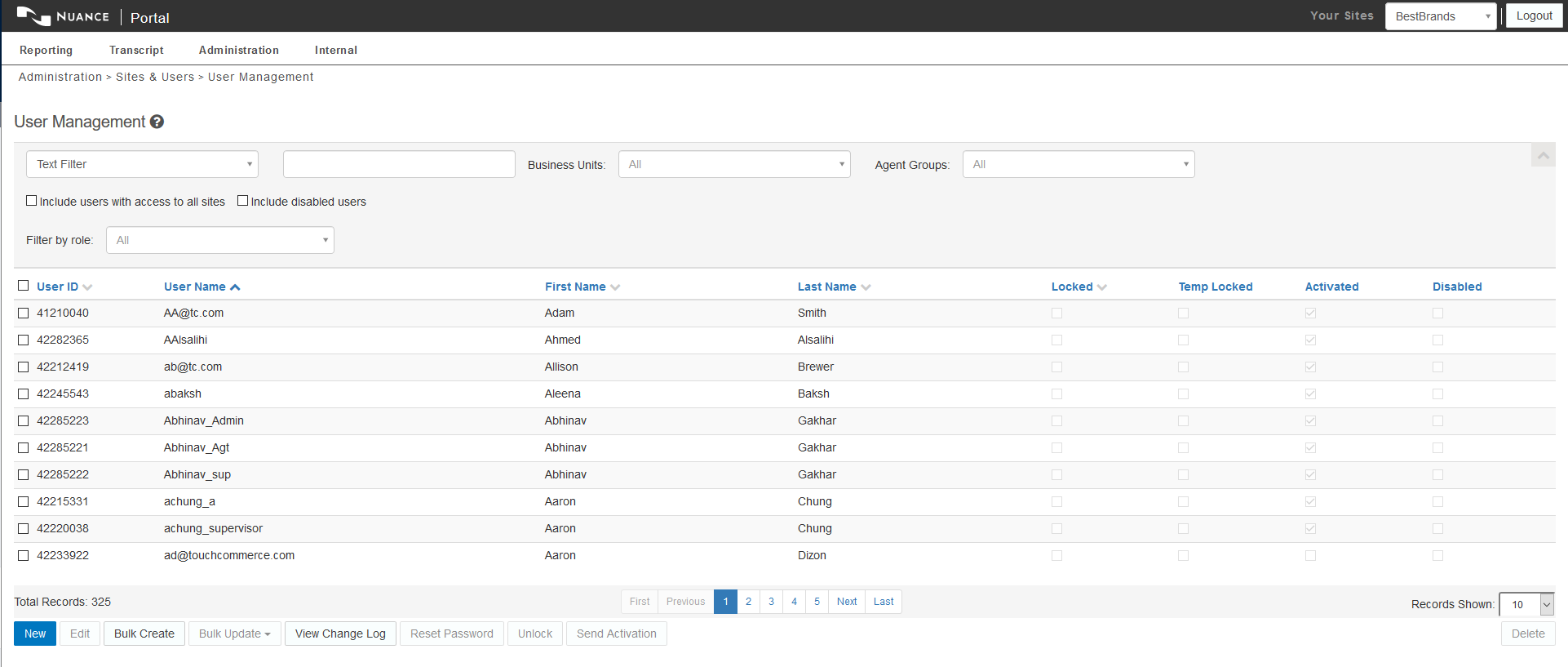
In Portal, navigate to Administration > Sites & Users > User Management and click the Bulk Create button.
-
Click the Download Template for Bulk User Creation link.

Use the template
Portal downloads a CSV template file. A Portal administrator can use the template to fill in the information required to create user accounts.
The Portal administrator must have credentials to grant all user roles listed in the template. Administrators can download a file that lists the user roles, Business Units and Agent Groups that they have permission to grant. Use the Click here link on the Bulk Create Users page in Portal.
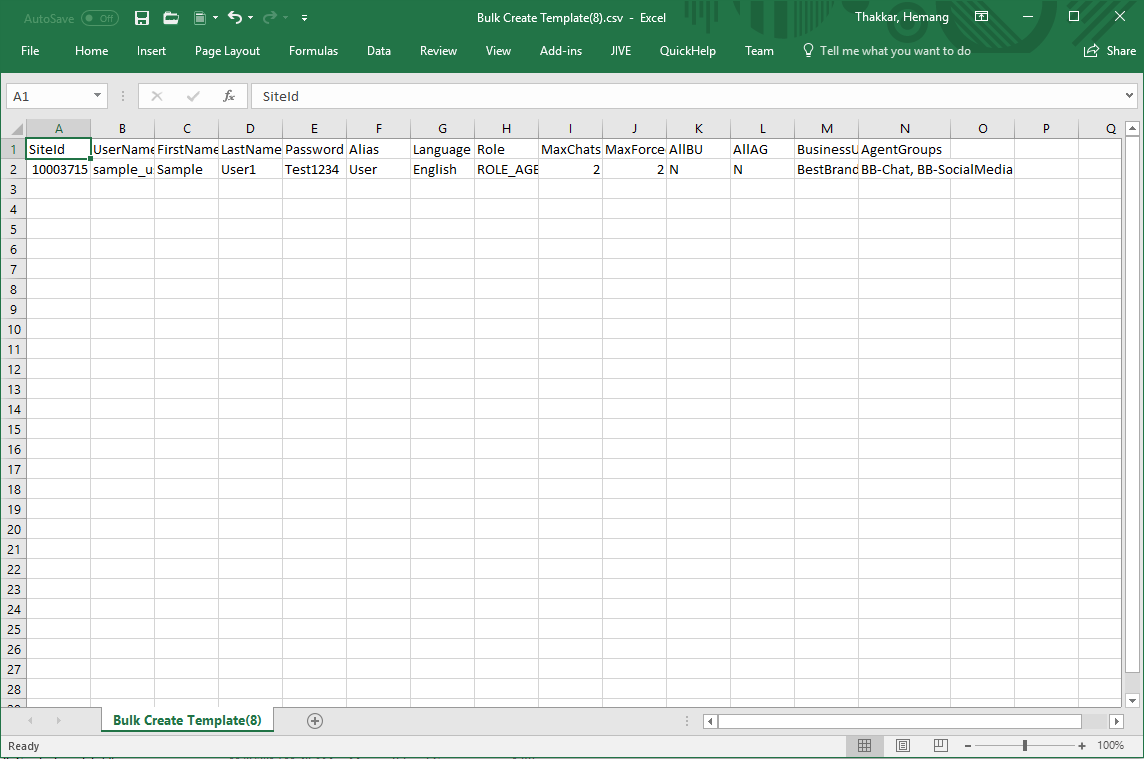
The bulk user create template shows the following fields.
Note: The sample_user data entry must be removed from the template before you upload the CSV.
Supported role names
As you are working with roles, be aware that the only role names supported are those that exist in the backend system. These are different from those displayed in the Portal UI. They will be in the format of “ROLE_SAAS_CLIENT_AGENT”.
|
Field |
Required |
Description |
|---|---|---|
|
siteID |
Yes |
ID of the client in Portal. Note: The siteID given to the sample_user in the template is the ID of if the site from which the template was downloaded. The siteID is shown in the URL the administrator used to access the Portal User Management page. For Example, the siteID for the following URL is 10003715 https://portal.touchcommerce.com/portal/n/user/10003715/list/?locale=en |
|
UserName |
Yes |
User name for the user account. |
|
FirstName |
Yes |
First name for the user account. |
|
LastName |
Yes |
Last name for the user account. |
|
SSO User |
No |
Acceptable values are Y, N, or blank
Note: This column only displays for clients that have a custom SSO integration. |
|
SSO Identity |
Yes* |
Required if the SSO User field is set to Y. It is the ID of the identity provider configured in the system. Note: This column only displays for clients who have a custom SSO integration. |
|
Password |
Yes* |
Required for all non SSO Users. Default password for new user must be at least 8 characters long and have at least 1 uppercase character, 1 lowercase character and 1 number. Note: Each user will be prompted to change their password upon their first login. |
|
Alias |
No |
The Agent Alias value can be left blank for non-agent users or for agents that will not have an alias. |
|
Language |
Yes |
Acceptable values include English, Spanish, and French. |
|
Role |
Yes |
Each user account must have at least one role. You can download a list of roles that can be granted. Note: Currently, the only role names supported are those that exist in the backend system. These are different from those displayed in the Portal UI. They will be in the format of “ROLE_SAAS_CLIENT_AGENT”. |
|
MaxChats |
No |
Max chat settings for agents. This field can be left blank for non-agent users. If left blank for agent users, the system will default this value to 1. |
|
MaxForcedChat |
No |
Max forced chat settings for agents. This field can be left blank for non-agent user accounts. If left blank for agent users, the system will default this value to 1. |
|
AllBU |
No |
Acceptable values are Y, N, or blank. If the user being created will have access to all business units, the column should be set to Y. Leaving the column empty, implies that the user will not have AllBU access. Note: If the administrator creating the user accounts does not have AllBU access, the system will throw an error. |
|
AllAG |
No |
Acceptable values are Y, N, or blank. If the user being created will have access to all Agent Groups, the column should be set to Y. Leaving the column empty, implies that the user will not have AllAG access. Note: If the administrator creating the user accounts does not have AllAG access, the system will throw an error. |
|
BusinessUnits |
Yes* |
Required field if AllBU is set to N or blank. This field is a comma-separated list of business unit names that the user being created will have access to. |
|
AgentGroups |
Yes* |
Required field if AllAG is set to N or blank. This field is a comma-separated list of agent groups that the user being created will have access to. |
|
AgentAttribute |
Yes* |
If the site has certain agent attributes marked as Required, they will be included in the template in the format AgentAttribute:ATTRIBUTE_NAME as separate columns for each required attribute. A value must be entered for each agent account being created. Additional attributes can be added to the template by creating additional columns in the format of AgentAttribute:ATTRIBUTE_NAME. |
Uploade user account details
When your template is complete you can upload it to bulk create user accounts as specified in your CSV file.
-
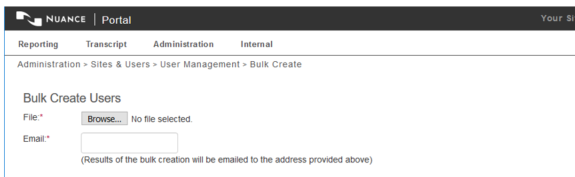
In Portal, navigate to Administration → Sites & Users → User Management → Bulk Create.
-
Click Browse to select your CSV file.
-
Enter a valid email address in the Email field. The results of the bulk creation process will be sent to this email address.
-
Click on Create Users.
-
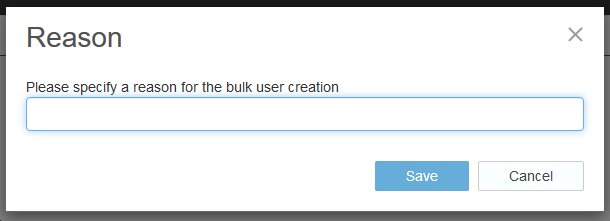
This will launch the Reason dialog. Here you should enter a description of your changes and click Save. The reason you entered will be recorded in the change log and the bulk creation process will start in the background.
Troubleshoot bulk creation
When you submit the CSV file, Portal validates the data contained in the file. If there are errors, you must edit the CSV file to correct them and resubmit the file before the bulk creation process will begin. Each validation error shows a message that describes the issue and shows which row in the CSV file contains the error.
SiteID – The site ID of each user account must match the site ID where the CSV file is uploaded.

Column Count – The number of columns in the uploaded CSV file must match the number of columns in the template. This is true even in cases where the site does not have the required attributes. If the number of columns does not match, the following message will display.

Successful bulk creation
When all validation tests pass, the User Management page will display in Portal along with the following message.

Once the process is complete, an email notification will be sent.
Email notification
Once the bulk create process is complete, a notification will be sent to the email address entered on the Bulk Create page in Portal. The email contains two links. One displays a list of user accounts that were successfully created. The other displays a list of user accounts that had validation errors and thus were not created.
Note: The email will include two links even in cases where either all user accounts were successfully created or all user accounts failed validation and were not created.
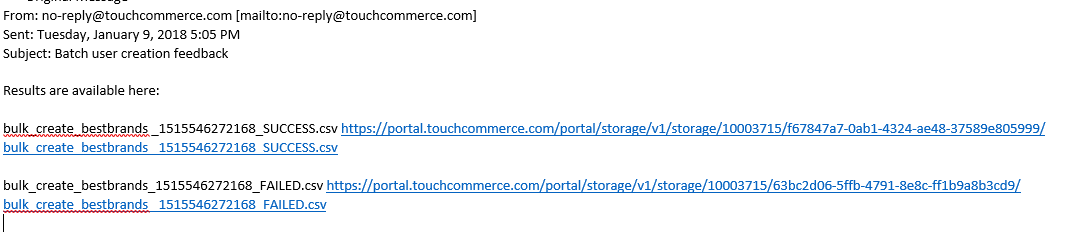
You must be logged into Portal to view the files. When you click on a link, a browser will launch and the file will download.
Validation details
All data in the CSV file will be validated. User accounts will not be created if account data in the CSV file fails validation. Portal will produce a list of user accounts that were listed in the CSV file but were not created in Portal due to failed data validation. This list is emailed to the address submitted with the Bulk User Create action.

The reason for validation failure is included in the list of user accounts that were not created. The following table describes validation failure reasons.
|
Validation |
Reason for Validation Failure |
|---|---|
|
Max Chat and Max Forced Chat values must be integer values between 0 and 10. |
Max chat value must be an integer between 0 and 10 or Max forced chat must be an integer value between 0 and 10 |
|
If AllBU is set to ‘N’ or left blank, at least one business unit must be added for the user account. |
Every site must have at least one Business Unit. |
|
If AllAG is set to ‘N’ or left blank, at least one agent group must be added for the user account. |
Every site must have at least one Agent Group. |
|
If the site has required attributes, all agent accounts being created should have a value entered for the required attribute. |
An agent account is missing a required attribute.
|
|
All Business Units are spelled correctly AND the Portal administrator creating the user accounts has access to grant all the Business Units they are giving to a particular account. |
Business unit does not exist.
|
|
All Agent Groups are spelled correctly AND the Portal administrator creating the user accounts has access to grant all the Agent Groups they are giving to a particular account. |
Agent Group does not exist.
|
|
All roles are spelled correctly AND the Portal administrator creating the user accounts has access to grant all the roles they are giving to a particular account. |
Role does not exist. |
|
Password is entered for non-SSO user accounts and meets the minimum password requirement. |
Password must be at least 8 characters long and have at least 1 uppercase character, 1 lowercase character and 1 number. |
