Export User List
Export User List allows administrators to export a list of user accounts from Portal into a CSV file. The following is a summary of the steps:
-
From Portal, display the user accounts to be listed on the User Management page.
-
Select the user accounts to be collected and click Export User List.
-
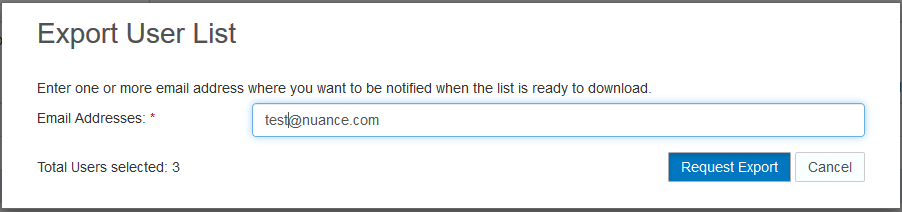
Specify email addresses to receive the CSV file and click Request Export.
-
Portal compiles the user accounts and sends email to confirm.
List the user accounts
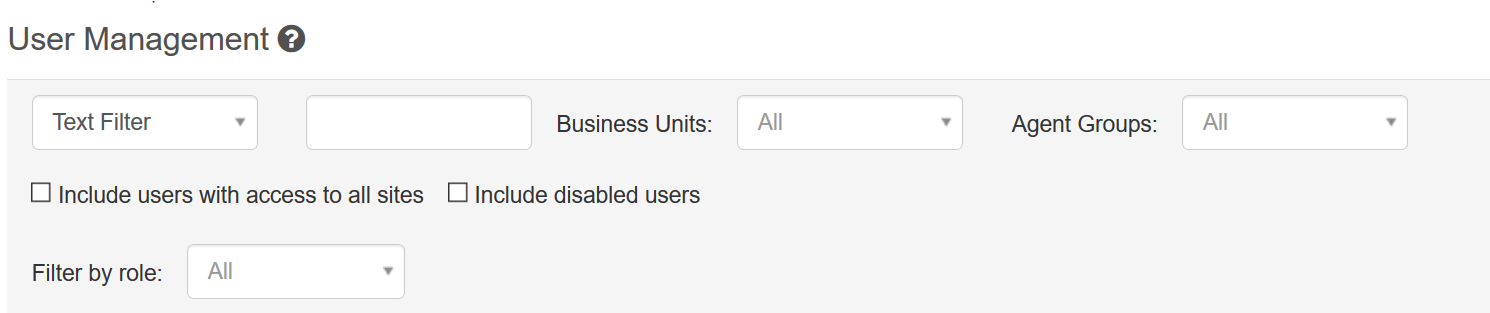
In Portal, navigate to the Administration > Sites & Users > User Management page in Portal. Use the filters on the User Management page to display the user accounts you want to export.
Export the user accounts
-
From the table, select the user accounts that you want to export by checking the boxes next to the User ID.

-
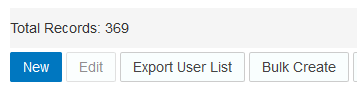
Click the Export User List button at the bottom of the table.
Specify email addresses
When you click the Export User List button, the Export User List pop-up prompts you to enter email addresses. Portal will send an email to these accounts when the list is ready for download.
Note: The system only allows 50,000 user accounts to be exported at one time. If you are exporting more than 50,000 accounts, you will be prompted to indicate which batch you want to export.
Download the CSV file
Once the user account list is ready, Portal will send an email that contains a link to the CSV file. You must be logged in to Portal to download the file.
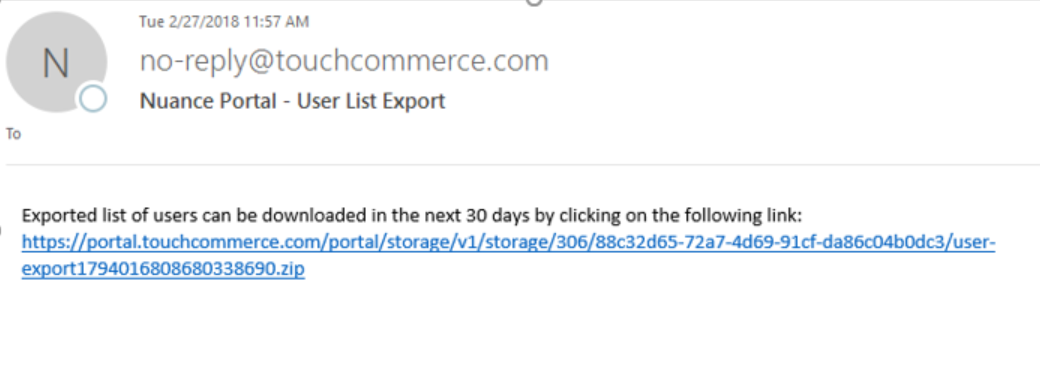
The file downloads as a zip file that contains the CSV list of user accounts.
CSV file details
The CSV file displays the fields defined in this table.
|
Field |
Description |
|---|---|
|
User ID |
Nuance system User ID that is unique for each user. |
|
Sites |
Displays all client sites the user has access too. (For Example: “BestBrands”) |
|
UserName |
A name for the user account. |
|
FirstName |
First name for the user account. |
|
LastName |
Last name for the user account. |
|
SSO User |
Displays a value of Y if the account has SSO credentials. This field will be blank for all other accounts. Note: This column only displays for clients that have a custom SSO integration. |
|
SSO Identity |
Displays the ID of the identity provider configured in the system for this user. Note: This column only displays for clients who have a custom SSO integration. |
|
Alias |
Displays an alias for agent accounts that configured an alias. The Alias field does not display for agent accounts that do not have an alias configured. Also, the Alias field does not display for non-agent user accounts. |
|
Default Site |
Default site that is configured for the user account. |
|
Language |
Language selected for the user account. |
|
Role |
A list of all the roles assigned to the user account. Note: Role names only exist in the backend system. These are different from roles displayed in the Portal UI. They will be in the format of “ROLE_SAAS_CLIENT_AGENT”. |
|
FilterReportCategory |
If the user account has a “Filtered Report” role, they will have filter categories configured and will be reported in this field. |
|
MaxChats |
Max chat settings for agent accounts. This field will be blank for non-agent user accounts. |
|
MaxForcedChat |
Max forced chat settings for agent accounts. This field will be blank for non-agent user accounts. |
|
AllBU |
Shows Y in cases where the user account has AllBU access. Shows blank in cases where the user account does not have access to all business units. |
|
AllAG |
Shows Y in cases where the user account has AllAG access. Shows blank in cases where the user account does not have access to all agent groups. |
|
BusinessUnits |
Displays all Business Units that the user account has access to. Shows blank for accounts that have AllBU access. |
|
AgentGroups |
Displays all the Agent Groups that the user account has access too. Shows blank for all accounts that have AllAG access. |
|
AgentSettings |
This field is used for Max Chat at Agent Group settings assigned to an agent. For example, if the agent has Max Chat & Max Forced Chat settings for agent group BB-Chat – the field would display the following value: BB-Chat(maxChat=1;maxForcedChat=1) |
|
Number of allowed requests per second |
For accounts with API access, this field displays the maximum number of requests the account can make per second to the API. |
|
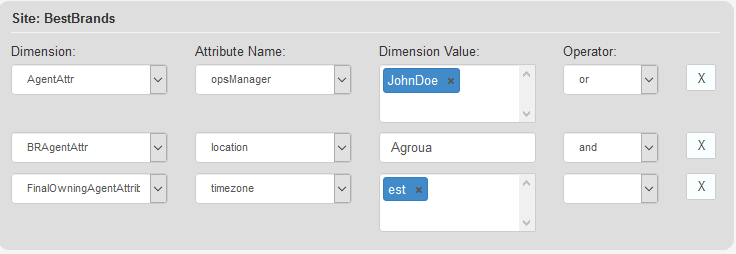
SecurityFilters |
If the user has security filters applied to their account, they will display in this field. For example, if an account has the following security filters:
They will display in the CSV in the following format:
|
|
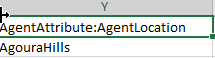
Agent Attributes |
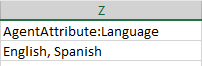
Each agent attribute configured for the site will display in a separate column in the export. The column header will be in the format: AgentAttribute:[Attribute Name]. For example: “AgentAttribute:AgentLocation”. An agent account with an attribute assigned will display the value in the column.
If a user account has multiple values for an attribute, the attributes will be displayed in the same column separated by a comma.
|