View search data
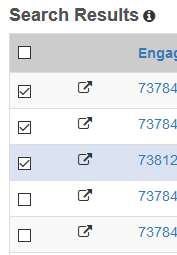
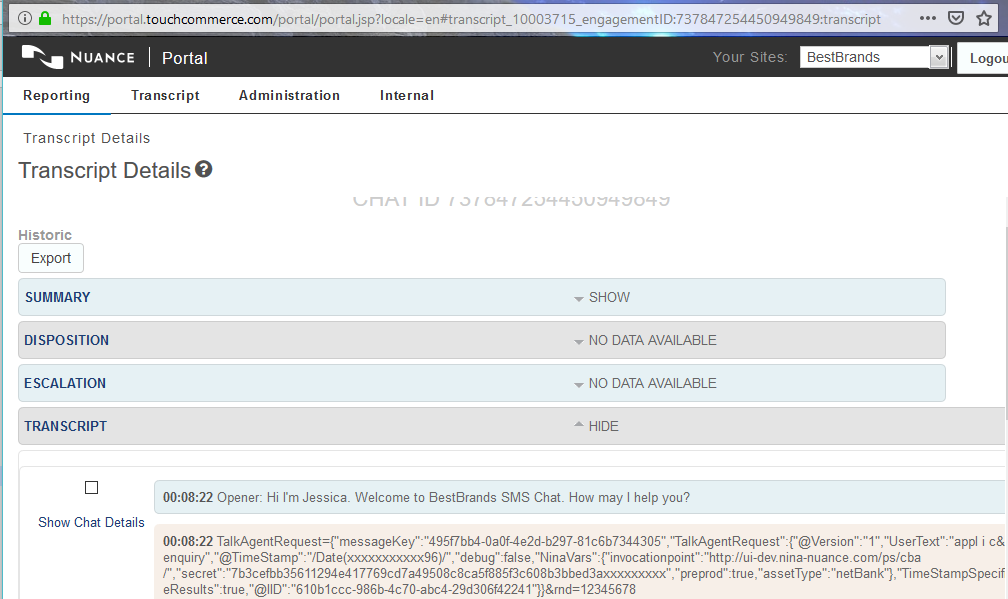
You can use the pop-out icon in the second column of the Search Results table to display data for each individual engagement in separate browser tabs.
Saved queries
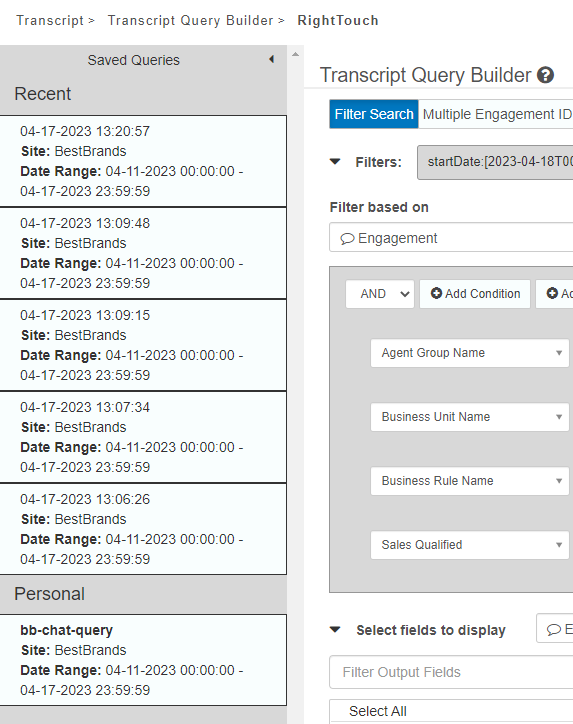
The TQB interface features a Saved Queries list in the sidebar. The TQB automatically saves the five most recent searches in a list showing the date of your search, site and the date range of your search.
To save a search for future use, press the Save As New button. The pop-up displays where you must enter a name.
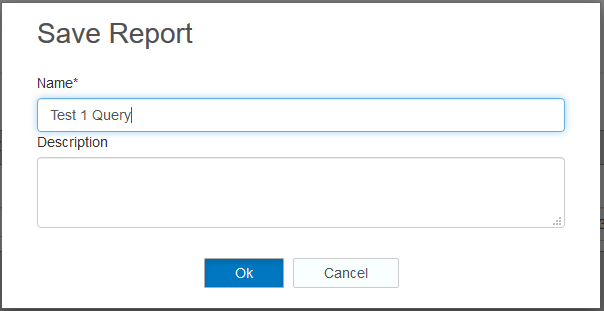
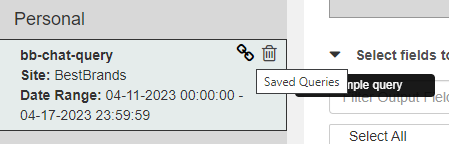
Once you press OK, your query displays in the sidebar under the Personal heading.
Share queries
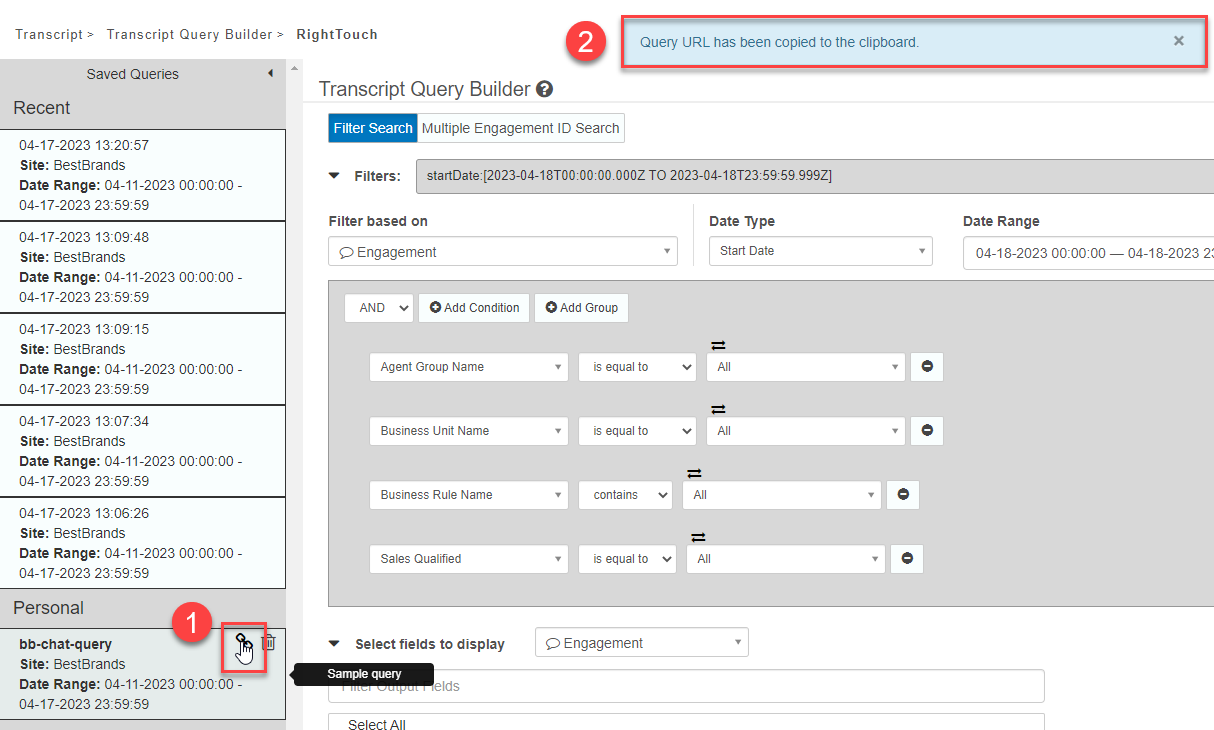
If you want to share a saved query with another Portal user, press the link icon. The query URL will automatically be copied to your clipboard, and you can then paste the URL.
Note: Portal users must have Transcript Search role credentials to use the TQB.