NLU Intent
The NLU Intent report visualizes the relative volume of natural language understanding Speech recognition techniques that permit a user to answer a prompt with a full phrase or sentence, as in everyday conversation. Typically, natural speech is longer in duration and has a broad range of possible meanings. A grammar (or model) capable of natural language understanding must accept a wide variety of different phrases. (NLU) intents to one another as a word cloud.
In addition to the use of report filters, Nuance Insights allows you to manipulate displayed data through several other means in order to better visualize information. Select from the following to learn more:
Visualizations
NLU Intent List
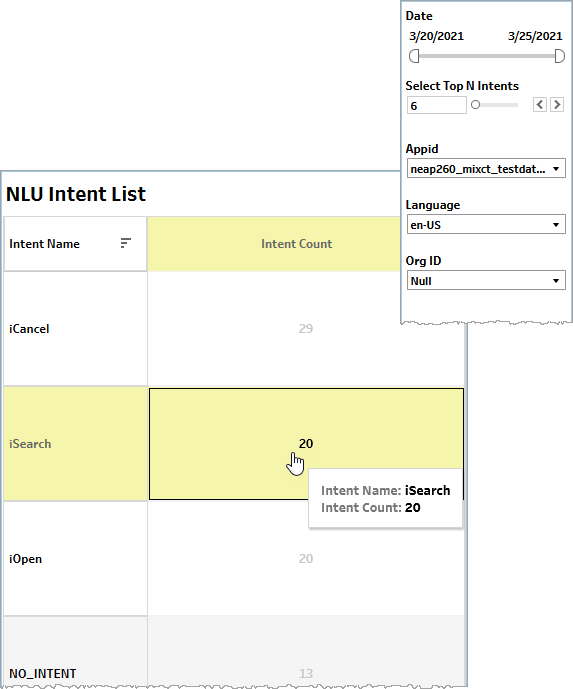
This list displays the raw count for each listed intent within the constraints of all filter settings. One advantage of the list over the word cloud is that it allows you to sort by intent name (alphanumerically) or intent count (numerically). Mouse over any intent count value in this list to highlight the corresponding intent in the word cloud.
Word Cloud
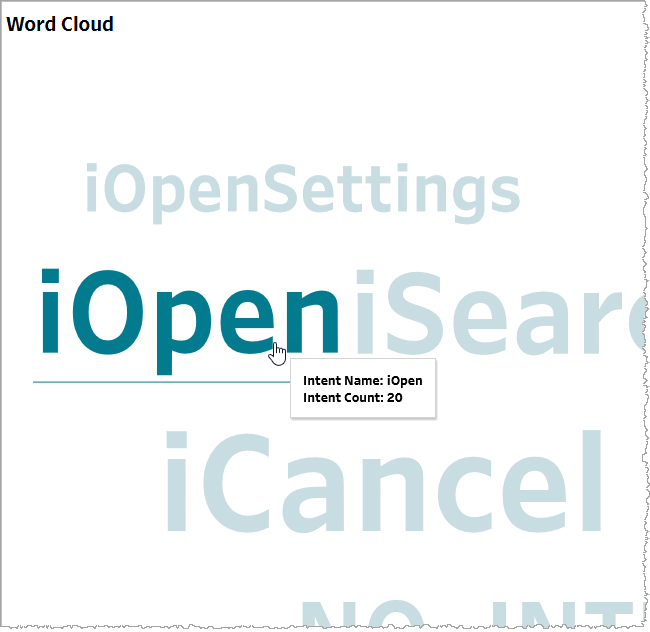
The word cloud displays the same data as the list but visualizes the magnitude of intent count graphically.
Note: The text size of any given intent in the word cloud is a comparison only to the intent counts of the other displayed intents in the cloud and not to intents that are filtered out.
Filtering
The filters in this section allow you to reduce the volume of displayed data on the dashboard.
Date
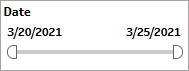
The Date filter is a slider with two moveable sides. By narrowing the date range, you display only data falling within the range.
Select Top N Intents
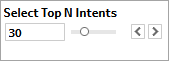
Configure the number of top-ranked results to display (default value is 20). Do one of the following to set the value of (N):
-
Enter a whole number manually in the field.
-
Drag the slider.
-
Use the arrow buttons to increase or decrease the value of N.
Appid
This filter selectively reduces the volume of data displayed based on application ID. The filter reduces data by including or excluding one or several applications. Specify one or more applications from the list as required.
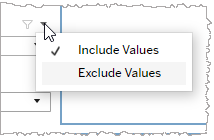
Click Include values to display only those data possessing the selected values. All other data are hidden from the visualization.
Click Exclude values to display only those data that do not possess the selected values.
Language
This filter selectively reduces the volume of data displayed based on language. The filter reduces data by including or excluding one or several languages.
Specify one or more languages from the list as required.
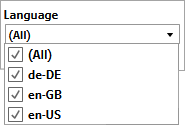
Click Include values to display only those data possessing the selected values. All other data are hidden from the visualization.
Click Exclude values to display only those data that do not possess the selected values.
Org ID
This filter selectively reduces the volume of data displayed based on org ID. The filter reduces data by including or excluding one or several IDs.
Specify one or more org IDs from the list as required.
Click Include values to display only those data possessing the selected values. All other data are hidden from the visualization.
Click Exclude values to display only those data that do not possess the selected values.
