Interpretation Latency
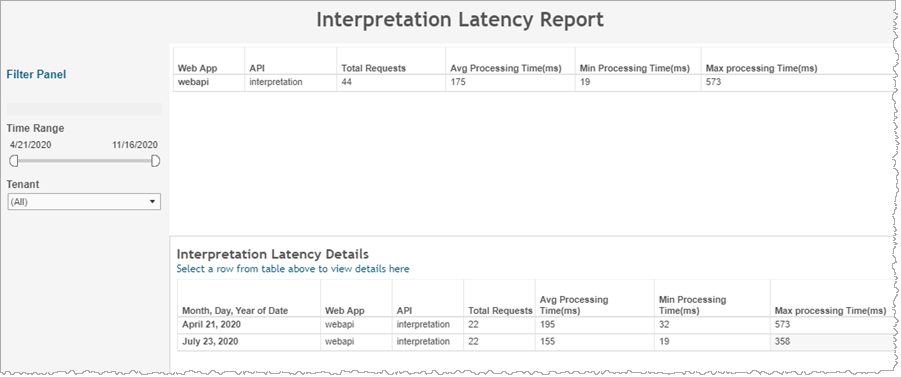
The Interpretation Latency report shows response times for requests made to the interpretation API over the selected period of time. Aggregate data includes the number of requests as well as average, minimum and maximum processing times on a per application basis.
In addition to the use of report filters, Nuance Insights allows you to manipulate displayed data through several other means in order to better visualize information. Select from the following to learn more:
Note: This report is applicable only for clients using the Conversational AI channel.
| Column | Description |
|---|---|
| Web App | Web application |
| API | API command (for example, speechRecognition) |
| Total Requests | Total number of requests for this combination of dimensions |
| Avg Processing Time |
At the App (application) level, this is the processing time (hh:MM:ss) as an average of all requests for the row (that is, on a per application basis). In the context of the drill-down window, this is the processing time (hh:MM:ss) as an average of all requests for the row (that is, for each day). |
| Min Processing Time |
At the App (application) level, this is the smallest processing time (hh:MM:ss) corresponding to a single request from the pool of requests in the row (that is, on a per application basis). In the context of the drill-down window, this is the smallest processing time (hh:MM:ss) corresponding to a single request from the pool of requests in the row (that is, for each day). |
| Max Processing Time |
At the App (application) level, this is the largest processing time (hh:MM:ss) corresponding to a single request from the pool of requests in the row (that is, on a per application basis). In the context of the drill-down window, this is the largest processing time (hh:MM:ss) corresponding to a single request from the pool of requests in the row (that is, for each day). |
Visualizations
The Summary table (first table) summarizes relevant data, grouped on a per command basis. The following Details table presents the same data, also listing individual command data, but on a per date basis.
Filters
Time Range
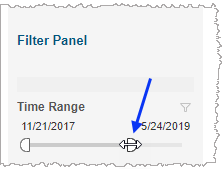
The Time Range slider allows you to narrow or expand the date range. The data displayed in all visualizations automatically reflect the subset of information falling within the selected range.
Tenant
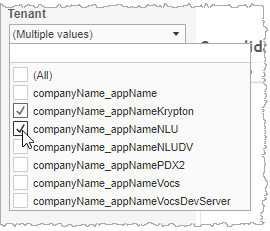
By choosing one or more tenants from the list, you refine your displayed data-set by including data from only those tenants matching the selection. The visualizations automatically reflect the information complying with the tenant selection.