Accessibility
To make Nuance Insights more accessible to people with disabilities, Nuance offers several ways to access information and perform operations. For example, you can still use a mouse and keyboard in the traditional way to navigate through the UI which is more dependent on graphics and color-coding. Or, depending on your particular needs, you can toggle individual data presentations from a graphics-dependent format to one that presents its data in a text-only format. You may prefer (or find it necessary) to have a keyboard-only interaction with the system rather than using both a keyboard and mouse to navigate and perform operations. If you are visually impaired, you may benefit from using the JAWS screen reader to present information audibly to you. And to communicate either navigational instructions or configuration commands back to the UI, you may prefer (or find it necessary) to use spoken-word commands with Nuance Dragon.
For guidance on using the JAWS screen reader, consult the JAWS product documentation. For guidance on Dragon, consult the documentation for the variant of Nuance Dragon you have or will install.
Navigating/inputting with keyboard only
You may choose to navigate and interact with Nuance Insights strictly through the keyboard (without the mouse). To do so, perform the following steps:
-
Hit TAB on the keyboard repeatedly to toggle forward the focus to the element in the UI you would like to do something with, then hit ENTER to select that element.
The TAB key toggles forward in the sequence of elements in the UI and SHIFT-TAB toggles backward in the sequence. Toggling with TAB moves focus through elements from left to right, top to bottom. This is on a row-by-row basis.
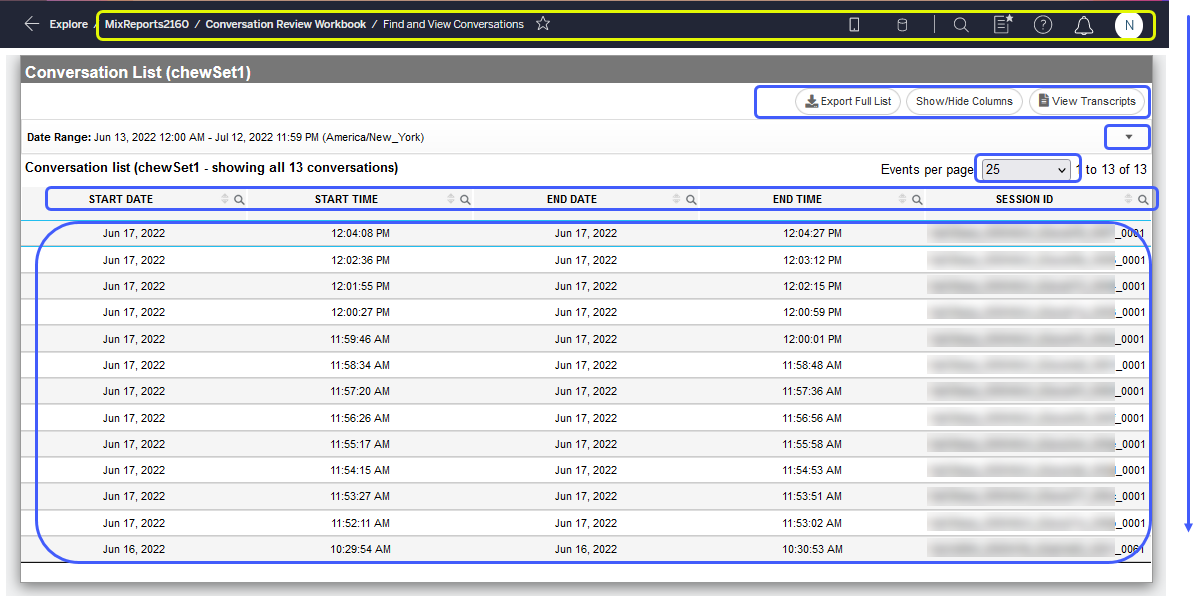
Note: You may have to hit the TAB key (or SHIFT-TAB) several times before focus appears on the element you desire.
For example, on the Conversation List page, below, if you want to go to the Conversation View page for the conversation whose session ID ends in aca3ef_008e_0001 using keyboard only, you must hit TAB repeatedly until focus is on that conversation, and then hit ENTER to select it.
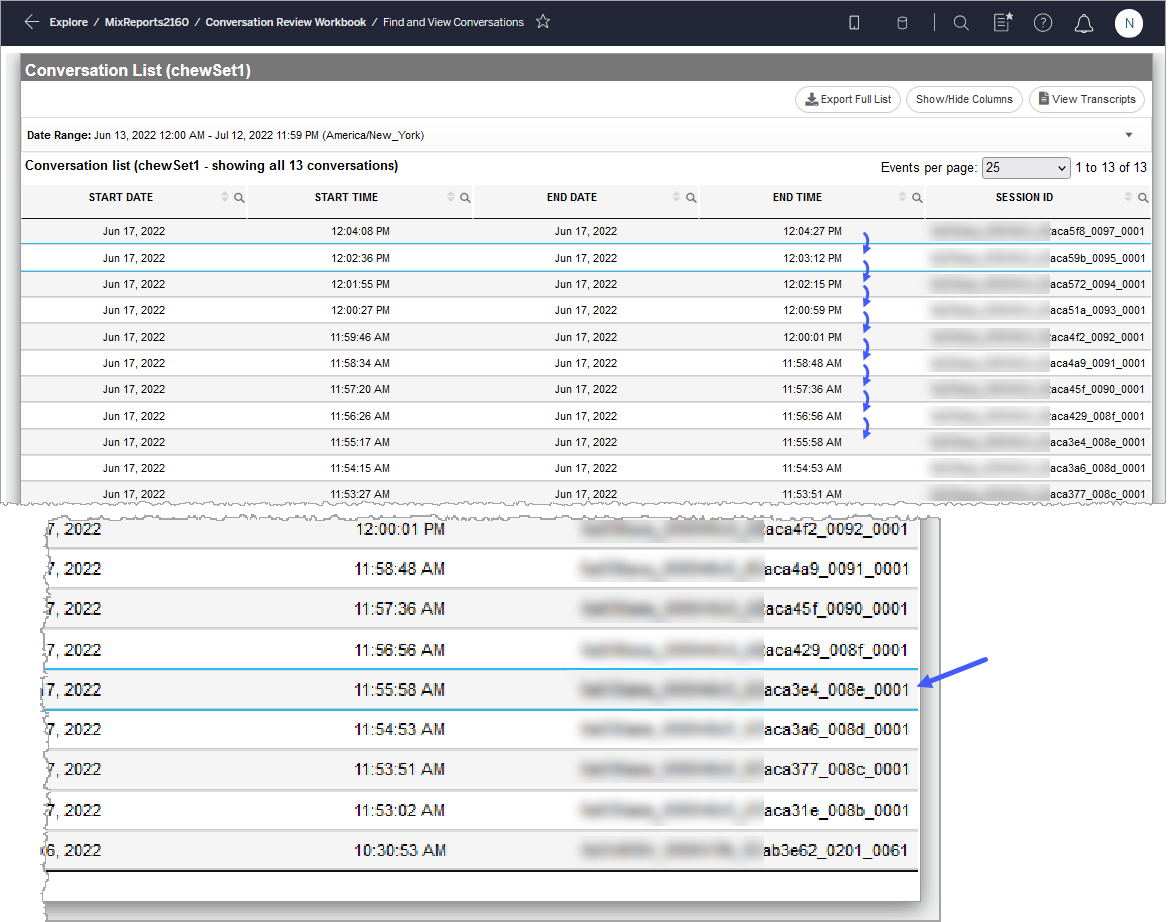
Note: Depending on the screen you are on, you may need to toggle through other invisible or less visible UI elements before you begin to see focus toggling to your element.
