CollectCall
This sample demonstrates a transfer with a far-end dialog and shows how to submit and save a recording. The transfer and saving the recording are executed by a Java Server Page (JSP).
Notes for running CollectCall
Initial page URI
http://hostname:8090/CollectCall/dialogs/main.vxml
Calling CollectCall
This section explains how you can experience a call transfer using two SIP softphones. If you are using a real telephony environment like a real SIP gateway or ISDN, CollectCall can transfer you to the number you request, and this procedure is not necessary. (The destination of the call transfer is specified as part of the application in the file transfer.jsp, and the telephony gateway enables you to connect to that number.) However, a development environment often doesn’t have a real telephony gateway. So the following steps are provided to help you set up a SIP-to-SIP call that doesn’t pass through a real gateway but allows you to simulate making a collect call using the CollectCall application.
To run CollectCall, configure the Voice Browser service to point to the CollectCall initial page (see ). Then configure a friend’s machine to be your telephony gateway in the Voice Browser Service Group Properties, as shown in the following steps. Once you’ve done this, coordinate with your friend so he or she is listening for your call.
- In the Management Station, in the Advanced properties for the Telephony Session Service, change the ts.APSIPGatewayList property to your friend’s IP address (and the port number used by their SIP softphone, if it is not the default port 5060). For example:
10.1.1.11:5060
- Restart the Voice Browser service.
- Ask your friend to start her SIP softphone and be online and listening.
- From your own SIP softphone, call the application, for example,
sip:nvp@NVP_Host
- When you interact with the application, say any 10-digit number for the number you wish to call. (This is to match the telephone number grammar.)
The application will connect to the address you defined as your telephony gateway. It will ask your friend if she accepts the call, and if she does, it will connect the two of you.
Sample dialog
|
Application |
[Earcon] What number would you like to call? |
|
Caller |
650-555-1234. |
|
Application |
I heard 650-555-1234. Is this correct? |
|
Caller |
Yes. |
|
Application |
Please identify yourself. |
|
Caller |
<Caller Name>. |
|
Application |
Please hold while I verify with your party. While the caller waits, the application has the following far-end dialog with the called party: Application: Do you wish to accept the call from <Caller Name>? Please say yes or no. Called party: Yes. Application: Please hold. You will be connected shortly. |
|
* * * If the called party refuses the call: Called party: No. Application: I will notify the user of your refusal. (To the Caller): Your collect call to <Called Number> has |
Basic structure
CollectCall consists of four dialog files, as described in the following table. The initial page is also the application root document.
|
File name |
Purpose |
|---|---|
|
main.vxml |
As the application root document, it sets up graceful exit behavior* that is available to all the dialog files in the application. As the application’s initial page, it collects the phone number to call and the caller’s name. * If the caller says “goodbye” or “bye,” the application says “goodbye” and then terminates all loaded documents and disconnects. |
|
GatherPhoneNumber.vxml |
Collects the phone number from the caller. |
|
transfer.jsp |
Performs the bridged transfer. |
|
confirm.vxml |
Checks whether the called party will accept the call and returns the result to transfer.jsp. |
Basic dialog flow
The CollectCall application moves from one page to another by several means, as shown in the following figure and described below.
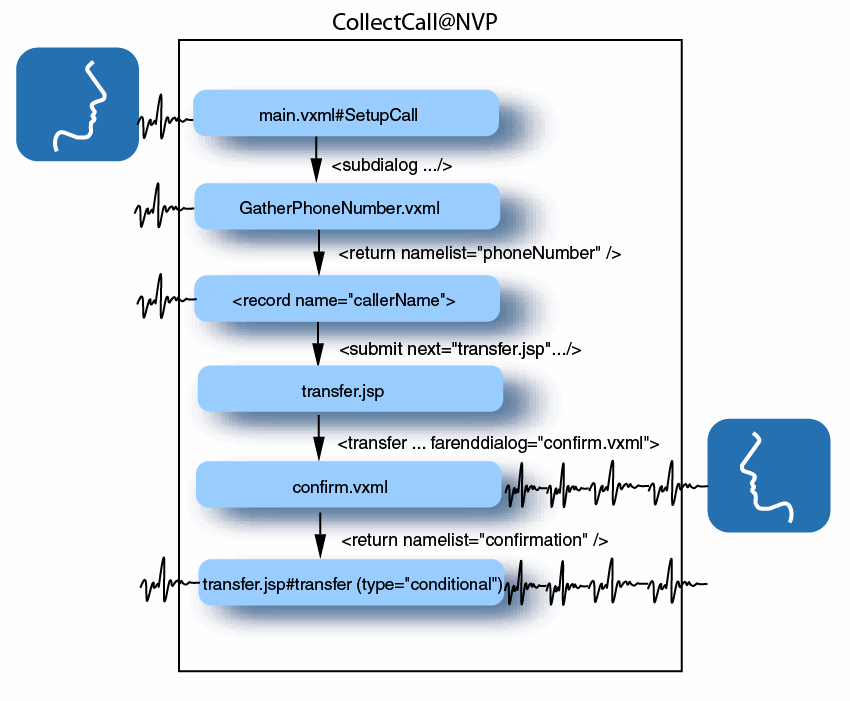
The main.vxml page uses the SetupCall form to gather information from the caller. First, this form invokes GatherPhoneNumber.vxml using the <subdialog> element. A subdialog can also call a different form in the same document, but having the subdialog in a separate document is convenient because it can easily be reused in multiple applications. The subdialog gets the phone number to call and returns it, and execution continues in the main.vxml page, where the form item variable is filled. The SetupCall form then records the caller name.
When both field items in the form are filled, two actions take place. First, the “phoneNumber” variable is declared and given the value collected in the subdialog. This is necessary because the calling form and the subdialog are different execution contexts and do not share variables. Then <submit> is used to move to the transfer.jsp page and post the number to call and recorded name to the server. The enctype attribute must be set to “multipart/form-data” because you are submitting recorded data to the server.
The transfer.jsp page starts with Java servlet code that parses the multipart/form-data in the post request. It stores the recorded name as a file that can be identified using the session ID request header. It also retrieves the phone number as a string. Then the VoiceXML part of this page starts by assigning the phone number to a variable. Then the <transfer> element uses this variable to call the number, as follows:
<transfer name="call" destexpr="'tel:+1' + phoneNumber" type="consultation" farenddialog="confirm.vxml">
The <transfer> element uses the type attribute to specify that the transfer is a consultation, which means that the application will stay connected with the caller throughout the call. It uses the farenddialog attribute to invoke a page containing the dialog that asks the called party to accept the call (confirm.vxml). Then before beginning the transfer, the application plays a message telling the caller it will confirm the call.
Note: Hot word recognition is not available on transfers that have a far-end dialog. This feature is available only with bridged transfers. See Using hot word recognition for more information.
Confirm.vxml uses prompt.jsp to retrieve and play the stored caller name. It asks if the called party will accept the call and returns a boolean to the transfer.jsp file. This file logs the call details and, depending on the called party’s answer, either completes the call or informs the caller it was refused.
For more information on transfers, see <transfer>.
Using the <log> element to customize logs
Voice Platform produces call logs and diagnostic logs by default. The CollectCall sample demonstrates how you can customize Voice Browser service logs and call logs within an application using the <log> element to log specific information. For example, each time CollectCall collects a phone number in GatherPhoneNumber.vxml, it logs the recognized number as follows:
<log expr="'Got the phone number: ' + phoneNumber"/>
This log will appear in the Voice Browser service logs at the default level of severity (see Logging levels available in the Management Station) .
Other examples of setting logging behavior in this way appear in the transfer.jsp file. In the following snippet, this file generates a trace message that displays the values of two internally generated call details: the duration of the transfer call and the outcome of the transfer attempt. The duration is provided by the duration property of the <transfer> element’s shadow variable, and the call outcome is the value stored in the <transfer> element’s form item variable (in other words, the call status code). The VoiceXML for this trace log is:
<log expr="'Called ' + phoneNumber + ' for ' + call$.duration +
' seconds, ended because of ' + call"/>
The file also sends the same information to the call logs using the following VoiceXML:
<log label="calllog:?key=CALLTO" expr="phoneNumber"/>
<log label="calllog:?key=CALLDURATION" expr="call$.duration"/>
<log label="calllog:?key=CALLENDREASON" expr="call"/>
The label attributes specify the destination URI to be the call logs. The key attributes define the field names CALLTO, CALLDURATION, and CALLENDREASON to be added to the call logs for this application.
For another example, see Using the <log> element. For general information, see <log>.
