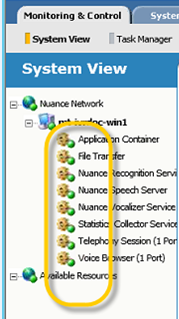
Testing the installation
To complete important configuration steps and to verify that you've installed Voice Platform successfully, log in to Management Station, assign a role, ensure the services are configured correctly, and start the services.
To test the Voice Platform installation:
- Open a browser window and enter the URL http://MS_hostname:8080/mserver. The MS_hostname can be a hostname or IP address.
- Log in to the Management Station you specified during the Voice Platform installation.
- Select Nuance Network in the left frame to display the Add Network Element page.
The host where you installed Voice Platform appears in the left frame under Available Resources.
-
Select Host from the Type menu.
-
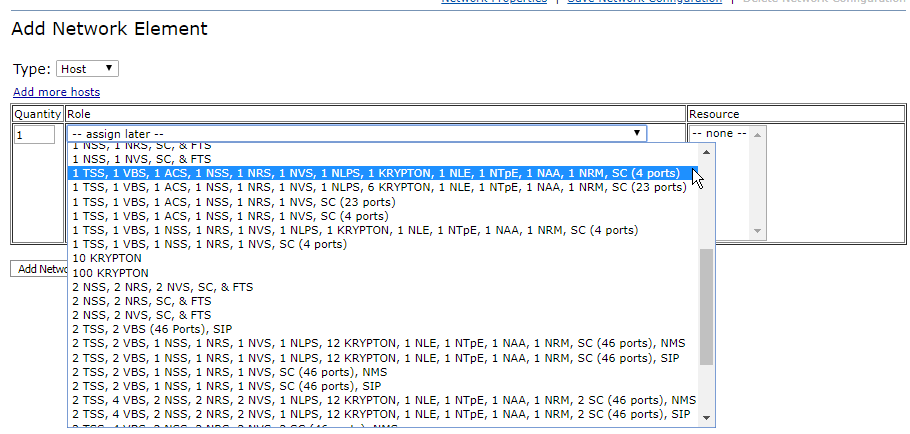
Select a role containing the Voice Platform services from the Role menu and then select your Voice Platform host under Resource.
A role configures the host to run certain services, as explained in Roles for Voice Platform services.
If Voice Platform and Nuance speech software are on separate hosts, you can assign a role like the following, which contains the Telephony Session service (TSS), Voice Browser service (VBS), and Application Container service (ACS). You can disable the other services, since they aren't installed on this host, to suppress the alarms that might trigger when these services start.
Note: The Application Container service is for sample VoiceXML applications only and not for production environments.
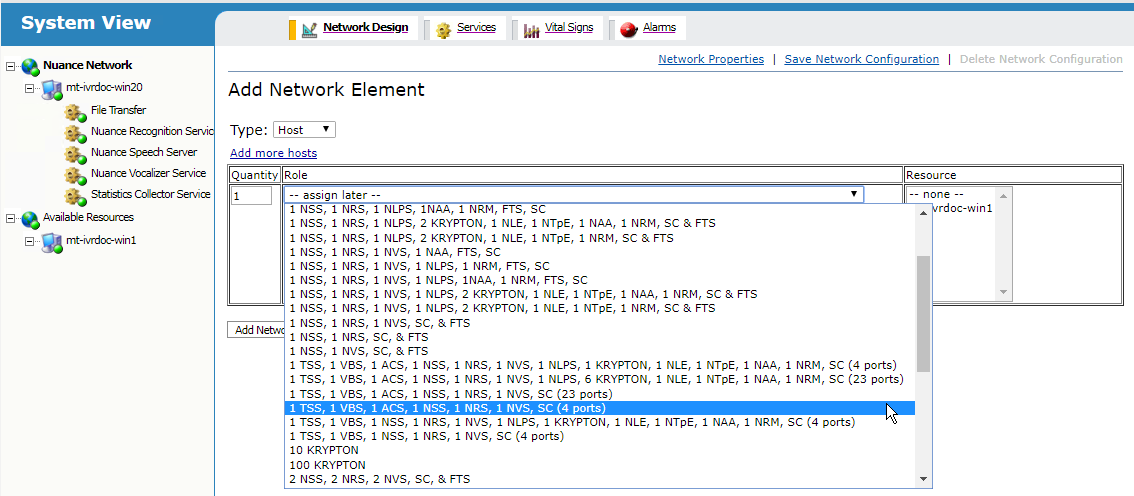
If Voice Platform and Nuance speech software are on the same host, you can assign a role like the following, which contains all Voice Platform services and speech software services, including Dragon Voice.
Note: If you don’t see any hosts, you may have to start the watcher service on these hosts, or you may not have configured them to point to this Management Station. See the Speech Suite documentation for more information on using Management Station.
- Click Add Network Element. The selected host moves from Available Resources to Nuance Network.
- Make sure the host is selected in the System View, then select Services from the toolbar.
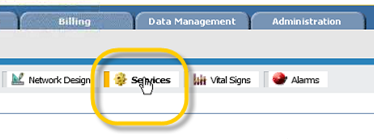
- Optionally, click the Properties button next to each service you want to disable and then select Disabled from the Startup Type menu.
- Click the Properties button for the Voice Browser service and then select the Advanced tab.
- Make sure that browser.mrcp.serverAddress is set to the exact address:port pair of the Speech Server host. You can ping the Speech Server host to obtain its IP address. If the Voice Browser service and Speech Server are on the same host, you can accept the default value.
Note: If the Telephony Session service and Voice Browser service are on different hosts, set ts.SIPDefaultGateway for the Telephony Session service to access the Voice Browser service.
- Click Start All. A green status icon appears on each service that starts successfully, confirming a successful Voice Platform installation.