Using the Search function
In Call List, you can make use of the Search function in any of the displayed columns.
Default search behavior
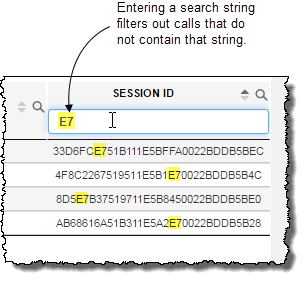
For most columns, using the Search function allows you to input a string that is either all of or a portion of the entire string you would like to see in a given column for all listed calls. Once you input the string, only those calls are listed whose data for that column have, somewhere within them, the string you entered.
-
In Call List, make sure the column in which you would like to search is being displayed.
-
Click the Show / Hide Columns icon (
 ) on the far right side of the title bar.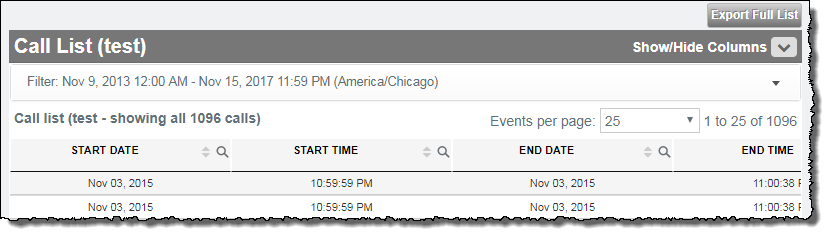
-
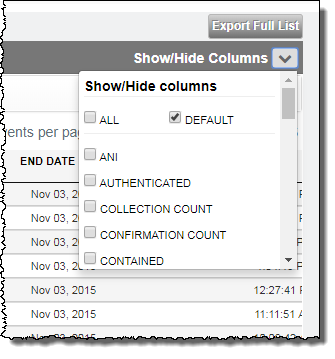
In the Show / Hide Columns list, select ALL to show all columns, DEFAULT to show only the default columns, or individually select columns.
-
- Click the Search icon (
 ) in the column header.
 -
Type a search string in the field.
Outcome and Exit Reason searches
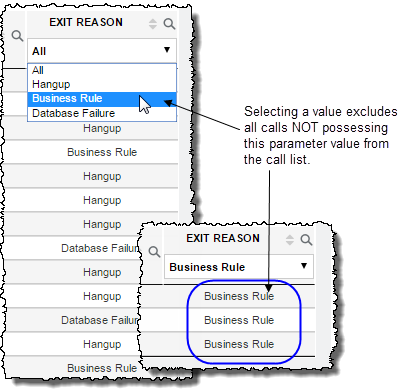
For the OUTCOME and EXITREASON columns, using the Search function allows you to display only those calls possessing a parameter value you select from a list.
- Click the Search icon in the column header of either the OUTCOME or EXITREASON column, as desired.
- Click the Search field that appears.
-
Select a parameter value. Only calls possessing this value for this parameter will be included in the displayed list of calls.