Symbols used in Call View
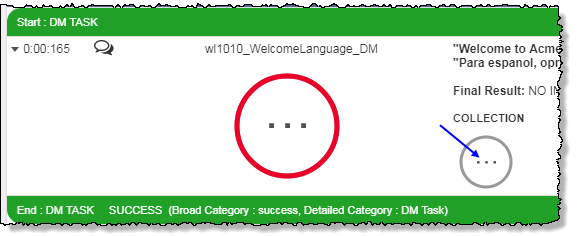
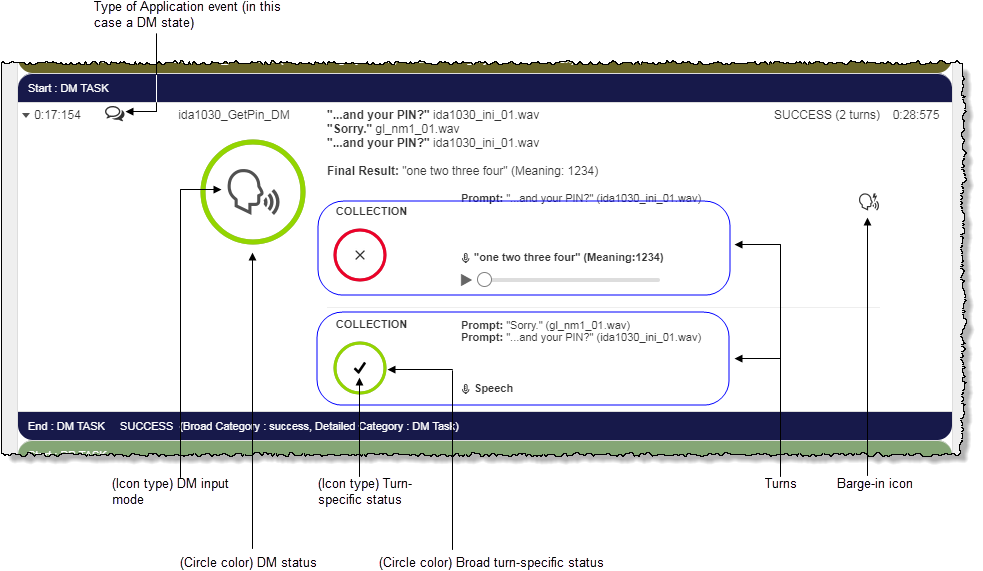
The Call View page uses several different symbols to communicate statuses, input modes, outcomes, and progress. Symbols representing logged input modes, and the status circle surrounding them, offer information about the overall dialog module.
Symbol layout in the APPLICATION/MERGED tabs
The APPLICATION tab's display of symbols is similar to the MERGED tab and is distinguished primarily by the absence of playback commands. Symbols used in the MERGED tab of Call View appear as follows:
Symbol layout in the RECOGNITION tab
Symbols in the RECOGNITION tab appear as follows:
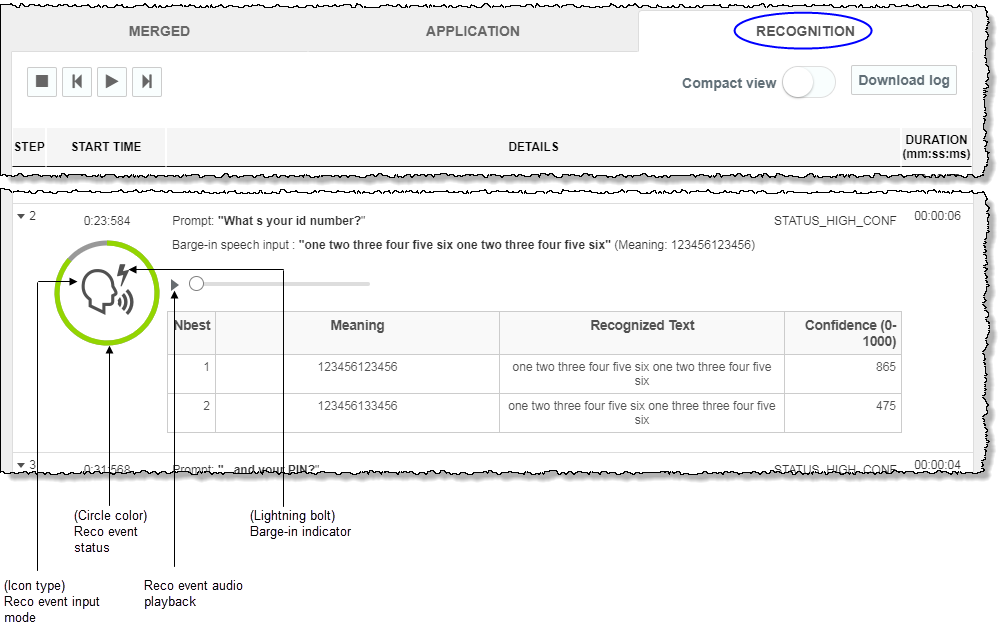
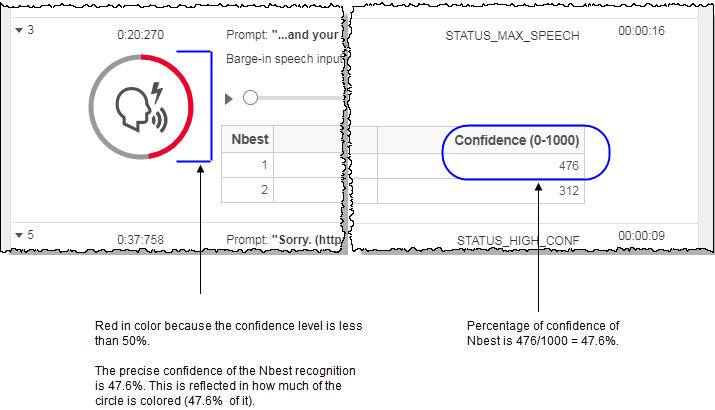
The RECOGNITION tab's reco event status circle resembles the status circles on the APPLICATION and MERGED tabs in appearance. However, on the RECOGNITION tab, the status circle's color communicates the general confidence level of the recognition, as follows:
- Red: Less than or equal to 50% confidence
- Orange: Between 51% and 70% confidence
- Green: Above 70% confidence
Note: The threshold percentages, as outlined above, apply regardless of whether the confidence denominator is 100 or 1000.
The RECOGNITION tab's status circle also communicates the precise confidence level graphically by having the percentage confidence of the recognition event display as the portion of the circle that appears colored.
Symbol descriptions
| Symbol | Call View tab and context | Description |
|---|---|---|

|
|
States with this symbol in the Type column are BACKEND states, often involving a database. |

|
|
States with this symbol in the Type column are APPLICATIONEVENT states. |

|
|
States with this symbol in the Type column are DECISION states. |

|
|
States with this symbol in the Type column are DIALOGMODULE states. These are interactive states involving input from a caller. |

|
|
States with this symbol in the Type column are PLAY states. These are interactive states in which the IVR plays out an audio file without requiring input from the caller. |
|
|
RECOGNITION tab Within the status circle that also contains the input mode. |
The presence of the lightning bolt symbol indicates that the caller in this particular collection attempt performed a barge-in, meaning the caller provided an utterance before the system finished asking a question. On the RECOGNITION tab, the barge-in icon is applicable on a per recognition event basis. For this reason, the icon appears with the input mode icon within the recognition event status circle.
|
|
|
MERGED tab Right side of DETAILS column on a per collection basis |
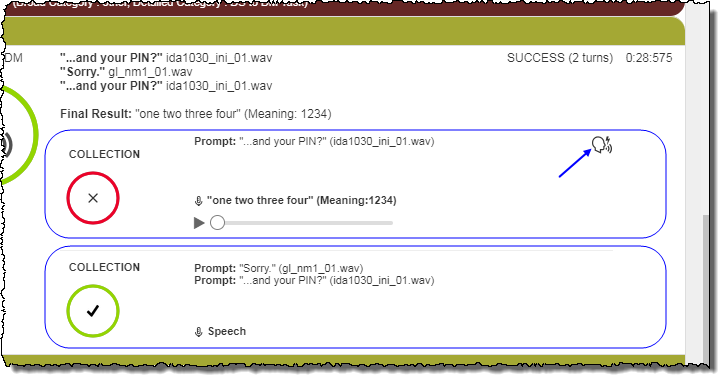
The presence of the lightning bolt symbol indicates that the caller in this particular collection attempt performed a barge-in, meaning the caller provided an utterance before the system finished asking a question. On the MERGED tab, the barge-in icon is applicable on a per collection basis. The icon appears on the far right side of the DETAILS column for relevant collections.
|

|
|
Playback control for an individual collection attempt's caller utterance. By clicking this symbol, you can hear what the caller said in this attempt.
|

|
MERGED tab Individual collection of a Dialog Module state; DETAILS column (Call View) |
This symbol, placed to the left of quoted text, indicates that the caller provided speech input in response to the system's prompt. |
|
|
Dialog module information, inside the DM status icon (Call View) Input mode (one of DTMF, Speech, Unknown, Timed out, and empty) (All tabs of Call View) |
This symbol inside the large dialog module status circle, indicates that the caller provided DTMF input in response to the system's prompt.
|
|
|
Turn-specific information, immediately preceding the recognized DTMF and meaning (Call View) Input mode (APPLICATION and MERGED tabs of Call View) |
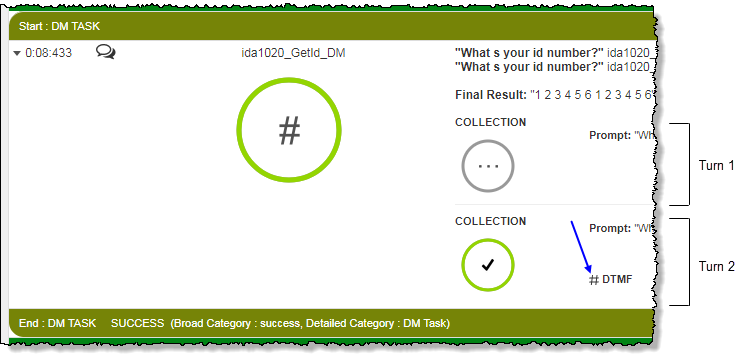
This symbol, placed to the left of DTMF input, indicates that the caller provided DTMF input during the current turn in the DM in response to the system's prompt.
|

|
Session-level information region, beside the Session ID # (Call View) | This symbol indicates the session ended in a transfer out of the IVR. |

|
Dialog module information, inside the DM status icon (Call View) |
This symbol indicates the session ended with the caller hanging up and is the icon for an individual turn as well as the larger DM.
|
|
|
Turn-specific status information, inside the turn status icon (Call View) |
This symbol indicates that during the current turn, the caller hung up. Because this effectively ends the turn, the DM and the call, this status is also the status of the overall DM.
|
|
|
Session-level information region, beside the Session ID # (Call View) | Click this symbol to view or edit rating and annotation meta-data associated with the current session. |
|
|
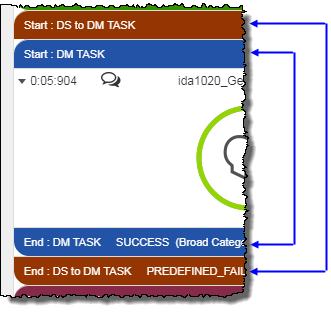
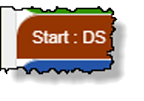
Visual task delimiters signifying the start and end of each task, as defined in the AFT file. The End delimiter displays the task name and information about the outcome at the Broad category level as well as the Detailed category level.
Note: Start and End delimiters will not be visible if there are no AFT-defined tasks present in the current session. |
|
|
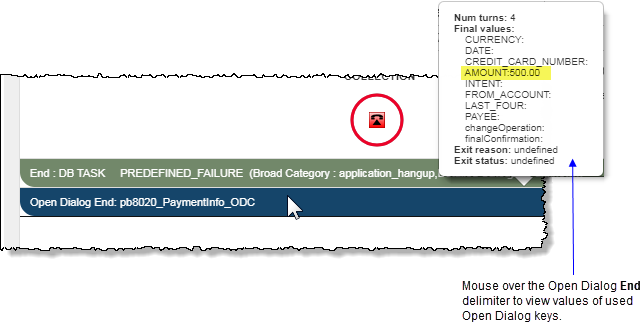
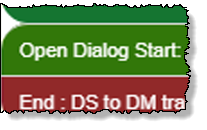
To support the added key values in Dragon Voice recognition and semantic interpretation, Nuance Insights uses Open Dialog dialog modules. Mouse over the Open Dialog Start delimiter to view available Open Dialog (OD) keys. Mouse over the Open Dialog End delimiter to view the OD keys used and the values assigned to them.
|
|
|
Dialog module information, inside the DM status icon (Call View) Input mode (one of DTMF, Speech, Unknown, Timed out, and empty) (All tabs of Call View) |
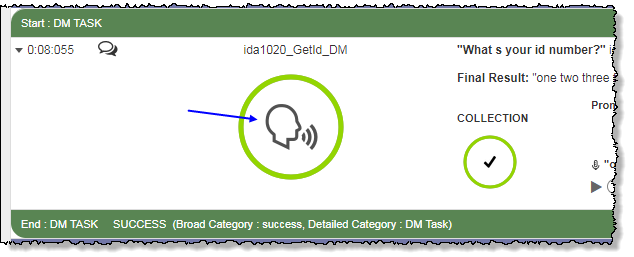
In all tabs of Call View, if the input mode recorded in the log is speech, this icon appears inside the DM-level status circle.
|
|
|
Turn-specific status information, inside the turn status icon (Call View) Recognition status from Dragon Voice component logs (All tabs of Call View) |
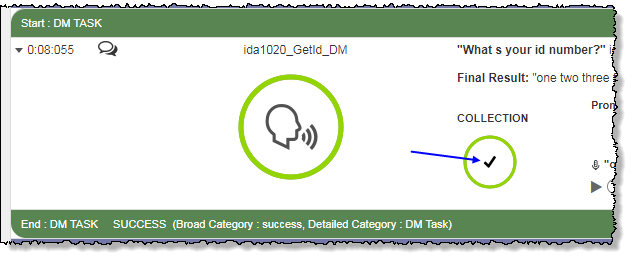
A SUCCESS turn-specific status icon is always surrounded by a circle that is green in color. The figure inside the circle is a checkmark.
|
|
|
Turn-specific status information, inside the turn status icon (Call View) Recognition status (APPLICATION and MERGED tabs of Call View) |
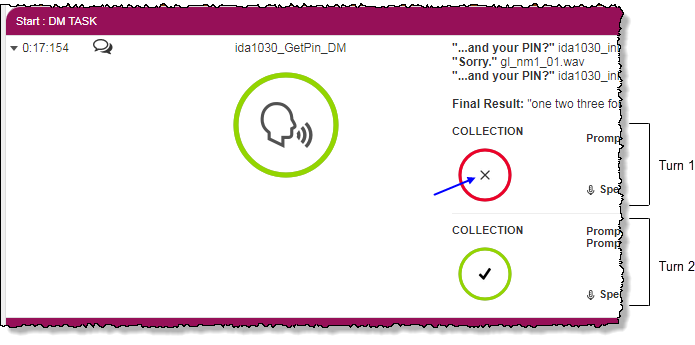
This icon indicates a recognition failure. Possible failure types include NO_MATCH, RECO_TIMEOUT, match to the input. This status is specific to the current turn.
|
|
|
Dialog module information, inside the DM status icon (Call View) Recognition status from Dragon Voice component logs (All tabs of Call View) |
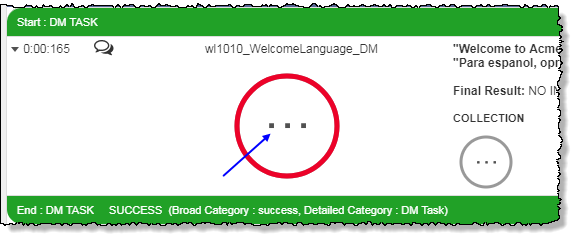
In the APPLICATION and MERGED tabs of Call View, the NO-INPUT-TIMEOUT DM status icon (ellipsis) is always surrounded by a red circle. In the RECOGNITION tab, the circle is gray. The figure inside the circle is an ellipsis (three dots). This status indicates the final outcome of the DM is that there was no input before the NO-INPUT-TIMEOUT period elapsed.
|
|
|
Turn-specific status information, inside the turn status icon (Call View) Recognition status from Dragon Voice component logs (APPLICATION and MERGED tabs of Call View) |
A NO-INPUT-TIMEOUT turn-specific status icon is always gray in color. The figure inside the circle is an ellipsis. This status at the level of an individual turn indicates there was no input during that turn (before the timeout period elapsed).
|
|
|
Recognition status from Dragon Voice component logs (RECOGNITION and MERGED tabs of Call View) |
A RECOGNITION-TIMEOUT icon indicates recognition did not successfully occur before the timeout period expired. |