Transfer Report
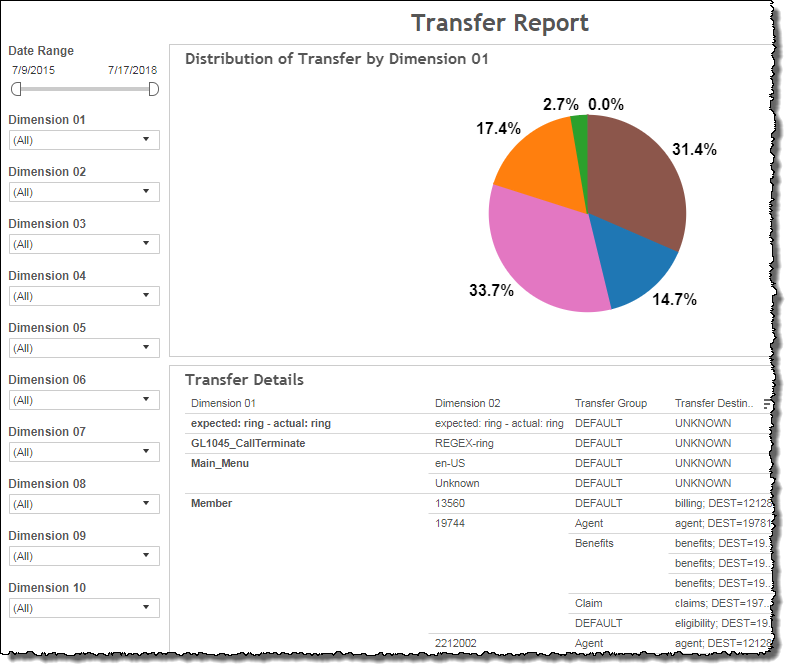
The Transfer report visualizes the number of calls transferred to each transfer group A transfer group describes the type of agent the caller is being sent to. For example, “North America”, “Help Desk”, or “DFS12”. and transfer destination A transfer destination is a specific agent pool or agent transfer number. Typically this is a string of digits. for selected values of the Dimension 1 filter. The Dimension 1 filter in the report allows you to select one, several, or all Dimension 1 values.
Visualizations
Pie chart - distribution of transfer by Dimension 1
This chart visualizes the breakdown of total transfers by the Dimension 1 value. The pie chart answers the question: What percentage of transfers came from callers with a given Dimension 1 value?
Note: Dimension 1 can represent any parameter, depending on how this is defined in your AFO An AFO, or after-the-fact-outcome definition, is an XML file that contains conditions used by NI when interpreting a log file to define call outcomes, call exit reasons, and variables used for filtering calls and for reporting on Key Performance Indicators.. For example, if Application name is the Dimension 1 parameter, the pie chart visualizes the breakdown of transfers on a per application basis.
Transfer details table
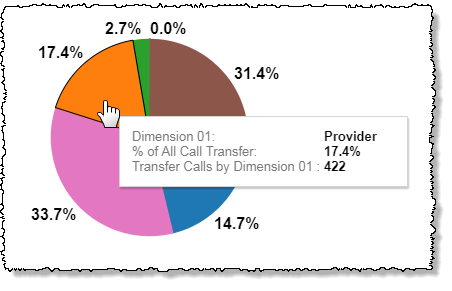
This table shows a breakdown of transfers grouped first by Dimension 1, then by Dimension 2, then by transfer group A transfer group describes the type of agent the caller is being sent to. For example, “North America”, “Help Desk”, or “DFS12”., then by transfer destination A transfer destination is a specific agent pool or agent transfer number. Typically this is a string of digits..
Filters
The Transfer report's filters include Date Range, and at least one Dimension 1 customizable filter which is defined in the AFO An AFO, or after-the-fact-outcome definition, is an XML file that contains conditions used by NI when interpreting a log file to define call outcomes, call exit reasons, and variables used for filtering calls and for reporting on Key Performance Indicators. file (for example, Application name).
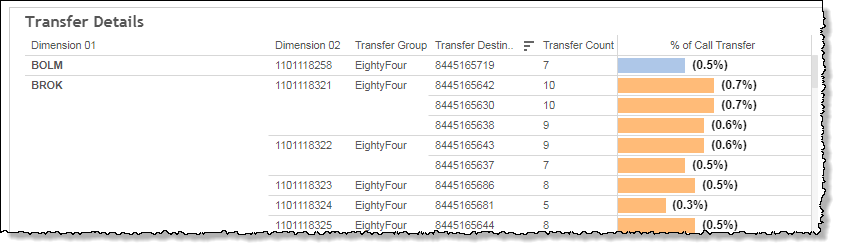
includes data containing specified filter values or else excludes this subset of data.
Clicking Include values displays only those data possessing the selected values. All other data are hidden from the visualization.
By contrast, clicking Exclude values displays only those data that do not possess the selected values.
Date Range
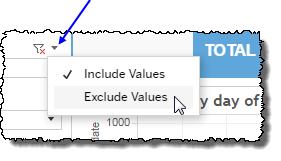
The Date Range filter is a slider with two moveable sides. By narrowing the date range, you display only data falling within the range.
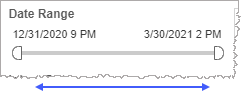
In addition to the slider, the filter allows you to specify start and end points to the range by time of day as well as by date by clicking the Start and End regions, clicking a second time on the time of day, and then manually entering a new time of day.
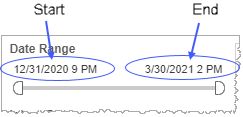
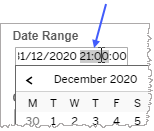
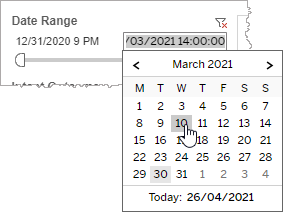
To select a date with the date picker, click the Start region to pick a date from the date picker widget. Do the same with the End region.
Custom filters
This report accommodates customizable filters. For the Transfer report to display correctly, the Dimension 1 filter must hold data and be defined in the AFO file.
Note: The Dimension 1 filter in the Transfer Report is the independent variable in all visualizations of this report. For example, if your AFO An AFO, or after-the-fact-outcome definition, is an XML file that contains conditions used by NI when interpreting a log file to define call outcomes, call exit reasons, and variables used for filtering calls and for reporting on Key Performance Indicators. defines Dimension 1 as Application, the pie chart becomes a breakout of transfer data on a per application basis. Likewise, the table groups all transfer data with application as the highest level grouping.
Customizable filters narrow the scope of the reported dataset by including or excluding data with identifiable attributes. These attributes may be about the caller, the call itself, or about an event that may have happened during the call.
For example, one possible customizable filter you can add and customize in this view is Caller Type, in which you can narrow the reported data to include, or exclude, only those data with the selected caller type.
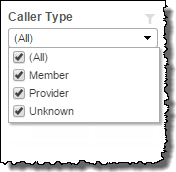
For more information about how to add customized filters to your view, contact your Nuance Professional Services representative.
Note: If you would like to modify this or any report, Nuance Communications, Inc. recommends you contact Nuance Professional Services.
