DM Statistics
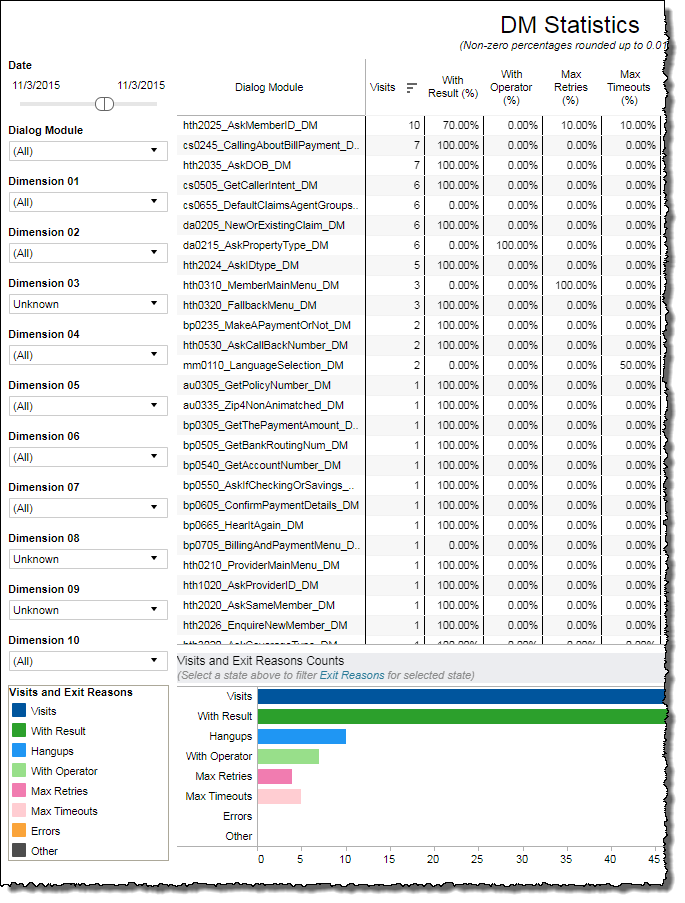
The DM Statistics report presents data on a per Dialog Module basis. It is a combination of both raw, recorded data (for example, the number of executions of a particular Dialog Module) as well as calculated data (for example, the average number of confirmation steps for a given Dialog Module). The following are descriptions of the data in this report, and correspond to the table's column headers:
This table summarizes outcome- and usage mode-data on a per Dialog Module basis. You can filter by adjusting the time period displayed. Up to ten customizable filters may be available. These filters depend upon data from AFO (after-the-fact-outcome) files.
This report is applicable only if you are using one of the following channels:
Visualizations
Table
The DM Statistics table presents data on a per Dialog Module basis. It is a combination of both raw, recorded data (for example, the number of executions of a particular Dialog Module) as well as calculated data (for example, the average number of confirmation steps for a given Dialog Module). The following are descriptions of the data in this view, and correspond to the table's column headers:
-
Visits - This is a raw count of the number of visits to a particular Dialog Module.
- With Result (%) - The proportion of instances of a given Dialog Module for which there was a successfully recognized speech or DTMF input that did not map to AGENT or OPERATOR for this Dialog Module.
- With Operator (%) - The proportion of instances of a given Dialog Module for which there was a recognized speech or DTMF input having a value of AGENT or OPERATOR.
- Max Retries (%) - This is a calculated metric of the proportion (in percent) the MAX RETRIES outcomes of this Dialog Module represent relative to the aggregate of all outcomes for this Dialog Module.
- Max Timeouts (%) - This is a calculated metric of the proportion (in percent) the MAX TIMEOUTS outcomes of this Dialog Module represent relative to the aggregate of all outcomes for this Dialog Module.
- Hangups (%) - This is a calculated metric of the proportion (in percent) the HANGUPS outcomes of this Dialog Module represent relative to the aggregate of all outcomes for this Dialog Module.
- Errors (%) - The percentage of instances of system or application errors while executing a Dialog Module.
- Other (%) - This is a calculated metric of the proportion (in percent) the OTHER outcomes of this Dialog Module represent relative to the aggregate of all outcomes for this Dialog Module.
-
Avg Collection Steps - This is a calculated metric of the mean number of recognition requests meant for collecting either an utterance or DTMF for a given Dialog Module.
-
Avg Confirmation Steps - This is a calculated metric of the mean number of recognition requests meant for confirming either an utterance or DTMF for a given Dialog Module.
-
DTMF (%) - This is a calculated metric of the proportion (in percent) the executions with a DTMF usage mode represent relative to the aggregate of all executions (regardless of usage mode) for this Dialog Module.
-
Speech (%) - This is a calculated metric of the proportion (in percent) the executions with a Speech usage mode represent relative to the aggregate of all executions (regardless of usage mode) for this Dialog Module.
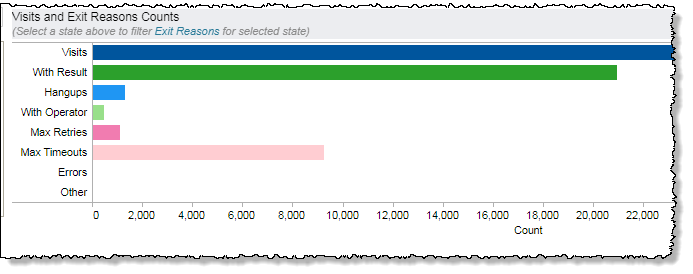
Visits and Exit Reason Counts
The Exit Reason Counts graph at the bottom of the DM Statistics report shows raw counts of the number of visits to all Dialog Modules and of the exits from all Dialog Modules. Clicking the name of a Dialog Module in the top table causes the Exit Reason Counts graph to show the exits exclusively from the selected Dialog Module.
Filters
Increase the specificity of your report by applying filters to the data. The Dialog Module Summary report's filters include Date and Dialog Module. Additionally, the report may include one or more other customized filters depending on what has been configured specifically for your system.
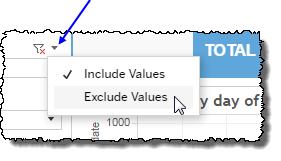
 includes data containing specified filter values or else excludes this subset of data.
Clicking Include values displays only those data possessing the selected values. All other data are hidden from the visualization.
By contrast, clicking Exclude values displays only those data that do not possess the selected values.
Date
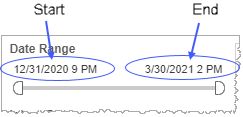
The Date Range filter is a slider with two moveable sides. By narrowing the date range, you display only data falling within the range.
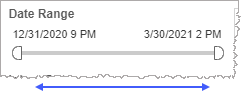
In addition to the slider, the filter allows you to specify start and end points to the range by time of day as well as by date by clicking the Start and End regions, clicking a second time on the time of day, and then manually entering a new time of day.
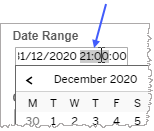
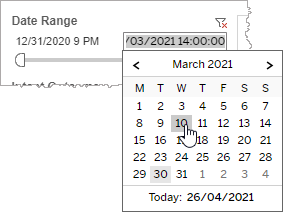
To select a date with the date picker, click the Start region to pick a date from the date picker widget. Do the same with the End region.
Dialog Module
Reduce the volume of reported data by specifying which Dialog Modules to include (to the exclusion of all other unselected Dialog Modules).
-
Click the Dialog Module field to see the drop-down list.
-
Select a Dialog Module from the list.
Custom filters
This report accommodates customizable filters.
Customizable filters narrow the scope of the reported dataset by including or excluding data with identifiable attributes. These attributes may be about the caller, the call itself, or about an event that may have happened during the call.
For example, one possible customizable filter you can add and customize in this view is Caller Type, in which you can narrow the reported data to include, or exclude, only those data with the selected caller type.
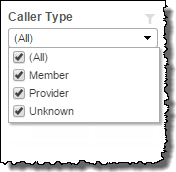
For more information about how to add customized filters to your view, contact your Nuance Professional Services representative.
Note: If you would like to modify this or any report, Nuance Communications, Inc. recommends you contact Nuance Professional Services.
