Metrics Listing Dashboard
The Metrics Listing dashboard lists all metrics in tabular form along with the number of sessions containing each metric value of each metric.
By selecting one, several, or all metrics in the drop-down list, you can narrow the amount of data displayed to just those specified metrics. You can filter with even more specificity by selecting values for dimension meta-data (drawn from the AFO file).
Filters
Increase the specificity of your dashboard's reporting by applying filters to the data. The Metrics Listing Dashboard's filters include Date and Metric Name. Additionally, the report may include one or more other customized filters depending on what has been configured specifically for your system.
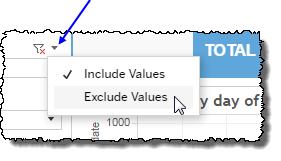
 includes data containing specified filter values or else excludes this subset of data.
Clicking Include values displays only those data possessing the selected values. All other data are hidden from the visualization.
By contrast, clicking Exclude values displays only those data that do not possess the selected values.
Date
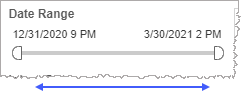
The Date Range filter is a slider with two moveable sides. By narrowing the date range, you display only data falling within the range.
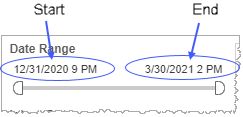
In addition to the slider, the filter allows you to specify start and end points to the range by time of day as well as by date by clicking the Start and End regions, clicking a second time on the time of day, and then manually entering a new time of day.
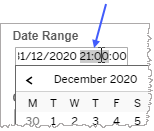
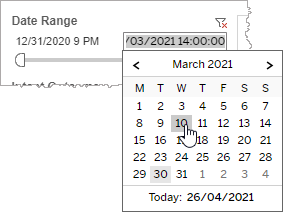
To select a date with the date picker, click the Start region to pick a date from the date picker widget. Do the same with the End region.
Metric Name
By choosing one or more metrics from the list, you refine your data-set by including only those metrics matching the names selected.
- Select all available metrics by selecting All.
- Select only one metric by first clearing the All checkbox, and then selecting the name of the metric whose data you would like to see visualized.
-
Select several metrics (but a subset of all metrics) by performing one of the following two actions:
- Clear the All checkbox, and then select the names of the metrics whose data you would like to see visualized.
- Select the All checkbox (or ensure it is already selected), and then clear the names of the metrics whose data you would NOT like to see visualized.
Custom filters
This report accommodates customizable filters.
Customizable filters narrow the scope of the reported dataset by including or excluding data with identifiable attributes. These attributes may be about the session or about an event that may have happened during the session.
For more information about how to add customized filters to your view, contact your Nuance Professional Services representative.
Note: If you would like to modify this or any report, Nuance Communications, Inc. recommends you contact Nuance Professional Services.
