Caller Intent Transition
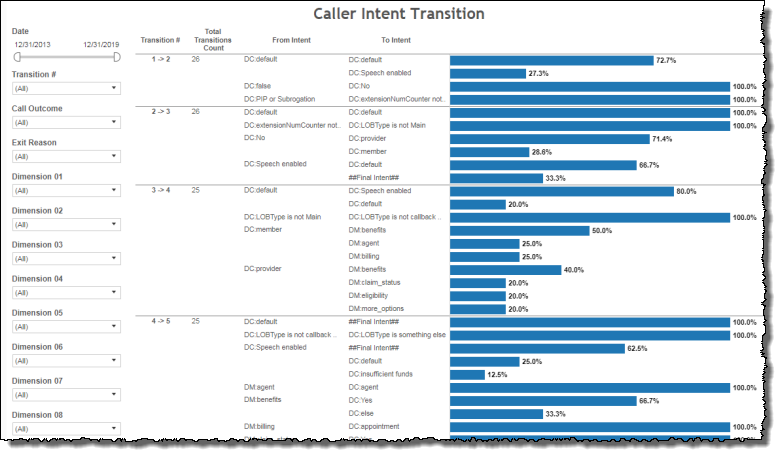
This report captures metrics about calls in which the original caller intent transitions into one or more other intents.
Note: This report is applicable only for clients using the IVR channel.
The report presents intent transition data in tabular form to expose underlying patterns or trends. Using this report, for example, you may see that a large number of callers start with a hear balance intent and then transition to a make a payment intent at a subsequent menu or other dialog that requests a caller’s intent. Based on this information, you may then decide to configure your IVR to ask callers if they want to make a payment immediately after they've heard their account balances. Doing this may further limit the number of callers asking for an agent.
You can sort the data in the Caller Intent Transition report, either in ascending or descending alphanumeric order, for any of the following report columns:
- Transition # - This is the senior-most parent column. Sorting produces a single sorted list of Transition # categories spanning the entire report.
- From Intent - This column sorts on a per Transition # basis. That is, for a given Transition #, if there is more than one From Intent sub-row, sorting the From Intent column sorts the data alphanumerically within each Transition # row by its From Intent data. Sorting will not rearrange From Intent data such that it is removed from or added to a Transition # row.
- To Intent - This column sorts on a per Transition # basis. That is, for a given Transition #, if there is more than one To Intent sub-row, sorting the To Intent column sorts the data alphanumerically within each Transition # row by its To Intent data. Sorting will not rearrange To Intent data such that it is removed from or added to a Transition # row.
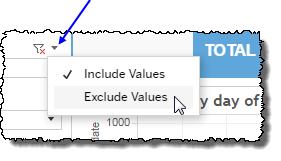
Filters
 includes data containing specified filter values or else excludes this subset of data.
Clicking Include values displays only those data possessing the selected values. All other data are hidden from the visualization.
By contrast, clicking Exclude values displays only those data that do not possess the selected values.
Date
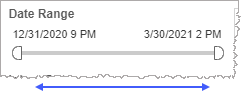
The Date Range filter is a slider with two moveable sides. By narrowing the date range, you display only data falling within the range.
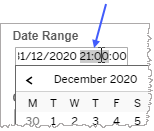
In addition to the slider, the filter allows you to specify start and end points to the range by time of day as well as by date by clicking the Start and End regions, clicking a second time on the time of day, and then manually entering a new time of day.
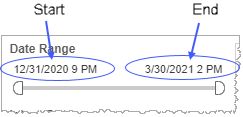
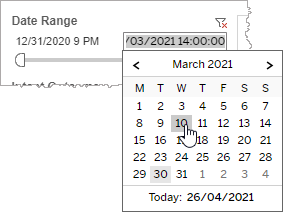
To select a date with the date picker, click the Start region to pick a date from the date picker widget. Do the same with the End region.
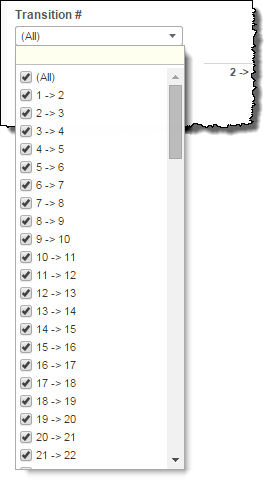
Transition #
By selecting one or more particular intent transitions in a call flow, you refine your displayed data-set to include only selected transition data.
- Select all available transitions by selecting All.
- Select only one transition by first clearing the All checkbox, and then selecting the name of the transition whose data you would like to see visualized.
-
Select several transitions (but a subset of all transitions) either by performing one of the following two actions:
- Clear the All checkbox, and then select the names of the transitions whose data you would like to see visualized.
- Select the All checkbox (or ensure it is already selected), and then clear the names of the transitions whose data you would NOT like to see visualized.
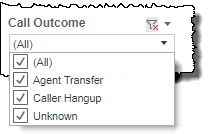
Call Outcome
By selecting one or more call outcomes, you refine your displayed data-set to include only call data with the selected outcomes.
- Select all available outcomes by selecting All.
- Select only one outcome by first clearing the All checkbox, and then selecting the name of the outcome whose data you would like to see visualized.
-
Select several outcomes (but a subset of all outcomes) either by performing one of the following two actions:
- Clear the All checkbox, and then select the names of the outcomes whose data you would like to see visualized.
- Select the All checkbox (or ensure it is already selected), and then clear the names of the outcomes whose data you would NOT like to see visualized.
Exit Reason
By selecting one or more exit reasons, you refine your displayed data-set to include only call data with the selected exit reasons.
- Select all available exit reasons by selecting All.
- Select only one exit reason by first clearing the All checkbox, and then selecting the name of the exit reason whose data you would like to see visualized.
-
Select several exit reasons (but a subset of all exit reasons ) either by performing one of the following two actions:
- Clear the All checkbox, and then select the names of the exit reasons whose data you would like to see visualized.
- Select the All checkbox (or ensure it is already selected), and then clear the names of the exit reasons whose data you would NOT like to see visualized.
Custom filters
This report accommodates customizable filters.
Customizable filters narrow the scope of the reported dataset by including or excluding data with identifiable attributes. These attributes may be about the caller, the call itself, or about an event that may have happened during the call.
For example, one possible customizable filter you can add and customize in this view is Caller Type, in which you can narrow the reported data to include, or exclude, only those data with the selected caller type.
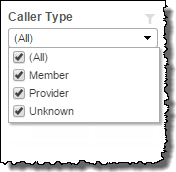
For more information about how to add customized filters to your view, contact your Nuance Professional Services representative.
Note: If you would like to modify this or any report, Nuance Communications, Inc. recommends you contact Nuance Professional Services.
