Task Dashboard
This dashboard summarizes the volume and outcome statistics for each task.
The outcomes in this view are grouped into several broad categories providing a more succinct view than in the Task Detail view. Task data is visualized in two bar graphs: the Task Usage bar graph and the Task Outcome Percentage Comparison bar graph. You can filter by adjusting the time period displayed. Customizable filters are available and depend upon data from AFT An AFT, or after-the-fact-task definition, is an XML file that describes the Start and End states of one or more tasks. (after-the-fact-task) files.
Note: Pay attention to tasks with high values of Not Completed outcomes, especially those with a high percentage of Hung Up and Transfer outcomes.
Visualizations
Legend
This legend maps colors to the names of the broad task categories, visible in the Task Outcome Percentage Comparison bar graph.
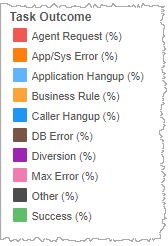
The broad categories are defined as follows:
-
Agent Request - The percentage of instances of a given task, in which a caller requests an agent regardless of whether a transfer subsequently is completed by the IVR.
Note: An Agent Request Transfer (not depicted but available through customization) filters the dataset further by including only those tasks with an agent request that actually ended with a successful transfer to an agent. Through customization, you may or may not be able to use this as a category, depending on whether the data indicating whether a transfer occurred is present in the dataset.
- App/Sys Error - Any application/system-based errors in the IVR application or telephony system.
- Application Hangup - A hangup initiated by the application.
-
Business Rule - The percentage of instances of a given task, in which a business rule was triggered. A business rule is defined, programmatically, to anticipate situations in which a task's completion is prevented, and then to effect a graceful course of actions by the IVR (possibly but not necessarily ending with a transfer to an agent).
Note: A Business Rule Transfer (not depicted but available through customization) filters the dataset further by including only those tasks that ended due to a business rule and that actually ended with a successful transfer to an agent. Through customization, you may or may not be able to use this as a category, depending on whether the data indicating whether a transfer occurred is present in the dataset.
- Caller Hangup - A hangup initiated by the caller.
- DB Error - An error encountered during a database lookup.
- Diversion - The caller chooses to remain in the IVR but to not complete the task. For example, caller says "Main menu", "Go back", "Start over".
-
Max Attempts - The percentage of instances of a given task, that ended because the incidence of one or more error types has reached a programmatically set limit on the number of times the error may occur.
- Other - The percentage of tasks not falling into other categories of outcomes.
- Success - The rate of successful completion of a task, as a percentage of task starts that ended with a successful completion.
Task Usage graph
This graph displays the number of executions of each task in actual numbers. Hovering over one of the bars of this bar graph displays information about the task.
Task Outcome % Comparison graph
This graph compares the broad outcome categories (within each task) one from another and as a percentage of the whole. Hovering over one of the colored regions of a bar in this bar graph identifies the task and displays information about the outcome category.
Task Summary Table
The bar graph data can be viewed by task breakdown by outcome, as follows:
Filters
The Task Dashboard's filters include Date and may include several others depending on what customized filters have been added.
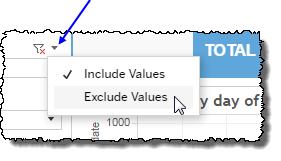
includes data containing specified filter values or else excludes this subset of data.
Clicking Include values displays only those data possessing the selected values. All other data are hidden from the visualization.
By contrast, clicking Exclude values displays only those data that do not possess the selected values.
Date
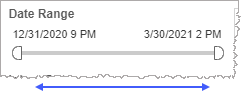
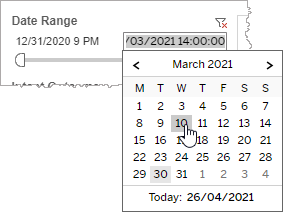
The Date Range filter is a slider with two moveable sides. By narrowing the date range, you display only data falling within the range.
In addition to the slider, the filter allows you to specify start and end points to the range by time of day as well as by date by clicking the Start and End regions, clicking a second time on the time of day, and then manually entering a new time of day.
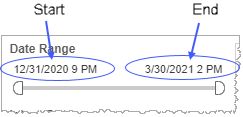
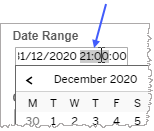
To select a date with the date picker, click the Start region to pick a date from the date picker widget. Do the same with the End region.
Custom filters
This report accommodates customizable filters.
Customizable filters narrow the scope of the reported dataset by including or excluding data with identifiable attributes. These attributes may be about the session or about an event that may have happened during the session.
For more information about how to add customized filters to your view, contact your Nuance Professional Services representative.
Note: If you would like to modify this or any report, Nuance Communications, Inc. recommends you contact Nuance Professional Services.
