Top Phrases by Final Intent
This report lists the top constituent user phrases that make up final intents and compares user phrase contributions for final intents.
Note: This report visualizes data in the aggregate for the date range specified. To see this data split out on a per day basis, consult the Top Phrases by Final Intent Detail report.
The Count column lists the raw number of instances of top phrases of a given intent within the date range.
In addition to the use of report filters, Nuance Insights allows you to manipulate displayed data through several other means in order to better visualize information. Select from the following to learn more:
Visualization
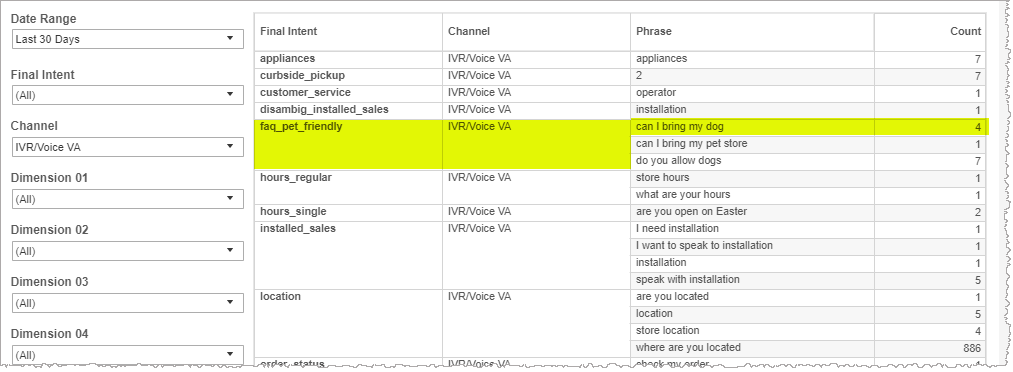
The table visualizes raw counts of recognized phrases broken out by intent and channel. In the example below, the phrase can I bring my dog belonging to the faq_pet_friendly intent in the IVR/Voice VA channel has a raw count of 4. This example draws on a data pool filtering out all but IVR/Voice VA channel data and with data timestamps within the past 90 days.
Filters
Increase the specificity of your view's reporting by applying filters to the data.
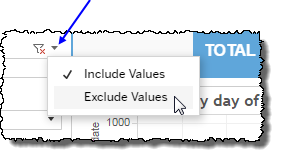
 includes data containing specified filter values or else excludes this subset of data.
Clicking Include values displays only those data possessing the selected values. All other data are hidden from the visualization.
By contrast, clicking Exclude values displays only those data that do not possess the selected values.
Date Range
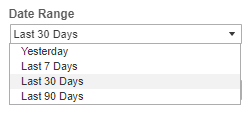
The Date Range filter is a list of preset date ranges to choose from. Each range ends at midnight at the end of the day before the current date (that is, yesterday). In the case of the Yesterday selection, the range begins at 00:00 yesterday, and ends at 23:59 yesterday.
Final Intent
The Final Intent filter allows you to narrow the displayed data in the tables by including (or excluding) only those final intents bearing the selected intent name.
Channel
By choosing one or more channels from the list, you refine your displayed data-set by including data from only those channels matching the selection.
- Select all available values by selecting All.
- Select only one value by first clearing the All checkbox, and then selecting the value whose data you would like to see visualized.
-
Select several values by doing one of the following:
- Clear the All checkbox, and then select the values whose data you would like to see visualized.
- Select the All checkbox and then clear values whose data you would NOT like to see visualized.
Custom filters
This report accommodates customizable filters.
Customizable filters narrow the scope of the reported dataset by including or excluding data with identifiable attributes. These attributes may be about the conversation itself or about an event that may have happened during the conversation.
For more information about how to add customized filters to your view, contact your Nuance Professional Services representative.
Note: If you would like to modify this or any report, Nuance Communications, Inc. recommends you contact Nuance Professional Services.
