Task Trending Comparison
This view compares broad task outcomes for a given task and trending by a given dimension on a per channel basis over time.
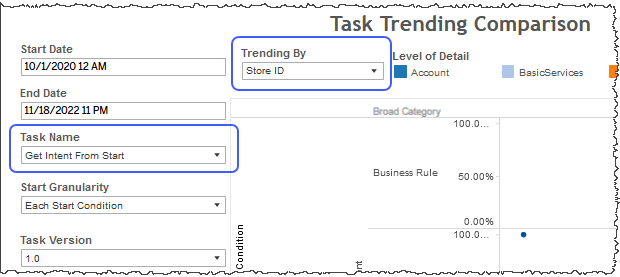
Note: The visualizations in the Task Trending Comparison report do not populate with data until you select a task in the Task Name filter.
In addition to the use of report filters, Nuance Insights allows you to manipulate displayed data through several other means in order to better visualize information. Select from the following to learn more:
Visualization
Level of Detail highlight tool
Use this filter to highlight data belonging to one or several specified dimensional values.
- In the Level of Detail highlight tool, mouse over the word Level of Detail to see the highlighter icon to the right.
-
Click the highlighter icon to toggle the highlighter on (
 ) to highlight dimensional values, or off (
  ) to remove highlighting.Notes:
- To make multiple selections, hold down the ctrl key while individually clicking desired category.
- If you made a highlighter selection and then toggled the highlighter function off, the last selection is preserved when you once again toggle the highlighter back on.
Task Trending by Dimensions
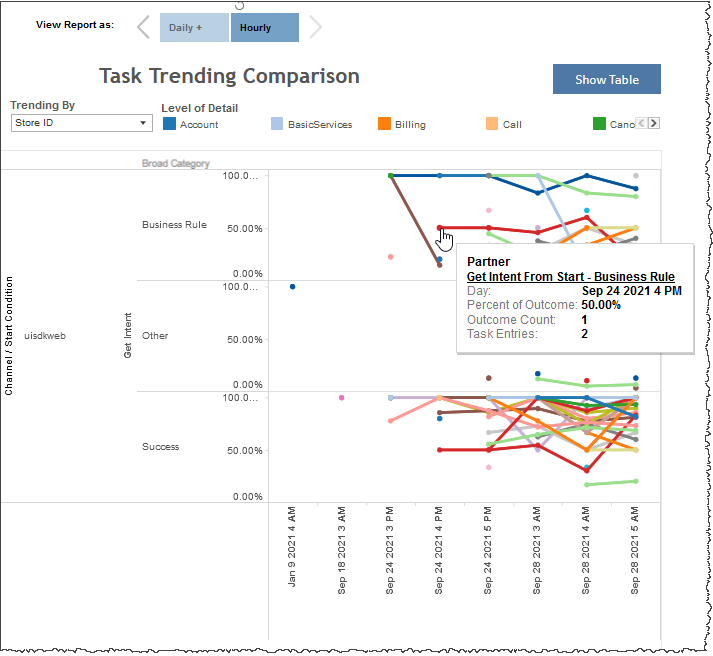
You can view the data for this section either as a graphical visualization or in a text-only table. Both formats visualize the proportion (in percent) of all of a given channel's started tasks (with a specified dimension value for a given dimension) that also completed successfully.
Note: To see the data from the graphical visualization displayed in an alternative, textual way, click Show Table. To toggle back to the graphical view, click Show Graph.
In the example, below, the report draws from hourly summarization data. Of all Get Intent From Start tasks on the uisdkweb channel on September 24th, 2021 between 4 and 5pm, 500.00% of started tasks having a Store ID value of Partner completed successfully. This example trends Store ID values for the Get Intent From Start task.
Filters
Increase the specificity of your view's reporting by applying filters to the data.
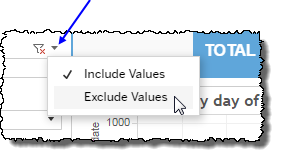
 includes data containing specified filter values or else excludes this subset of data.
Clicking Include values displays only those data possessing the selected values. All other data are hidden from the visualization.
By contrast, clicking Exclude values displays only those data that do not possess the selected values.
Date Range
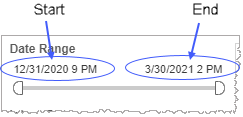
The Date Range filter is a slider with two moveable sides. By narrowing the date range, you display only data falling within the range.
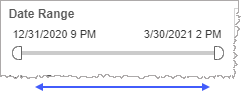
In addition to the slider, the filter allows you to specify start and end points to the range by time of day as well as by date by clicking the Start and End regions, clicking a second time on the time of day, and then manually entering a new time of day.
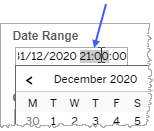
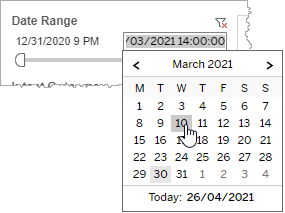
To select a date with the date picker, click the Start region to pick a date from the date picker widget. Do the same with the End region.
Date Granularity
The Date Granularity filter allows you to adjust the reported data granularity described by the trend lines. Drag the slider horizontally to adjust the granularity of reported data. Alternatively, you can use the left  and right
  arrow buttons to move the slider incrementally.
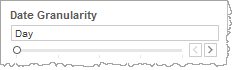
Note: If you choose to draw from hourly instead of daily summarization data, the Date Granularity filter will no longer be visible.
Task Name
The Task Name filter allows you to narrow the displayed data in your view by including only those tasks bearing the selected task name.
Start Granularity
For dimensions that have distinct start conditions associated with them, you may choose to visualize your data as a graph for each start condition or else aggregate them into one graph. That is, if the Trend By filter is set to a dimension that has several distinct start conditions, selecting Each Start Condition in the Start Granularity filter produces a visualization of the trending lines for each of them on their own graph.
Task Version
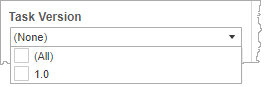
The Task Version filter allows you to narrow the displayed data in your view by discriminately including task data associated with all, several, or only one task version.
A task version is the number identifying the revision of a task definition. Task definitions may change over time for a number of reasons. One example is if you find there are several navigational exits that are categorized as Other. In this case, you may want to recategorize them with more meaningful labels which, in turn, may warrant an update to your task definitions. Another example is if the application itself is updated such that there are now more states or more ways in which scenarios are handled. Again, in this case, you may want to revisit your task definitions with a new revision to correctly capture successes and failures.
The Task Version filter is an auto-populated filter based on data made available in the AFT file.
- Click the Task Version field.
-
Select the All checkbox to include data associated with all task versions.
If there are many task versions available and you would like to select one or just a few of them, clear the All checkbox and then select each task version you would like to include in your query.
Task Attempt
The Task Attempt filter allows you to narrow the displayed data in your view by discriminately including task data associated with all, some, or a single task attempt.
A task attempt is identified by an index number (for example, Attempt 1 or Attempt 2) and corresponds to a task being started. Notably, a task attempt does not necessarily end with a task completion. It is only necessary for the task to begin for it to be an attempt.
When filtering for task attempts, you may select one, several, or all task attempts:
- Selecting only one task attempt (attempt 3, for example) is a request to exclude all task data except data associated with a third attempt.
-
Broadening the filter to include several task attempts requests the reporting of data associated with the selected attempts, but excluding all other data.
For example, selecting attempts 3, 7, and 9 in the Task Attempt filter requests that only task data associated with the third, seventh, and ninth attempts of the given task(s) will be reported.
- Selecting all task attempts requests the reporting of task data associated with any and all task attempts. This filter parameter is the same thing as having no Task Attempt filter at all.
The Task Attempt filter is an auto-populated filter based on data made available in the AFT file.
Channel
By choosing one or more channels from the list, you refine your displayed data-set by including data from only those channels matching the selection.
- Select all available values by selecting All.
- Select only one value by first clearing the All checkbox, and then selecting the value whose data you would like to see visualized.
-
Select several values by doing one of the following:
- Clear the All checkbox, and then select the values whose data you would like to see visualized.
- Select the All checkbox and then clear values whose data you would NOT like to see visualized.
Trending By
After setting restrictions on your filters, select a dimension in the Trending By filter to visualize trending lines corresponding to all the values of the selected dimension over time. The restrictions you set in your filters selectively reduce the data pool your graph draws upon. Once the restrictions are set, your graph visualizes the selected dimension (from the Trend By filter) drawing from the restricted data pool.
Custom filters
This report accommodates customizable filters.
Customizable filters narrow the scope of the reported dataset by including or excluding data with identifiable attributes. These attributes may be about the conversation itself or about an event that may have happened during the conversation.
For more information about how to add customized filters to your view, contact your Nuance Professional Services representative.
Note: If you would like to modify this or any report, Nuance Communications, Inc. recommends you contact Nuance Professional Services.
