View Batch reports
A batch is a set of records that was received by the platform for processing via listeners, user uploads, and previews. Batches can include input records, DNC records, and exclusion records. Use the batch report to view the realtime status of records being processed. A batch report does not show the status of deliveries or interactions resulting from input records. It shows only the processing status of records received and details about bad records, whether they are input, DNC, or exclusion records.
There are two ways to define batches: (1) file batches are collections of records received in a specific file, and (2) time batches are collections of records that were processed during a specified time period. The project can define the batches either as file batches or time batches.
To generate a Batch report:
- Click REPORTS on the top menu bar.
- On the left nav bar, find the environment you want (RUNTIME or CONFIGURATION ).
- Under Batches, click the report you want to see: Today or Advanced Search.
- If you click Today, a report showing batches for today's date is displayed.
- If you click Advanced Search, a query form appears. Enter any of the following fields and click SEARCH:
- Date Range: Select the date range to query.
- Project Id: Select a project Id to query.
- Type: Select All, Input, Dnc, or Exclusion.
- Include Message: Select Yes if you are using Message on Demand (MOD) and want to display the Message Id used for the uploaded flies. Otherwise, select No.
- Limit: The maximum number of batches to return.
- Click SEARCH. The report will display.
A Batch report shows the status of input processing. Each row represents a batch of records that was already processed or is being processed. At the end of the report, you can see the total number of records across all batches, along with the total counts of accepted, rejected, and in-process records.
This is an example of a batch containing 1,200,647 records, of which 1,139,347 were accepted and 61,300 were rejected.
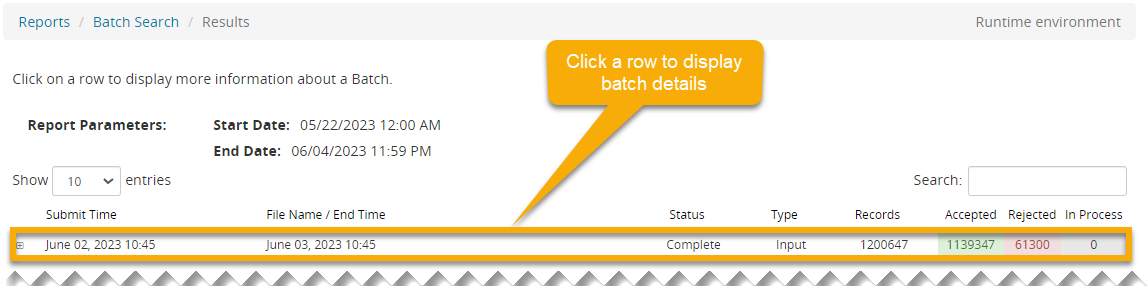
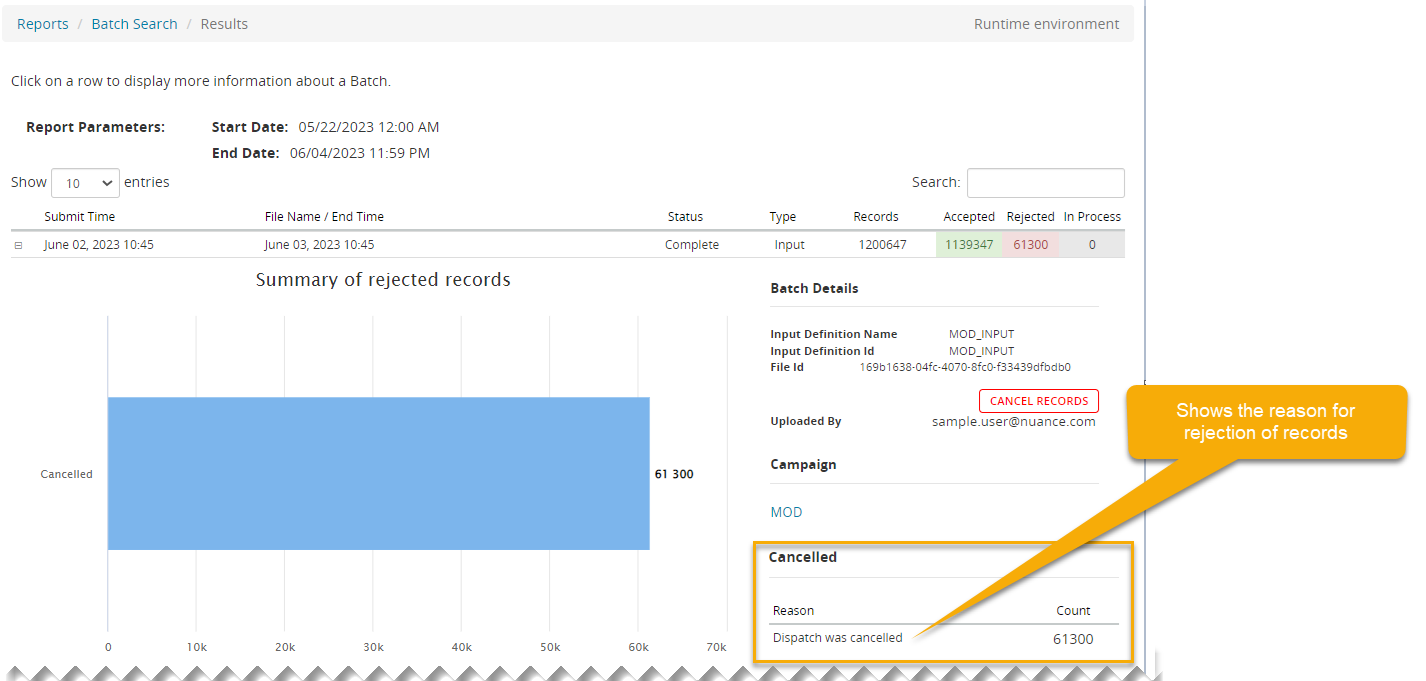
Click on any row to display details for the batch. Then click on any blue bar to display details about it. In the example below, the Canceled bar on the lower left has been clicked and the Reason for cancellation is shown in the lower right.