View Miscellaneous reports
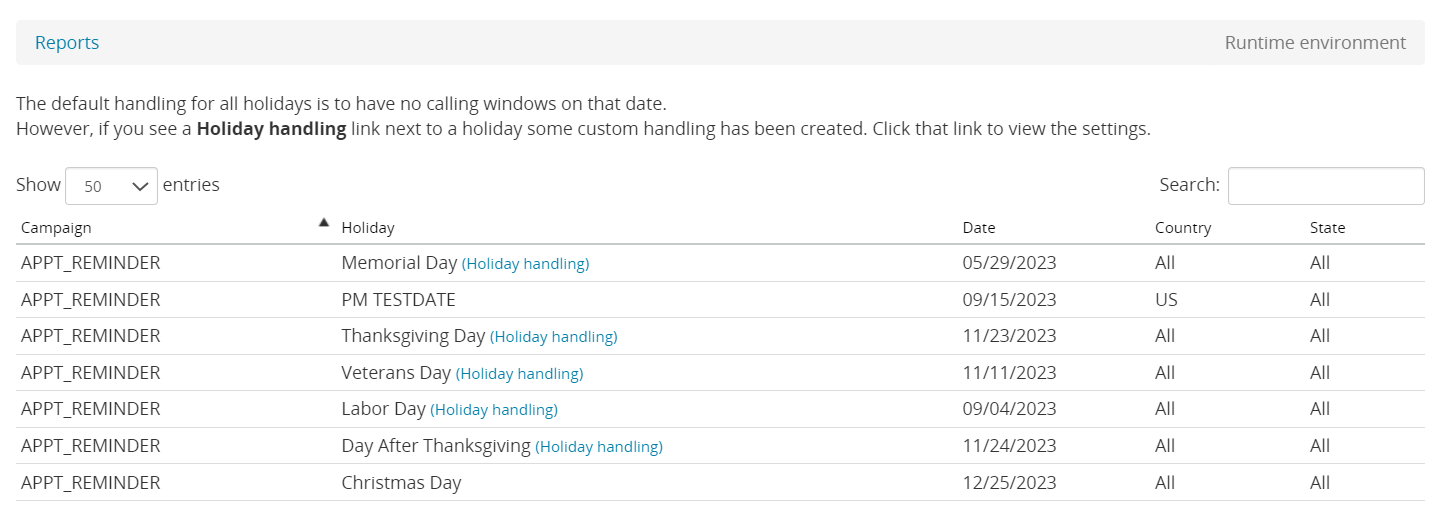
You can view details about holiday settings by clicking Holiday Report. This report displays a list of all holidays that are currently associated with campaigns. Holidays are included in calendars and you can associate those calendars directly to campaigns or to your entire client. A row is displayed in this report for each campaign-holiday combination in effect. Therefore, if a holiday is associated with more than one campaign, it appears in the list more than one time. You should review this report when you want to get a full picture of your holiday settings.
To view a holiday report:
- Open Composer and click Reports on the menu bar.
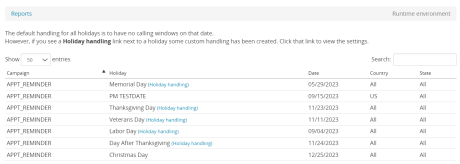
- On the left navigation bar, under Miscellaneous, click Holiday Report. A list of holidays for the client is displayed. The holidays are sorted by their associated campaign and then by date. Here's an example:
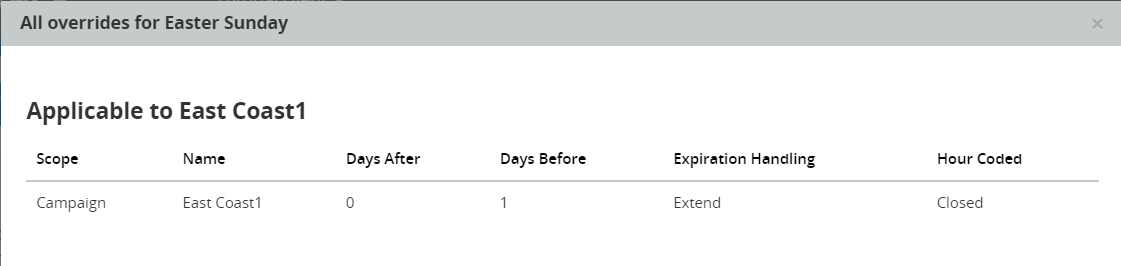
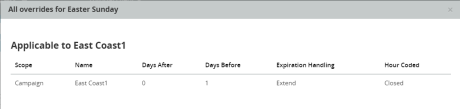
- Any holiday that has been configured for custom handling should display a link for Holiday handling. Click the link to display the handling details. Here's an example:
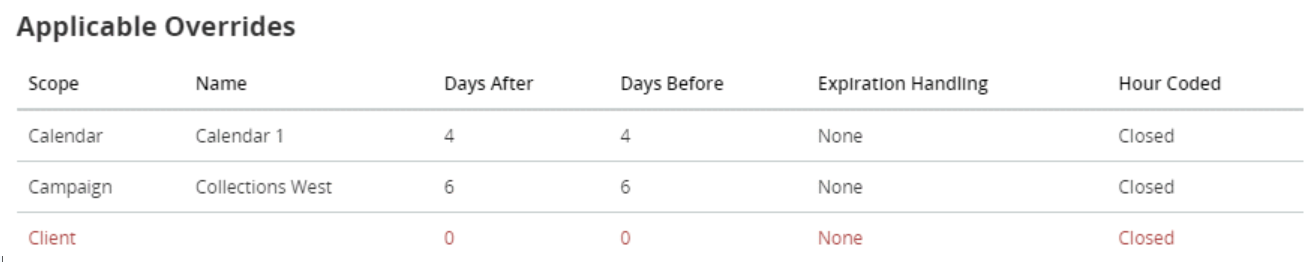
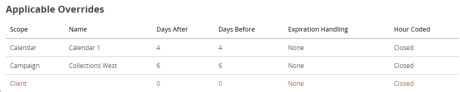
- If the holiday handling is configured to behave the same way as default handling, the details are displayed in red. This indicates that the override as defined does nothing. Here's an example:
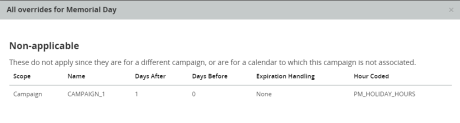
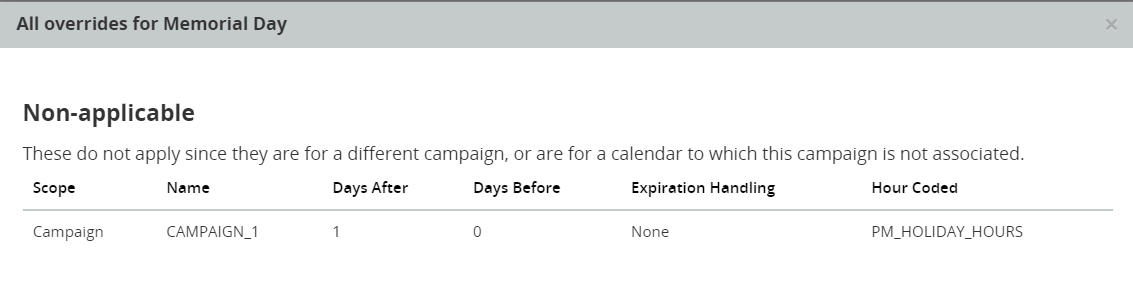
- In some cases, holiday handling has been configured but not applied to campaign selected. In this case, you'll see a message saying Non-applicable.