Questions about Reports
 What’s the difference between Alerts Sent and Alerts Received and which do I choose?
Alerts Received—Records loaded into the data center within the specified date range.
Alerts Sent—Dispatching attempts made within the specified date range.
The report type you choose depends on if you need to see data for all records that were submitted including those not dispatched, or if you only need data for those alerts actually sent to consumers. If in doubt, Alerts Sent are your best choice overall, since it includes all records delivered and their status.
Why don't Alert Retrievals match for Alerts Sent and Alerts Received reports for the same time?
Since Alerts Received are all records that were submitted to the processing engine and Alerts Sent are the subset of actual alerts dispatched, the report varies because the number of records are commonly different.
Additionally, multiple attempts to contact users can increase the total number of alerts dispatched. The overall results calculated in Reports can also be dependent on the day or time messages are dispatched.
Another difference could also include whether or not the client and consumer share the same time zone. When they are different, Alerts Received and Alerts Sent can yield varying results.
Why does a morning Result Summary show higher volumes of AM messages than late day?
As time passes, you are collecting data that becomes cumulative so as your total number of alert results grow larger, the actual percentage values can go down. Depending on your application configuration, "re-tries", such as calling again at a later time when an answering machine is reached, can also improve results. The actual time that an Answering Machine (AM) message is left can also affect those values.
Why do the Results Summary and the Client Daily Report numbers not match?
The Result Summary and the Client Daily Report are two separate data sources. They both look at the same dispatches but the information is summarized differently. Result Summary is data summed up to a basic level while the Client Daily Report or CDR is returned the way you configure your report.
- Results Summary: Overall information about the results of your customer contacts.
- Client Daily Report (CDR): Details the results and comprises a summarized, or aggregated, view of the previous day’s notifications the way you define them. For example, on Tuesday morning you receive a CDR with the results of Monday’s campaigns. The process that aggregates results from the previous day's activity is performed once each day. Data for a previous day is only available after this process completes and the email-distributed CDRs have been sent. CDR data is not available for current-day activity.
How many people called the Message Retrieval number and unsuccessfully entered their PIN?
Staged Inbound Message Retrieval applications that require a user to enter a PIN happen on the platform, outside the realm of the call flow. Since the user must successfully enter their PIN and interact with your Template's message flow in order for this type of detail to be captured for reporting, there is no true means to accurately analyze unsuccessful PIN entries.
If a solution has been built with an accompanying application called Anonymous Inbound Message Retrieval where the user is NOT required to enter a PIN or other personal identifier, Anonymous retrieval can be used specifically for the purpose of capturing failed authentications. It can indirectly indicate failed PIN entries even though it is not a true measure.
Example:
If the primary application is using Staged Inbound Message Retrieval functionality and a customer calls the message retrieval phone number but fails to authenticate, or the message has expired, they are then sent to the Anonymous Inbound solution for a direct transfer to an agent.
In these cases, the volume of records treated by the Anonymous Inbound application is an indirect indicator, or count, of how many customers failed PIN authentication.
Since a customer that fails to authenticate a PIN may also disconnect before the Anonymous Inbound application is activated, the counts are not 100% accurate.
What is an Interact?
Interacts are variables that are set at certain points in the message flow. They capture consumer interaction during the flow. Interacts are specified in a solution's data map and programmed into strategic points in the Template. Interacts mark the user's path or exit point and track specific business outcomes in a message. They differ from checkpoints in that they track specific actions taken by consumers as opposed to simply marking the path taken.
What is P3Exec?
P3Exec is a Summary Interact that is customized and configured in your application.
- It is used in CDRs, Summary Reports and Ad Hoc Downloads on Alert Administrator.
- It is also used in Custom Reports created with the Interact Portal Report Creator.
- P3Exec Interacts are primary drivers for Peer and Trend Reporting as well.
P3Exec Interacts are like highway exits. Where checkpoints are like mile markers and indicate call-flow progress, Interacts , specifically P3Exec, indicate a user's action and mark the RPC choice or “exit” taken in the call-flow.
How do I tell if it is a "Located" or an original media in a report?
First, if the original record does not contain a media address such as a phone number, then any message resulting in a contact also indicates that phone number is a Located media address.
Locate functionality occurs in Personalization and Communication areas of the platform. Outcomes when records go to the Locate service:
Match found—Records sent for messaging are identified in standard Alerts Sent or Alerts Received Reports.
No Match found—Records are not sent for messaging and do not display in Reports since the record is missing a valid media address
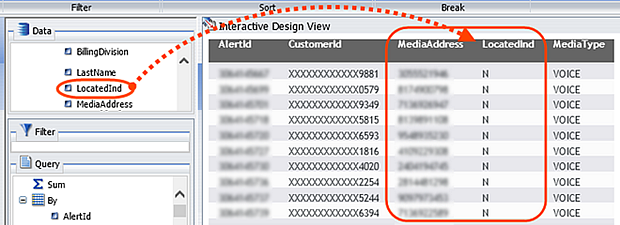
The Locate indicator (LocatedInd) identifies the result of the Locate service in reports. It appears in Alerts Sent or Alerts Received Reports. Results:
Y—A successful MATCH was found.
N—One of the following:
- The record was not sent to the Locate service.
- The record was sent to the Locate service and NOMATCH was found.
- The record was sent to the Locate service and FILTERED because the result was unsuitable or invalid.
The Locate Status indicator (LocateStatus) identifies MATCH, NOMATCH, or FILTERED. It appears in Personalization Engine Reports in Alert Administrator.
Alert Administrator
|
To comprehensively report on Locate for both activities, pull two reports from Alert Administrator Ad Hoc Download Reports. |
Personalization |
Alerts Sent Report |
|

|
or | ||
|
Alerts Received Report |
Personalization Engine Report Selections
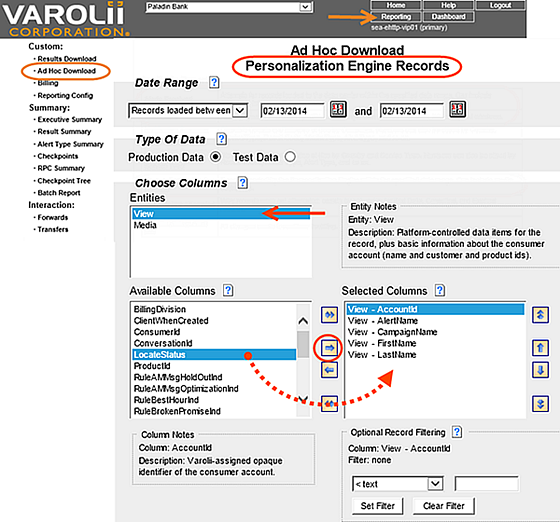
- For Personalization Engine Reports, include LocateStatus in the View Entities selection to identify MATCH, NOMATCH, or FILTERED. Make all other selections appropriate for the data you want to retrieve and evaluate.
Alerts Sent or Alerts Received Report Selections
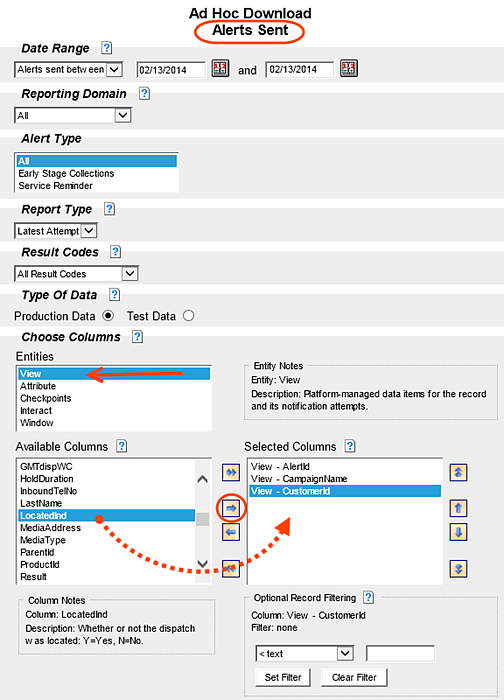
- For Alerts Sent or Alerts Retrieved Reports include LocateInd in the View Entities selection to identify if the media address was Located - Y or N (Yes or No). Make all other selections appropriate for the data you want to retrieve and evaluate.
Use Report Creator to create Alerts Received or Alerts Sent Reports
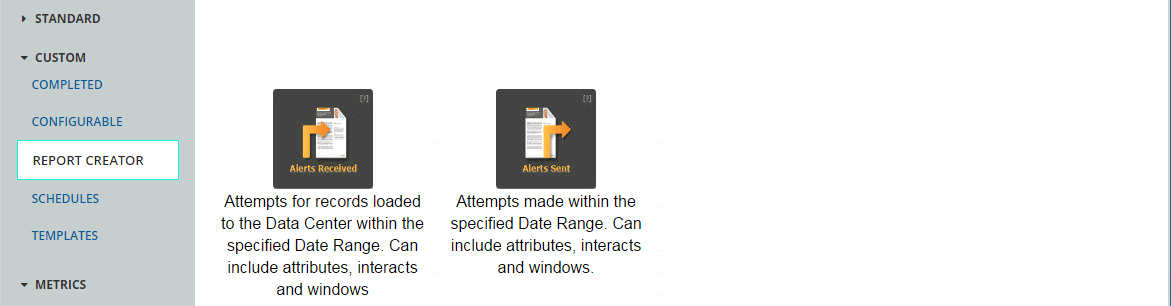
Build a custom report in Report Creator by selecting Alerts Received or Alerts Sent.
- Drag and drop LocateInd from the Data column to the report window along with any other appropriate fields.
Note: When all Alert Administrator Reports are available in the Portal, LocateStatus is then retrievable in the appropriate report in this tool.