Active form controls
Insert active form controls into a compound document to act as filters on the reports of the document. You can also cascade (chain) controls to populate based on the selections of the previous controls.
The output format of the compound document must be active report, active Flash, or active PDF in order to insert active form controls.
- From the Insert tab, Active Dashboard Prompts group, select a form control to insert. The active form control displays in the top-left corner of the canvas.
- Add the field that the form control filters.
|
Tip: When an active form control is added to the canvas, the compound document is locked in an active output format. You cannot change out of active report, active Flash, or active PDF format if controls are present on the canvas. To switch to a non-active output format, all controls must be removed. |
Associate fields with form controls
You can bind a field to an inserted active form control from the Query pane, by dragging the desired column directly from the report on the canvas, or through the Active Dashboard Properties dialog.
Cascading controls, and changing the filter conditions can only be done through the Active Dashboard properties dialog.
Use one of the three following procedures to associate a field with the control.
Tip: If the report is included as an existing report, you are not able to bind its fields to a control.
Associate fields with query pane controls
- Click the report.
- Select a data source field from the Query pane and drag it onto the Layout Canvas.
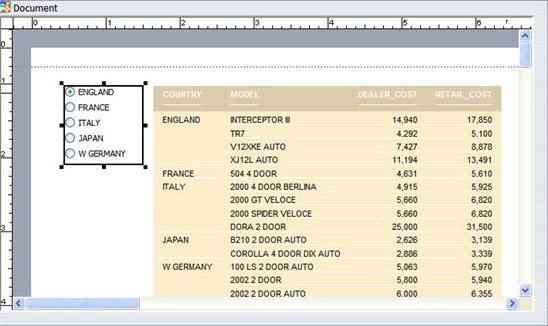
- Drop the data source field onto the active form control where you want the field to be bound.
The control updates with the options from the field.
Associating a field with a control from query pane
Associate fields with canvas report controls
- Right-click the report to add a filter column.
- Select Edit Report. You can now select fields in the report.
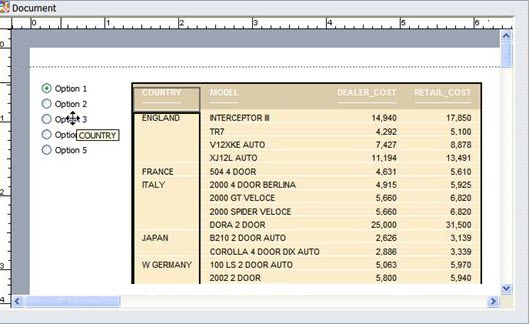
- Click and drag the desired field from the report and drop it onto the active form control where you want the field to be bound.
Associating a field with a control from a report
Associate fields with Active Dashboard controls
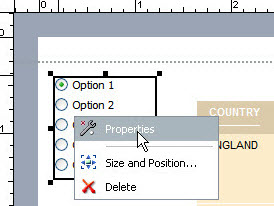
- Right-click the active control to add a filter column to and select Properties.
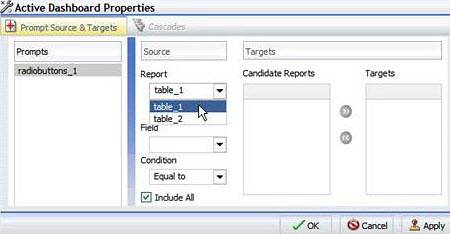
- The Active Dashboard Properties dialog displays. Select the report that contains the field to filter from the Report drop-down menu.
- Select the field to filter from the Field drop-down menu.
|
Select Reports from Drop-Down Menu
|
Select Properties Right Click
|
|
Select Fields from Drop-Down Menu
|
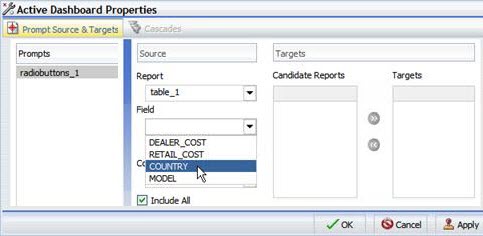
Active Dashboard properties
Use the Active Dashboard Properties dialog to bind a field to an active form control as described in Associating a field with Active Dashboard dialog
Or to change the filter condition of an active form control, set the target for the form control filters, and set up cascading form controls, as described in the next sections.
- To access the Active Dashboard Properties dialog, with Report Creator open in the Document view, bind an active form control to a field, as described in Associating a field with a control.
- Right-click the active form control to add a filter column to and select Properties.
Select Dashboard Properties
Set Target reports
Add or remove target reports from an active form control through the Active Dashboard Properties dialog.
When you bind a field to an active form control, the default target report is the report you dragged the field from. More target reports can be added from the Active Dashboard Properties dialog.
Reports that can be target reports must meet one of the following requirements:
- The report contains a field with the same name as the source field (actual field name or AS name).
- The Master File of the report has a field with the same name as the source field.
If a report is eligible to be a target report because of an AS name and that AS name is changed, the report is automatically removed.
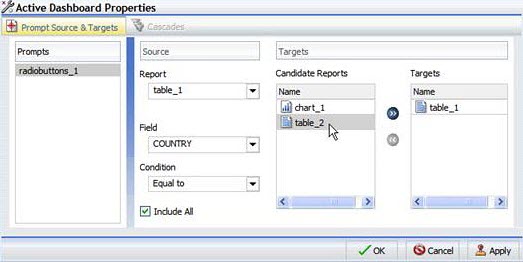
- From the Active Dashboard Properties dialog, select the reports from the Candidate Reports list box that to add as target reports.
- Click the Add to List arrow to move the selected reports to the Targets list box.
- Click the Remove from List arrow to remove reports from the Target list box.
Move selected reports to the Targets list
Change filter conditions
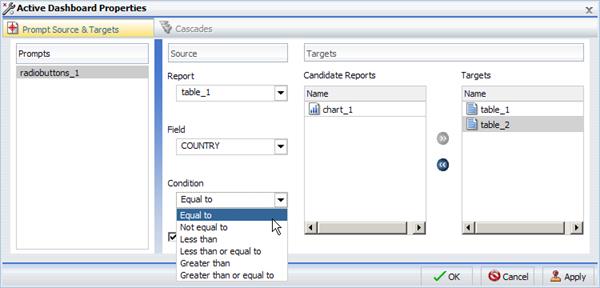
From the Active Dashboard Properties dialog, select the desired filter condition.
Change the filter condition
Cascading controls
When you have more than one control on the canvas you can cascade controls to populate based on the selections of the previous controls.
- Cascading controls have a parent-child relationship, in which the parent filters the available options of the child.
- An active form control can be the parent of more than one other control but cannot be a child of more than one control.
Select Cascades from Active Dashboard properties
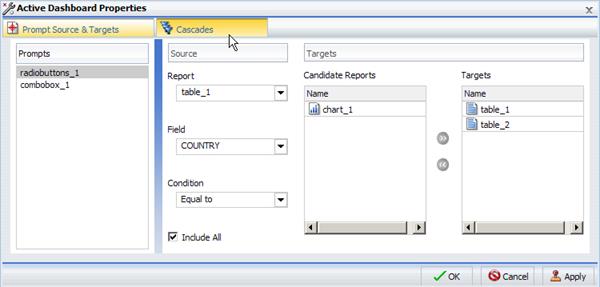
By default, a cascade named Cascade1 displays in the Cascades section of the Active Dashboard Properties dialog.
Default Cascade
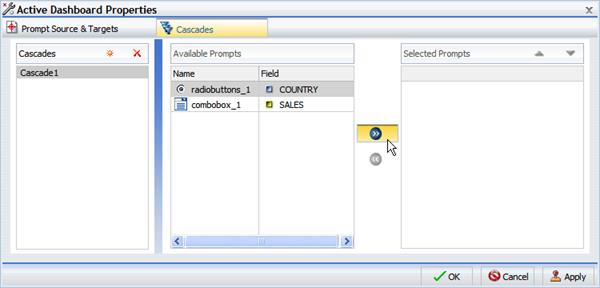
- Click the Create a new cascade
 button to create a new cascade.
 - Click the Delete selected cascade
 button to delete the selected cascade.
 - To build a cascade, select the cascade you want to add controls to.
Select the control to add from the Available Prompts list box.
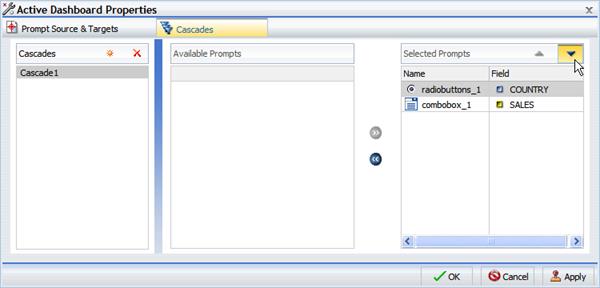
- Click the Add to List arrow (highlighted in the image above) to move the selected control to the Selected Prompts list box. Repeat as desired.
- To remove a control, click the Remove from List arrow.
By default, the hierarchy of the controls is determined by the order they are added to the Selected Prompts list. The cascade of the controls is from the top, down. The controls that come first in the Selected Prompts list are the parents of the lower controls.
- Change the hierarchy of controls by selecting a control in the Selected Prompt list box and clicking the Move Up and Move Down arrows.