Add Summary and Design fields to templates
Options on the Data tab, Calculation Group, allow you to add two different types of fields to your data, which can be used to create virtual columns.
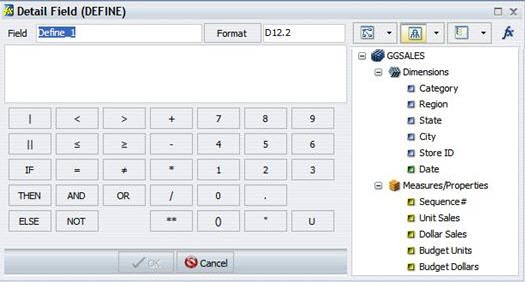
- Detail Field opens the DEFINE Field dialog. You can create a defined field, give it a name , and enter a format. A DEFINE field is added to the actual data. A DEFINE column is:
- Summary opens the COMPUTE Field dialog. You can create a computed field, give it a name, and enter a format. A COMPUTE calculated column is:
- Evaluated at the report level after all of the data that meets the selection criteria is retrieved, aggregated and sorted.
- Created in the report itself, and automatically inserted as columns in the report.
- Cannot be used as a primary sort column.
- Useful for calculating ratios after all other data has been aggregated.
- Use WHERE TOTAL for selection on a computed column.
Note: A virtual column is a column whose value is not stored in the data source, but can be calculated from existing data or assigned an absolute value.
The Field Creator dialog that opens when selecting Detail or Summary provides similar functionality. It includes options to display data source fields in several ways.
OR view a complete set of functions instead of data source fields by selecting the Functions button.
The name of a DEFINE field should always begin with a letter of the alphabet.
- Click the Format button to open the field format dialog and change the format.
- Click the Functions icon (fx) in the upper right corner to display a list of built-in functions and subroutines.
An EDIT function is available for DEFINE fields that lets you perform a variety of data manipulation tasks.
- Extract characters from or add characters to an alphanumeric string.
- Convert an alphanumeric field that contains numeric characters to a numeric format for use in calculations, or to convert a numeric field to an alphanumeric field.
You can also use DEFINE fields to manipulate dates.
