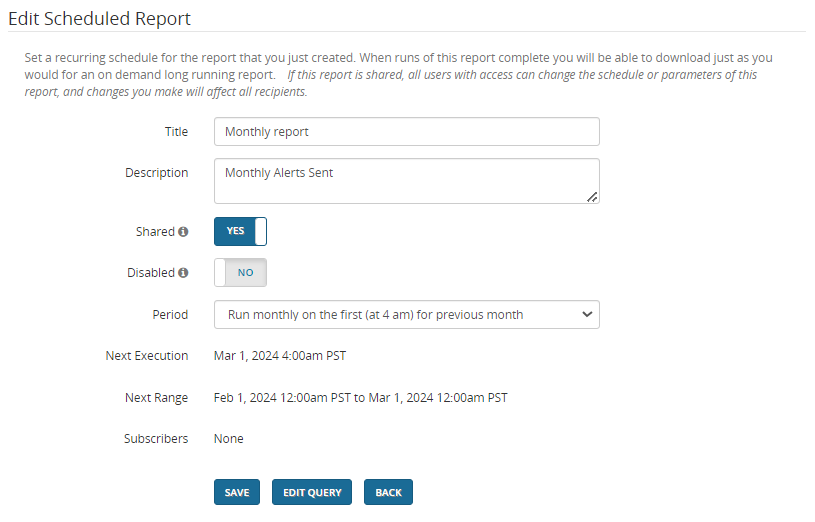
Building Ad Hoc Scheduled reports
Ad Hoc Download reports for Alerts Sent and Alerts Received can be scheduled to run periodically (daily, weekly, or monthly) until you cancel them. The other Ad Hoc Download reports cannot be scheduled.
When runs of the scheduled report complete, you can download it just as you would a long-running report. After you set up an Ad Hoc Scheduled report, you can choose to share it with other users. If you choose to share this report, all users who receive the report can change the schedule or parameters of the report, and changes made by any user affect all users who receive the report.
At any time, you can edit the report settings, copy the report, or delete it. You can also subscribe to scheduled reports that other users have shared.
Setting up a scheduled report
To set up a scheduled report:
-
Select Alerts Sent or Alerts Received, then make the settings as described in Building Ad Hoc Download reports. The date range for the report is not relevant because it is determined dynamically at execution time.
-
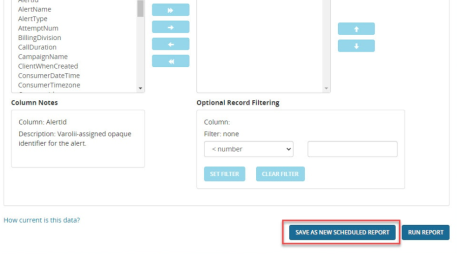
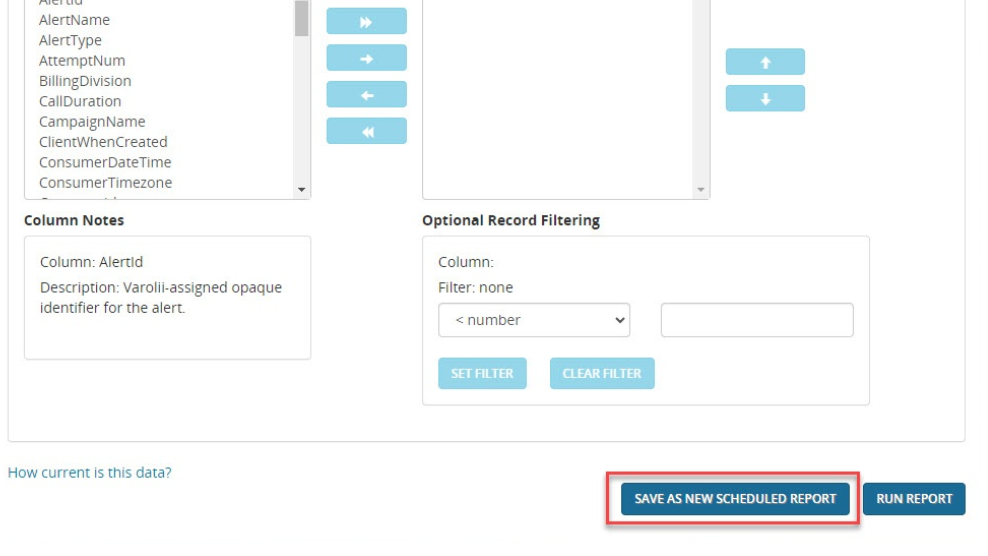
At the bottom of the query page, click Save as New Scheduled Report:
-
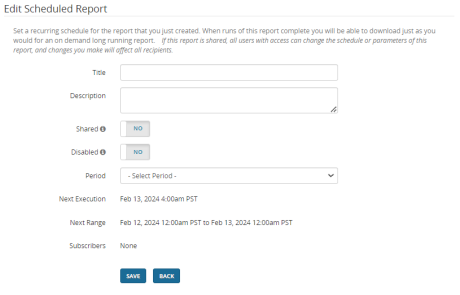
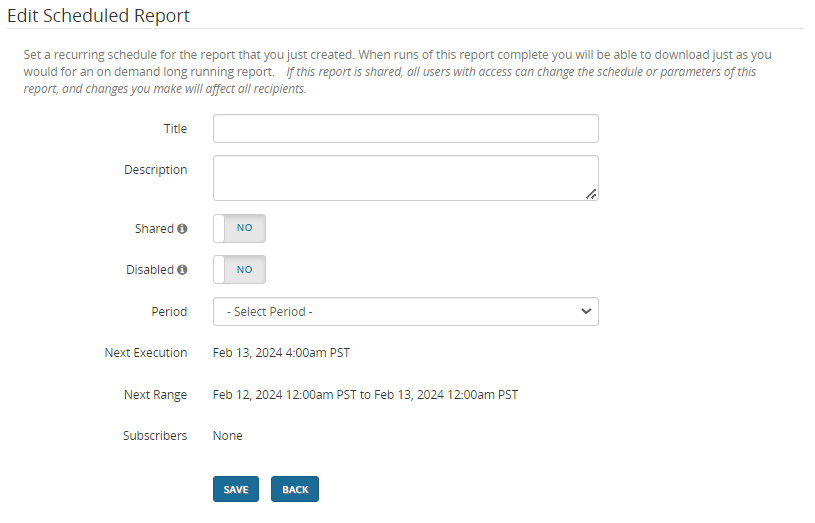
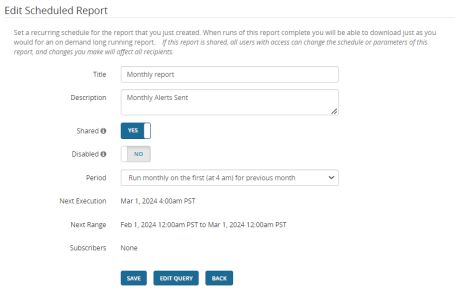
This displays the Edit Scheduled Report page:
-
Enter a Title and Description for the scheduled report.
-
For Shared, select Yes or No. If you select Yes, other users can subscribe to and edit the report. But only you have the ability to turn off sharing or delete the report. If you select No, other users cannot access the report. For details, see Subscribing to Scheduled reports.
- For Disabled, select Yes or No. If you select Yes, the report is disabled and no longer executes. You can re-enable the report at any time by selecting No.
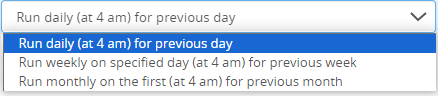
- For Period, select one of the following options.
Daily: The report runs at 4 hours past midnight in the client's time zone. The date range is the previous day.
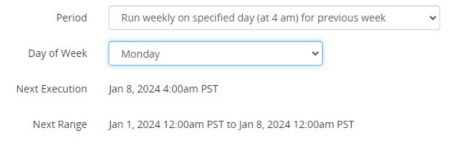
Weekly: The report runs 4 hours past midnight in the client's time zone on the day after the week ends. The date range is the previous week. Select the day of the week you want the week to end.
Monthly: The report runs 4 hours past midnight in the client's time zone on the day after the month ends. The date range is the previous month.
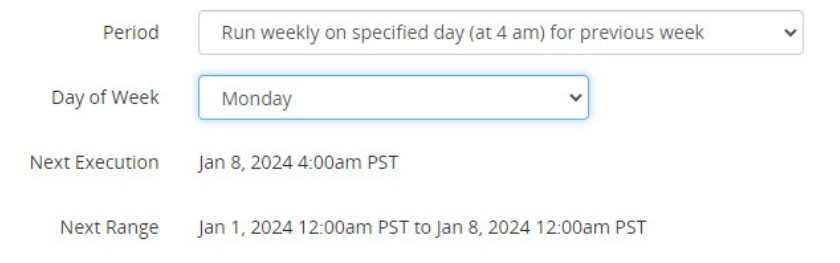
- After you make a selection, the Next Execution and Next Range fields are populated:
-
Click Save. This displays the Scheduled Reports page, which shows all scheduled reports:

Managing Scheduled reports
Viewing Scheduled reports
To view the list of Ad Hoc Scheduled reports, click Admin > Scheduled on the left nav bar.
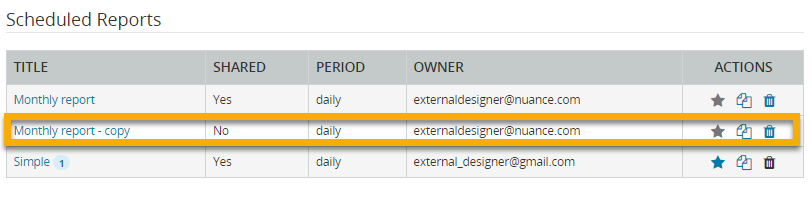
In this example, two reports are displayed. The first report is a shared report owned by another user. The second report is owned by the logged-in user.
Copying Scheduled reports
To copy a scheduled report, click the Copy ( ) button. This creates a new report with - copy appended to the title. The copy has the same settings as the original report, but you can edit any settings by clicking the title. The copy will default to un-shared and have no subscribers.
Subscribing to Scheduled reports
You can subscribe to reports that have been shared by other users.
-
Click Admin > Scheduled on the left nav bar. This displays the Scheduled Reports list. Reports that have been shared by other users display a empty star (
 ) under the Actions heading.
Reports that you own display a gray star (
) under the Actions heading.
Reports that you own display a gray star ( ).
). -
Click an empty star (
) to subscribe to a report. The star should now display as solid ( ). Each time the report runs, it will appear on Your Current Long Running Report Request page, which you can view by clicking Home on the left nav bar.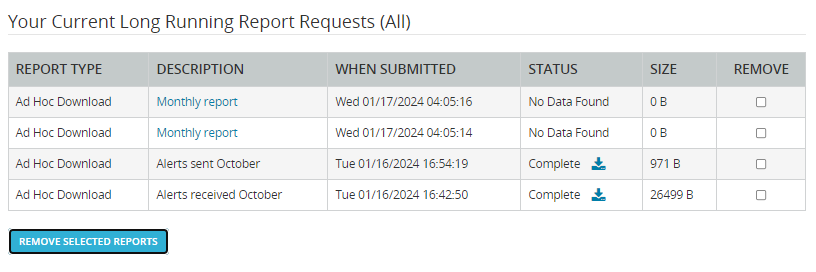
-
As a subscriber you will not receive an email when the report completes, but you will receive an email if the report owner unsubscribes you, by deleting the report, un-sharing it, or just removing you from the distribution list.
-
You can unsubscribe from a Scheduled report by going to the Scheduled Reports list and clicking the solid star.
Deleting Scheduled reports
To delete a report, click Admin > Scheduled on the left nav bar to display the Scheduled Reports list. Find the report you want to delete and click the Delete ( ) button. This operation does not delete any previous report runs.
Editing Scheduled reports
You can change the schedule, sharing status, or query parameters of a Scheduled report at any time. You can edit only reports that you own or reports that were shared by another owner. Be aware that any changes you make affect the report for all users who receive the report.
-
Click Admin > Scheduled on the left nav bar.
-
Click the Title of the report you want to edit. This displays the Edit Scheduled Report page.
-
Make the any changes you want and then click Save. Users who have subscribed are displayed under Subscribers. To delete a subscriber, click the x next to their user name. Only the owner of a report can delete subscribers.
-
If you want to edit the query parameters for the report, click Edit Query to display the query page. Make the any changes you want and then click Save as Scheduled report.
-
Alternatively, if you want to run the report immediately, click Run Report. In this case, the selected date range would be used.