Scheduling a report
You can set up a schedule to automatically run any report once or periodically. To schedule a report, click Schedule in the left navigation bar, then select the report you want to schedule.
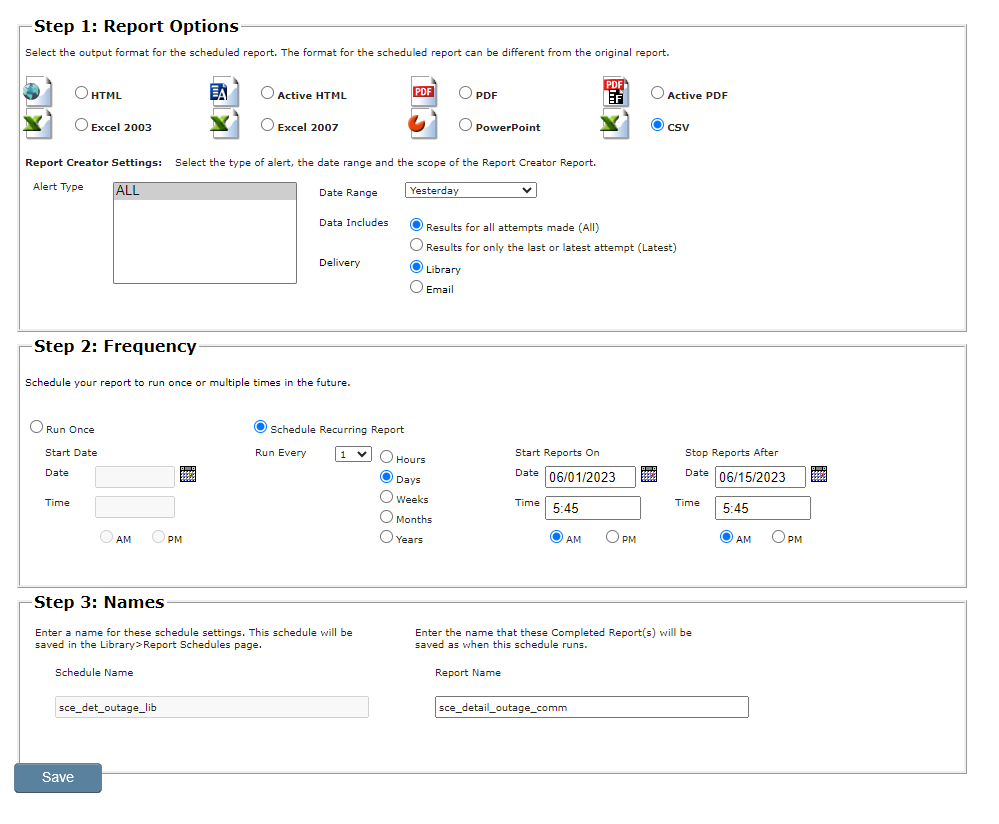
From the Schedule screen, perform the following three steps:
Step 1: Report Options: Select the output format for the scheduled report. The format for the scheduled report can be different from the original report. Then select the Date Range and choose options for Data Includes and Delivery. If you select Library, the reports appear under the Completed Reports tab.
Step 2: Frequency: Select Run Once or Schedule Recurring Report. Select the date or dates for the report to run. For a recurring report, select values for Run Every. Because the scheduler uses Pacific time, be sure specify the dates and times in Pacific time.
Step 3: Names: For Schedule Name, enter a name for these schedule settings to be saved as. For Report Name, enter a name for the completed reports to be saved as.
Here’s an example of a recurring report: