Click
the Save button to save a template of
your reports configuration.
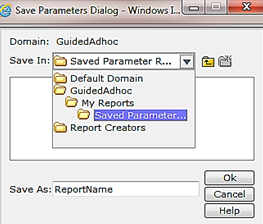
A
dialog box prompts you for your desired report name in the Save As: field.
Enter your report name and click Ok.
Tips
If you have access to multiple clients (companies), when you save a report to your Report Library that report definition is not client (company) specific and can process from any other client you may access.
Be aware this only works if the saved report definition does not refer to any client specific information like Alert Types or Checkpoints. Even if the Alert Types or Checkpoints have the same name, they are identified by an internal sysid not the name that shows up in the user interface.