Using Reports to Evaluate Campaign Performance
Use the Proactive Engagement Portal Reporting Center to evaluate contact strategies and applications performance with a variety of reports that compile detailed information about messaging activities and results. You can also manage and create a wide variety of reports that help you reach your goals.
Proactive Engagement Portal Reporting Center
Our comprehensive set of reports provide visibility into Proactive Engagement Portal performance and the data necessary to measure application results.
- Some of the reports described in this guide are sent to you automatically, in email.
- Some may be provided during your Quarterly Business Review.
- Others are available when you need them by using Proactive Engagement Portal.
Access the Reporting Center by logging into Proactive Engagement Portal at portal.vrli.com and clicking Reports in the top menu.
Understanding standard query fields
When generating an online report, select fields that determine the scope and depth of the data that you want included in the report. Certain fields appear on the query dialogs of almost all reports as described below.
Date range
Select Alerts Sent or Alerts Received from the drop-down list and designate the beginning and ending dates for the report.

- Alerts Sent are the alerts that we dispatched to your customers (and messages that your customers retrieved in response to an alert) during the specified date range, no matter when we received the records for those alerts.
- For an Alerts Sent report, the Alerts Retrieved number can include alerts that were retrieved during the date range but were originally sent before the beginning of the date range.
- Alerts Received are the records that you sent to us to process during the specified date range, no matter when those records were processed.
- The number of alerts received is based strictly on the time range of the specified date range.
- If you send “the Monday file” before midnight Monday morning, then those records will not be counted as Monday records, they are counted as Sunday records.
- If the date range you specify does not include Sunday, then none of those “Monday” records are included in an alerts-received report.
- For an Alerts Received report, the Alerts Retrieved number can include alerts that were originally sent during the date range but were retrieved after the end of the date range.
- Date selection: Select or type start and end dates in MM-DD-YYYY (numeric) format, including separators. If you prefer to type the date, press Esc to hide the date picker, type your new date, and press Enter.
- Message retrieval means that your application can leave a message on your customer’s answering machine, asking them to call a toll-free number to listen to the alert. Your customers may retrieve those messages at any time, usually over multiple days.
For an Alerts Received report, the Alerts Retrieved number can vary from one run of the report to another, as your customers continue to retrieve alerts that were originally sent during the date range.
Some reports only apply to alerts sent or to alerts received. In that case, the drop-down list for this choice contains only the one item.
The time range is from midnight at the beginning of the From date to midnight at the end of the To date.
- If the To date is today, most reports include data up to about 40 minutes before the report is run. Some reports use data that is only refreshed every two to four hours.
- If the From date is today, you can leave the To field empty. Alert Administrator treats this as a request for today’s data.
- Some reports only allow you to specify a single day.
Reporting Domain
Some applications are configured to include reporting domains, such as “Collections” or “Marketing”.
To restrict the report data to just one reporting domain, select that domain from the drop-down list.
- Select “All” to include data from all reporting domains. You cannot select multiple domains other than “All”.
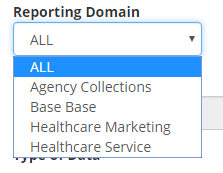
- When you select a reporting domain, then the Alert Type list will only have applications that are in that reporting domain.
Alert Type
- Select “All” to request data about all of your applications.
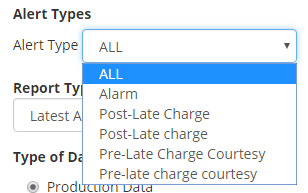
- Select a specific application to request data about that one application. You cannot select multiple applications other than “All”.
If you selected a Reporting Domain, then this list will only show your applications that are in that domain. In this case, “All” means all of the applications in that domain.
Filters and Alert Type
If your applications are configured to use reporting filters, then the Alert Type section becomes the Filters and Alert Type section, as shown.

- When you select any filter other than “All” from the drop-down list, the Alert Typelist changes to contain only the alert types that match that filter.
- When you select any filter other than “All” from the drop-down list on the left, then “All” in the Alert Type list means only alert types that match the filter.
- Reporting filters are a custom feature. The label on the filters list is whatever label has been customized, such as “Bucket” or “Region”.
Report Type
To specify the type of report you want, select “Latest Attempt” or “All Attempts”.
- “Latest Attempt” means that the data in the report is based on the most recent attempt to contact the customer during the date range. For any given customer, the most recent attempt may or may not have been the final attempt.

- “All Attempts” means that the data in the report is based on every single attempt to contact the customer during the date range. For any given customer, this may or may not include the final attempt.
Type of Data
This option lets you specify the type of data you want your report to generate.
- Select “Production Data” to generate a report about actual, billable activity involving your customers.
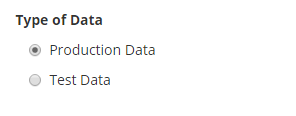
- You will almost always select “Production Data”.
- Select “Test Data” to generate a report about non-production data.
How current is this data?
When the report date range includes the current day, you should be aware of the following:
- Events occurring in the last 2 to 3 hours may not be reflected in the report because data warehouse processes, which aggregate large quantities of data, run only periodically.
- You may occasionally see small differences between Base Notification counts and Total Result counts appearing in the body of the report. This is normal, and is due to the fact that alerts and results are ongoing.
If you require a near-real-time view of the current day's activity, try the Current Snapshot report.
