Generating license usage reports
License Usage reports (System Analysis tab) show recent license checkouts by application and service. Use these reports to assess activity related to your license agreement with Nuance.
Note: After starting, applications need to run for more than 1 hour before this report displays data.
Specifying report filters
Set filters and click Generate. The report appears in the lower part of the same page.
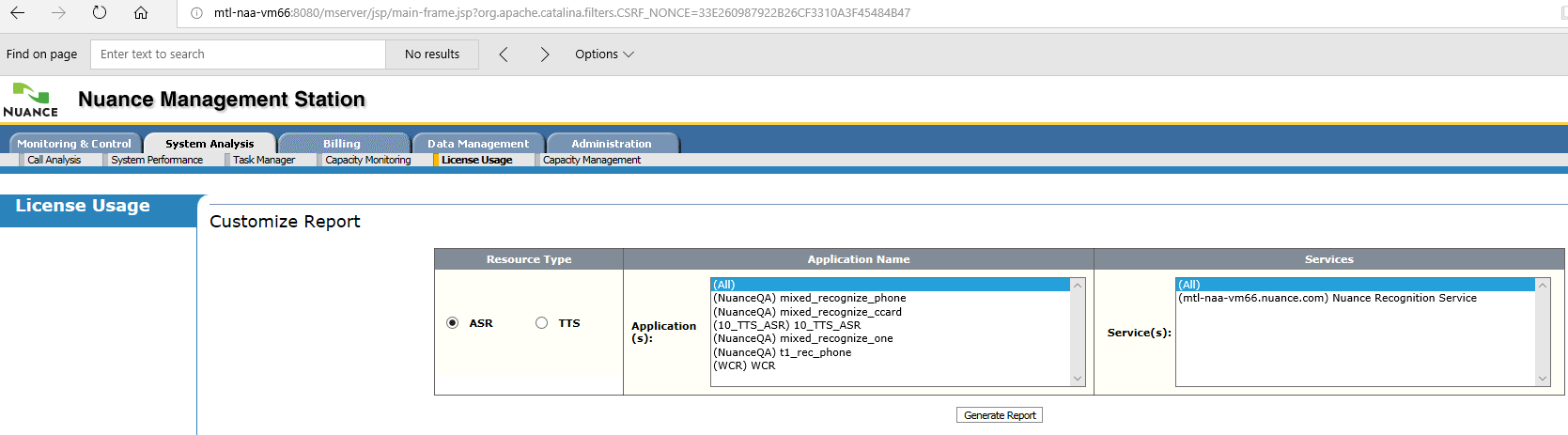
- Resource Type:
- ASR (language): Measures recognition licenses. Shows the number of licenses used by recognition resources.
- TTS (voice): Measures text-to-speech usage. Shows the number of licenses used by TTS resources.
- Application Name: Select an application from the list. These are is defined in your application’s session.xml file. See Configuring application sessions.
- Services: Select All or a specific service. The list depends on the resource type and application. For ASR, recognition services used by the specified application appear. For TTS, vocalizer services appear used by the specified application appear. Each service includes the name of its host, for example, (mt-shepherd-vm3) Nuance recognition service.
Example license usage report
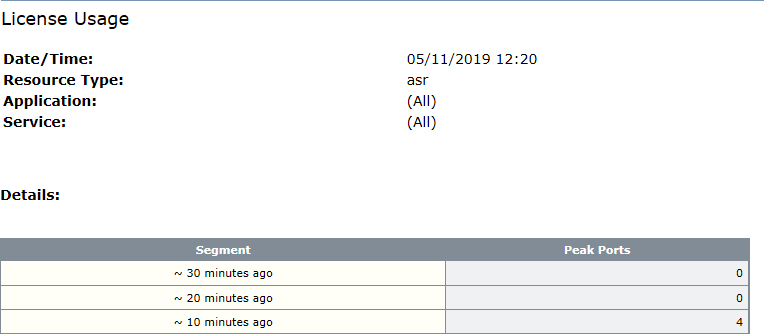
This example shows an License Usage report. The Peak Ports column shows simultaneous checkouts.