Searching for calls
You can search for calls on the Call Set List page either by searching with an existing filtering profile (a call set) or by creating a new call set and searching with that.
Note: If there has been a change in the default timezone after the creation of call sets, those call sets will continue to display data according to the old timezone. Nuance recommends that after a change in default timezone, you resubmit existing call sets. This will make older call sets display log data in the new timezone.
Using a call set
-
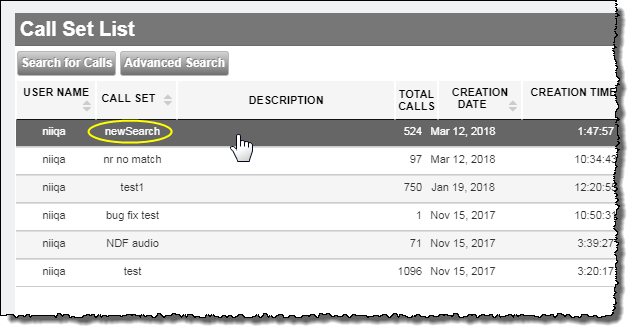
In Call Set List, click the desired call set in the list.
Creating a call set
There are two methods of creating a callset: the Basic callset creation method and the Advanced callset creation method.
The Basic method is useful for quickly configuring callset filters. If you have more than one active filter condition when using the Basic method, you should be aware that the aggregate filtering effect on the data is determined by filtering rules that are non-editable.
If, however, you need to filter out data in your callset using filters with a more structured and flexible query, the Advanced callset creation method may be more appropriate. Advanced callset creation presents the filter as a concatenated query string and allows you to specify a logical AND or OR between conditions in the string.
Basic callset
In order to see information about a particular call, you must first create a Call Set.
-
In Call Set List,
 click Search for Calls.
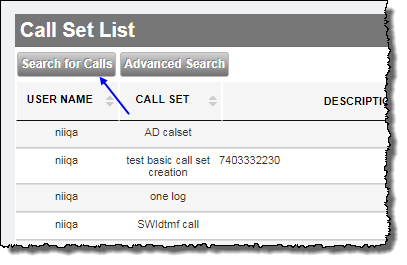
The Search for Calls window appears.
-
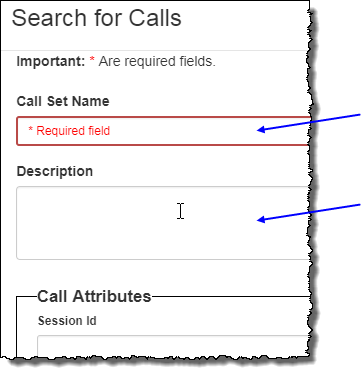
Enter a name for your new Call Set, then provide a meaningful description of your intended Call Set's filtering strategy.
-
Select a date range by doing one of the following:
-
Select a date range preset byclicking the preset list and selecting a range.
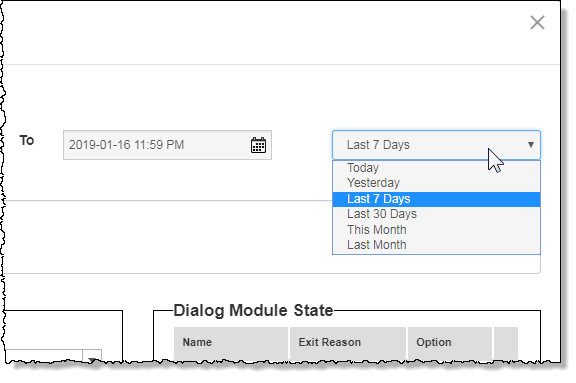
Or,
-
Select the starting and ending dates for your date range using the From and To date selectors.
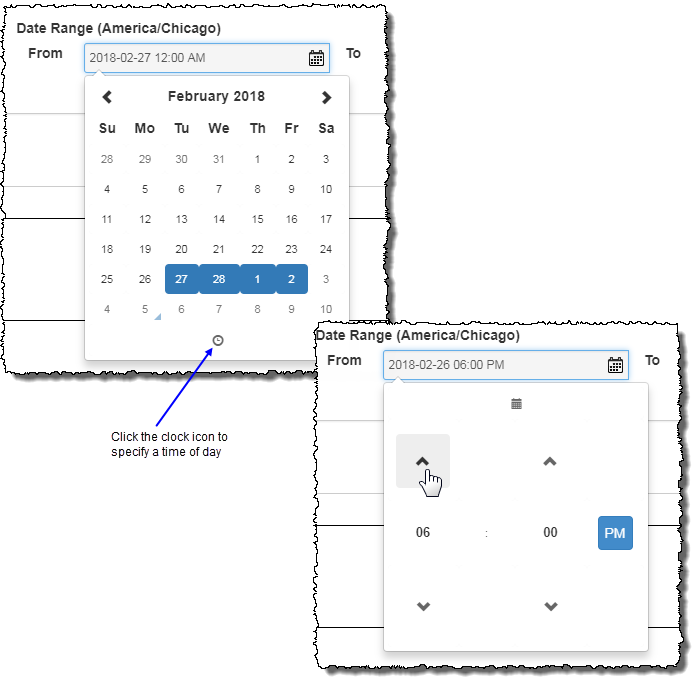
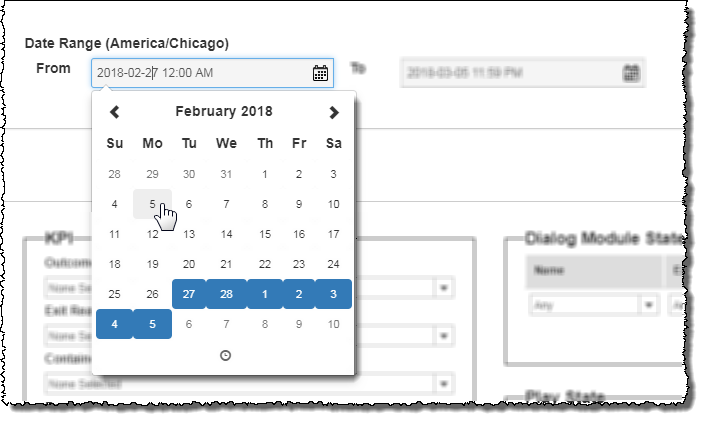 After selecting both From and To dates, open each of the date selectors again tospecify a time of day.
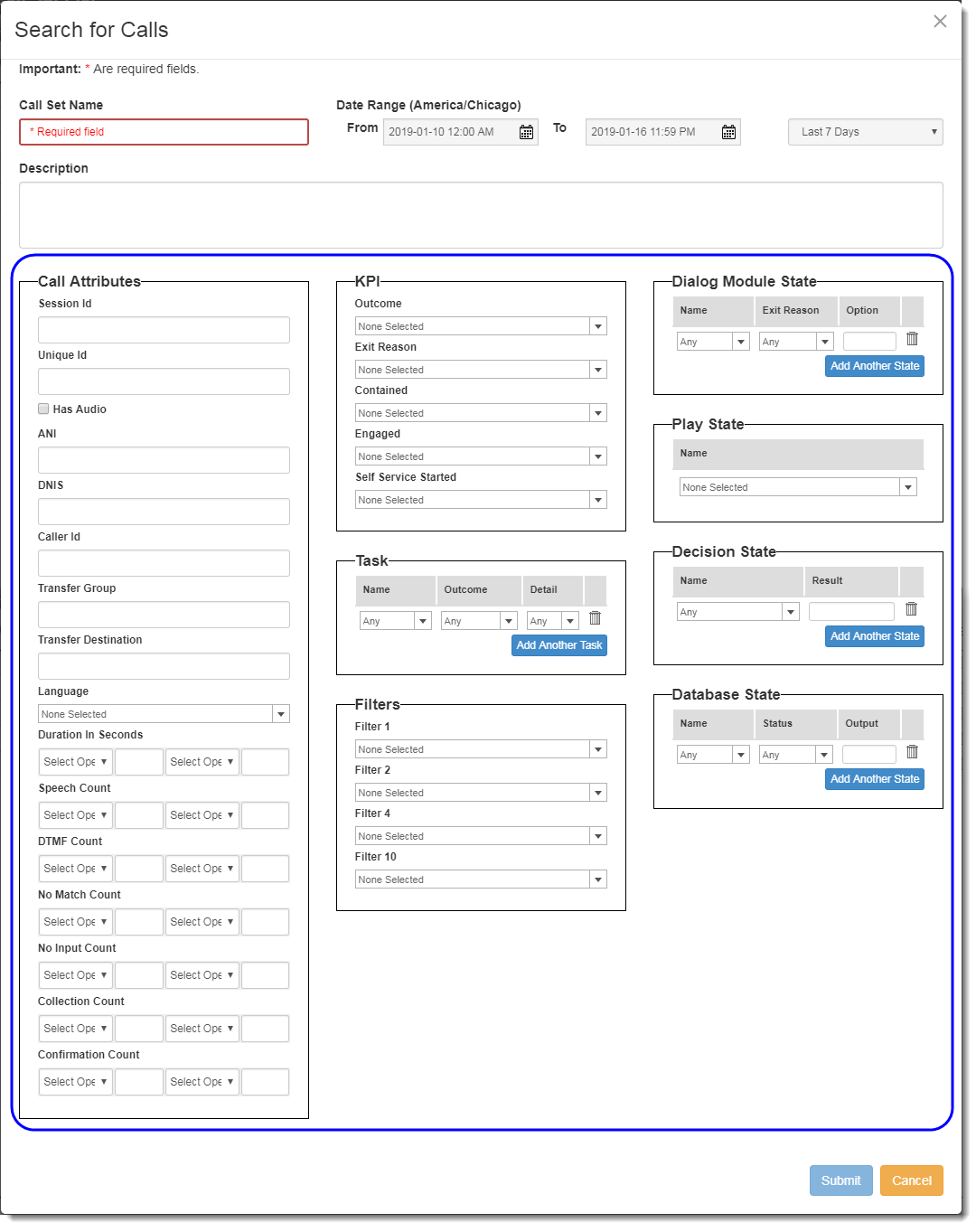
The remainder of theCall Set Filters window is comprised of several filters designed to remove unwanted calls from the call list.
-
-
Configure your filters.
Notes:
- Before configuring your filters, Nuance strongly recommends you read about the underlying logical operators for Call Set filters.
- In fields requiring a typed entry (for example, Session Id), you may specify an exact value or you may make use of a wildcard ( * ) either before or after the string value. Additionally, you may use the wildcard both before and after a typed string.
- You may not place a wildcard ( * ) between two value strings in the Value column.
Call Attributes
-
Session Id - Each call has an application-generated ID that is unique to the call. An application using a Session ID creates a call log whose file name includes the ID string. You can enter a single Session ID to select a single call, or else you can enter a list of comma-separated Session IDs. Additionally, you can use the * (asterisk) symbol to define wildcards. The Wildcard asterisk takes the place of missing characters and can be used both before and after entered characters.
-
Unique Id - This is a unique identifier found in the log files, typically, but not always, a Session ID. You can enter a single Unique ID to select a single call, or else you can enter a list of comma-separated Unique IDs. Additionally, you can use the * (asterisk) symbol to define wildcards. The Wildcard asterisk takes the place of missing characters and can be used both before and after entered characters.
-
Has Audio - By selecting this checkbox, only those calls with included audio files will be included in the generated call list. Clearing this checkbox, turns off any filtering effect from this filter (that is, all calls, both with and without audio, are included in the generated call list).
-
ANI - This is the phone number of the caller. In this filter, you can enter a single ANI to select calls only from that ANI, or else you can enter a list of comma-separated ANIs. Additionally, you can use the * (asterisk) symbol to define wildcards. The Wildcard asterisk takes the place of missing characters and can be used both before and after entered characters.
-
DNIS - This is the phone number that the caller dialed. In this filter, you can enter a single DNIS to select calls only to that number, or else you can enter a list of comma-separated DNIS. Additionally, you can use the * (asterisk) symbol to define wildcards. The Wildcard asterisk takes the place of missing characters and can be used both before and after entered characters.
-
Caller ID - If the application logs a unique identifier for a caller, such as an account number or identification number, Nuance Insights can be configured to make that identifier available as a Call Viewer filter. This allows a search for all calls from a single caller.
-
Transfer Group - A transfer group describes the type of agent a caller is being sent to. For example, "North America", "Help Desk", or "DFS12". In this filter, you can enter a single transfer group to select calls only to that number, or else you can enter a list of comma-separated transfer group. Additionally, you can use the * (asterisk) symbol to define wildcards. The Wildcard asterisk takes the place of missing characters and can be used both before and after entered characters.
-
Transfer Destination - A transfer destination is a specific agent pool or agent transfer number. Typically, this is a string of digits. In this filter, you can enter a single transfer destination to select calls only to that number, or else you can enter a list of comma-separated transfer destination. Additionally, you can use the * (asterisk) symbol to define wildcards. The Wildcard asterisk takes the place of missing characters and can be used both before and after entered characters.
-
Language - This refers to the language spoken in the call. With this filter, you can select one or more languages in a drop-down list.
-
Duration in seconds - Specifying a call duration range effectively filters out all calls outside the range. This filter allows you to specify up to two durations.
-
Speech Count - This is the number of discrete utterances by a caller within a call. Specifying a range for Speech Count effectively filters out all calls outside the range. This filter allows you to specify up to two counts.
-
DTMF Count - This is the number of DTMF instances within a call. Specifying a range for DTMF Count effectively filters out all calls outside the range. This filter allows you to specify up to two counts.
-
No Match Count - This is the number of Dialog Modules within a single call for which the outcome was No Match. Specifying a range for No Match Count effectively filters out all calls outside the range. This filter allows you to specify up to two counts.
-
No Input Count - This is the number of Dialog Modules within a single call for which the outcome was No Input. Specifying a range for No Input Count effectively filters out all calls outside the range. This filter allows you to specify up to two counts.
-
Collection Count - The collection count is the number of times the application attempted to recognize a core piece of information by asking a “collection” question such as “Which menu option do you want?” or “What is your birthdate?”. This filter includes attempts to recognize a core piece of information following retries such as in the case of no matches and no inputs. With this filter, you can select calls that have more than, less than, equal to, less than or equal to, or more than or equal to a specific number of collections.
-
Confirmation Count - The confirmation count is the number of times the application asked a yes/no question to determine if the piece of information collected at the previous collection was correct. For example, “I think you said you want to hear your balance, is that correct?” With this filter, you can select calls that have more than, less than, equal to, less than or equal to, or more than or equal to a specific number of confirmations.
KPI
All of the KPI filters allow you to select one, some, or all possible filter values for each of the filters. Filters for which you configure more than one value display as comma-separated values. Only calls containing at least one of the selected filter values are included in the call list (see Comma-separated values for more information about the aggregate filtering effect of multiple comma-separated values in a filter).
-
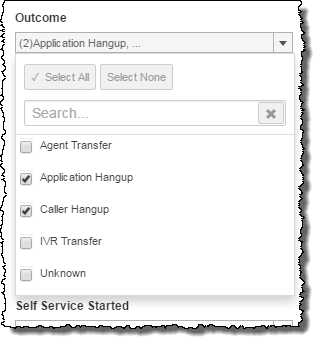
Outcome - The call outcome is any one of several possible categories defining how a call finishes. With this filter, you can select one, some, all, or none of the listed outcomes in the drop-down list.
-
Exit Reason - The exit reason for a call is the reason an outcome was reached. With this filter, you can select one, some, all, or none of the listed exit reasons in the drop-down list.
-
Contained - Contained calls are calls that end entirely within the application. Non-contained calls are ones that transfer to an agent, regardless of the exit reason. With this filter, you can select calls that were contained, transferred, or both.
-
Engaged - The Engaged filter allow you to select calls based on the level of caller interaction. With this filter, you can select one, some, all, or none of the listed values in the drop-down list.
-
Self Service Started - This filter allows you to find calls where the caller did or did not begin a self-service task. The start conditions for self-service tasks are custom to each application. With this filter, you can select one, some, all, or none of the listed values in the drop-down list.
-
Custom KPI - This filter allows you to reduce the volume of reported calls in your Call Set by including only those calls with selected KPI metrics.
Notes:- Some or all custom KPI filters may not be visible in the Call Set Filters page. For a custom KPI filter to be visible, there must be agreement (with regards to that filter) between the AFO file and the log files.
- There may be up to two Custom KPI filters.
Task
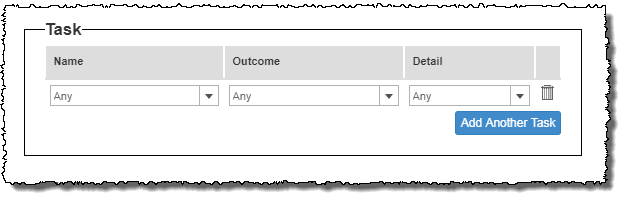
With this filter, you can select one, some, all, or none of the listed tasks in the drop-down list. Only calls containing ALL selected task filter targets (represented as rows in the Task area) are included in the call list (see Multiple rows for more information about the aggregate filtering effect of multiple rows in a filter).
 Filters
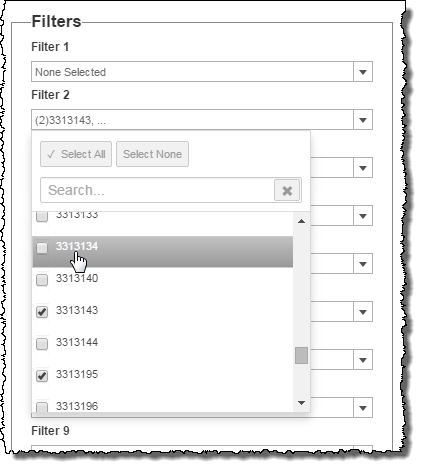
Up to ten customizable filters may be available. These filters depend upon data from AFO (after-the-fact-outcome) files. For example, Nuance Insights may be customized to include a filter for Caller Type in which you would like to be able to include in your Call Set only calls from members.
With each of these filters, you can select one or more dimension filter values. Only calls containing at least one of the selected filter values are included in the call list (see Comma-separated values for more information about the aggregate filtering effect of multiple comma-separated values in a filter).
Note: Some or all of the ten filters may not be visible in the Call Set Filters page. For a filter to be visible, there must be agreement (with regards to that filter) between the AFO file and the log files.
Dialog Module State
With this filter, you can select one or more Dialog Modules. Only calls containing selected Dialog Modules are included in the call list. This is a three-dimensional filter applied on a per Dialog Module basis. You can apply the filter on more than one Dialog Module, with distinct filter settings applied to each. Click Add Row to add another Dialog Module filter. Within each row, select a single Dialog Module, a status, and a result to include calls in your call list meeting these criteria. The implied logical operator between the rows is AND (see Multiple rows for more information about the aggregate filtering effect of multiple rows in a filter).
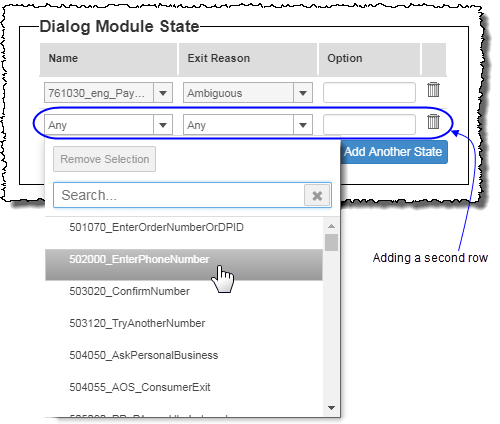
The logical relationship of rows to one another is that of a Boolean AND operation. For example, if there are two rows in the filter, only those data for which BOTH task filter rows are true will be visible.
Play State
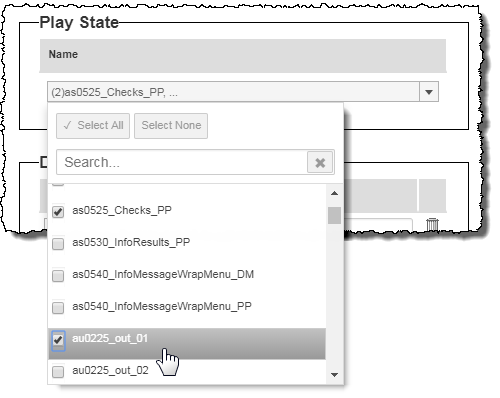
With this filter, you can select one or more play states (play prompt states). Only calls containing the selected play states are included in the call list. Only calls containing ALL selected play states are included in the call list (see Comma-separated values for more information about the aggregate filtering effect of multiple comma-separated values in a filter).
 Decision State
With this filter, you can select one or more decision states. Only calls containing the selected decision states are included in the call list. This is a two-dimensional filter in which, by selecting a subset of states and then specifying a result, you limit the call list exclusively to those calls satisfying both criteria.
You can apply the filter on more than one decision state, with distinct filter settings applied to each. Click Add Row to add another Decision State filter. Within each row, select a single decision state and a result to include calls in your call list meeting these criteria. The implied logical operator between the rows is AND (see Multiple rows for more information about the aggregate filtering effect of multiple rows in a filter).
Database State
With this filter, you can select one or more database states. Only calls containing the selected states are included in the call list. This is a three-dimensional filter in which, by selecting a subset of states, specifying an output, and then selecting one or more statuses, you limit the call list exclusively to those calls satisfying all three criteria.
You can apply the filter on more than one database state, with distinct filter settings applied to each. Click Add Row to add another database state filter. Within each row, select a single database state, a status, and a result to include calls in your call list meeting these criteria. The implied logical operator between the rows is AND (see Multiple rows for more information about the aggregate filtering effect of multiple rows in a filter).
- Review your filter settings and then click Submit.
Advanced callset
-
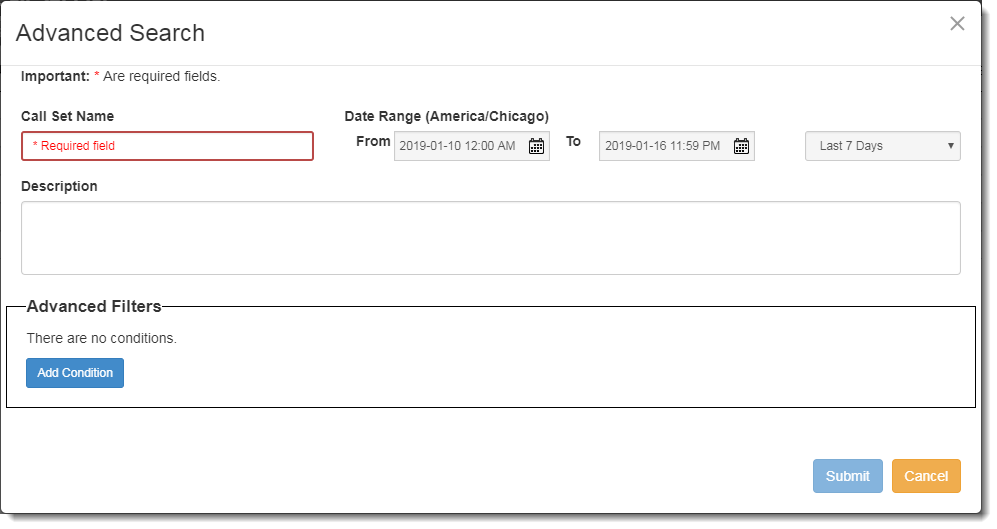
In Call Set List, click Advanced Search.
-
Select a date range by doing one of the following:
-
Select a date range preset byclicking the preset list and selecting a range.
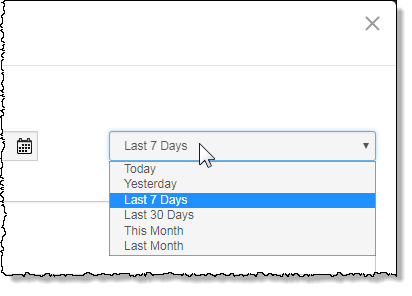
Or,
-
Select the starting and ending dates for your date range using the From and To date selectors.
After selecting the dates, open each of the date selectors again tospecify a time of day.
-
-
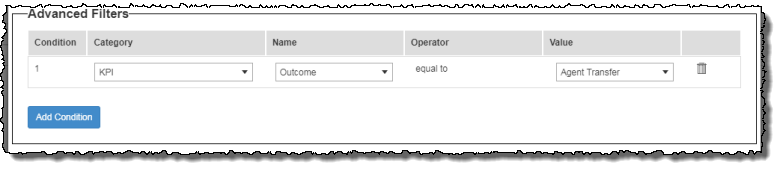
In the Advanced Filters area, configure your first filter condition.
Notes:- If your choice in the Category column allows you to type an entry in the Value column, optionally, you may make use of wildcards ( * ) to cover a class or range of possible values. Place a wildcard either before or after the entered string value, or else you may use the wildcard both before and after the typed string.
- You may not place a wildcard ( * ) between two value strings in the Value column.
-
If you select Call Attributes as a condition category in the Advanced Search, the available filters in the Name column are the same as the Call Attributes filters in the Basic Search.
-
After configuring your first condition - and if you require another condition - click Add Condition to add another row.
-
Repeat steps 4 and 5 until you have entered all conditions for your filter.
-
If you configured more than one filter condition (there would be more than one row if you did), perform the following sub-steps:
-
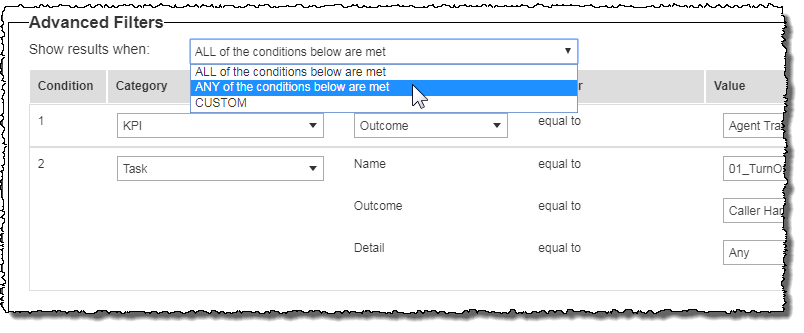
Select how you would like conditions to relate to one another in the Show results when field.
Here, you may indicate either that all conditions must be true (meaning a logical AND), or that any of the conditions are met (a logical OR). Alternatively, you may customise how individually specified conditions relate to other conditions by indicating CUSTOM.
-
If you chose CUSTOM, in the Custom Condition Grouping field, enter a condition grouping formula.
Notes:Example:
- (1 AND 2) OR 3
- 1 AND (2 OR 3)
- (1 AND 2) OR (3 AND 4)
- (1 OR 2 OR 3) AND 4
-
- Review your filter settings and then click Submit.