Exit Reason by Final Intent
On a per channel basis, this report visualizes the relative distribution of exit reasons for interpreted final intents.
In addition to the use of report filters, Nuance Insights allows you to manipulate displayed data through several other means in order to better visualize information. Select from the following to learn more:
Visualizations
Exit Reason by Final Intent graph
You can view the data for this section either as a stacked graph or in a text-only table. Both formats break out the quantified metrics first by channel and then by final intent. The Number of Conversations metric is the raw count of conversations for a given final intent in a given channel. If you choose to use the graphical visualization, the Number of Conversations bar graph visualizes the relative magnitudes of conversation counts with bar length. The table lists the raw count in text format in the Number of Conversations column.
Note: To see the data from the graphical visualization displayed in an alternative, textual way, click Show Table. To toggle back to the graphical view, click Show Graph.
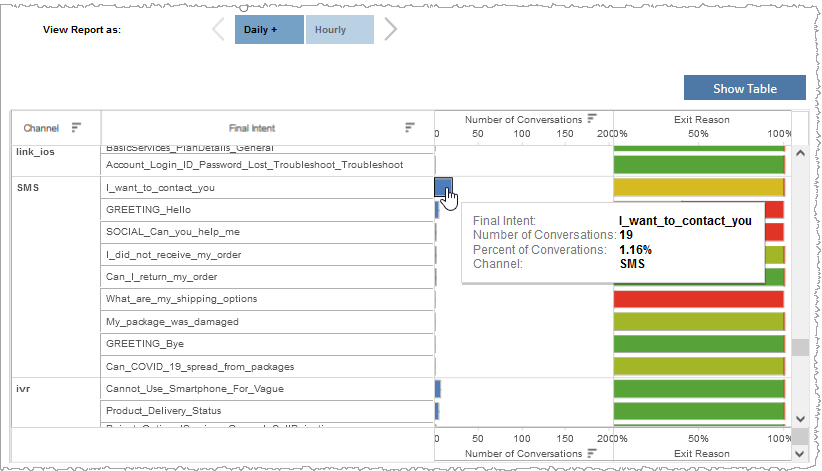
In the graph, each bar's tool tip quantifies the percent distribution of that intent's raw count of conversations compared to the overall number of conversations for all final intents across all channels.
In the example below, conversations for a given final intent of I_want_to_contact_you and belonging to the channel SMS, had a raw count of 19, which, when compared to the overall number of conversations across all final intents and channels, yielded a percent distribution of 1.16%.
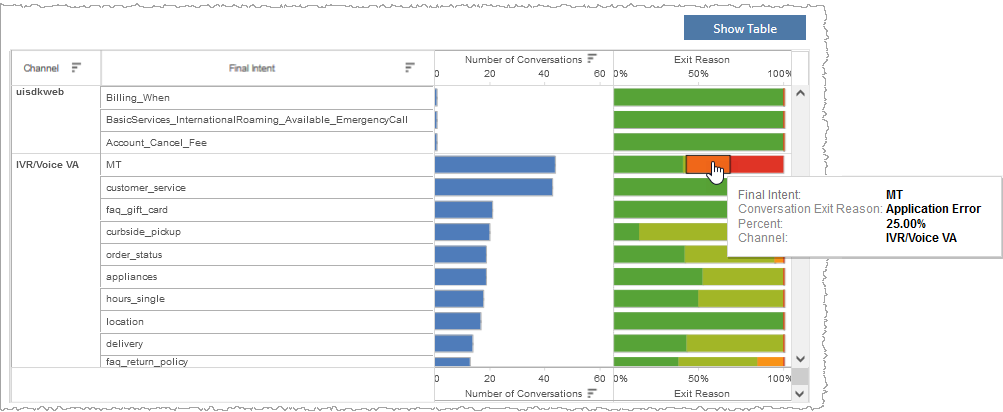
The Exit Reason (right) side of the graph visualizes the proportional distribution of exit reasons for those conversations within a given channel having a given final intent. In the table, the percent distribution of each exit reason is listed in its own column. In the example below, of all conversations having an interpreted final intent of MT and belonging to the channel IVR/Voice VA, 25.00% of them had a conversation exit reason of Application Error.
Exit Reasons Over Time graph
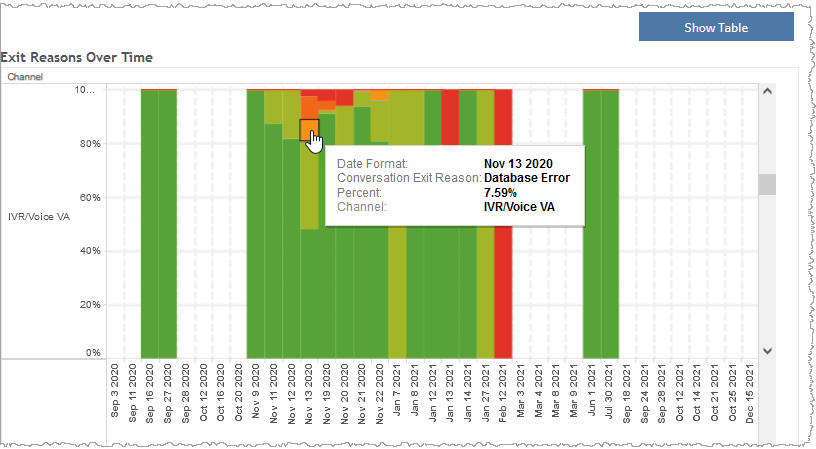
You can view the data for this section either as a stacked graph or in a text-only table. Both formats This section maps the change over time of the relative weighting of conversation exit reasons compared to one another in a given channel. In the graphical view, the length of each bar segment corresponds to the magnitude of weighting for a given conversation exit reason. The table expresses weighting magnitudes as a percentage of the whole, where the whole is the aggregate of all exit reasons in a given time period for a given channel.
In the example, below, conversations with a Conversation Exit reason of Database Error represent 7.59% of all conversations in the 24-hour period (date granularity not shown) of the calendar date November 13th, 2020 in the IVR/Voice VA channel, from data complying with all filters and within the configured date range.
Filters
Increase the specificity of your view's reporting by applying filters to the data.
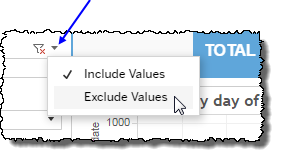
 includes data containing specified filter values or else excludes this subset of data.
Clicking Include values displays only those data possessing the selected values. All other data are hidden from the visualization.
By contrast, clicking Exclude values displays only those data that do not possess the selected values.
Date Range
The Date Range filter is a slider with two moveable sides. By narrowing the date range, you display only data falling within the range.
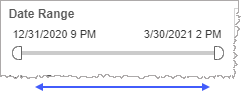
In addition to the slider, the filter allows you to specify start and end points to the range by time of day as well as by date by clicking the Start and End regions, clicking a second time on the time of day, and then manually entering a new time of day.
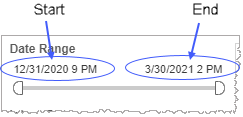
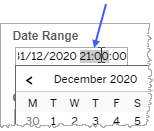
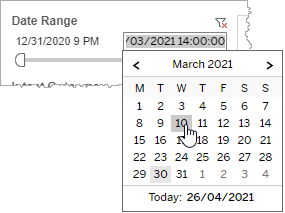
To select a date with the date picker, click the Start region to pick a date from the date picker widget. Do the same with the End region.
Date Granularity
The Date Granularity filter allows you to adjust the reported data granularity described by the trend lines. Drag the slider horizontally to adjust the granularity of reported data. Alternatively, you can use the left  and right
  arrow buttons to move the slider incrementally.
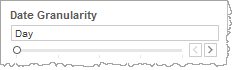
Note: If you choose to draw from hourly instead of daily summarization data, the Date Granularity filter will no longer be visible.
Final Intent
By choosing one or more final intents from the list, you refine your displayed data-set by including data from only those final intents matching the selection.
- Select all available values by selecting All.
- Select only one value by first clearing the All checkbox, and then selecting the value whose data you would like to see visualized.
-
Select several values by doing one of the following:
- Clear the All checkbox, and then select the values whose data you would like to see visualized.
- Select the All checkbox and then clear values whose data you would NOT like to see visualized.
Channel
By choosing one or more channels from the list, you refine your displayed data-set by including data from only those channels matching the selection.
- Select all available values by selecting All.
- Select only one value by first clearing the All checkbox, and then selecting the value whose data you would like to see visualized.
-
Select several values by doing one of the following:
- Clear the All checkbox, and then select the values whose data you would like to see visualized.
- Select the All checkbox and then clear values whose data you would NOT like to see visualized.
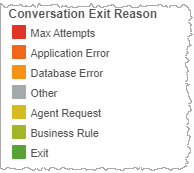
Conversation Exit Reason (highlight tool)
Use this filter to highlight data having one or several specified
- In the highlight tool, mouse over the word
-
Click the highlighter icon to toggle on (
 ) to highlight
 ) to remove highlighting.Notes:
- To make multiple selections, hold down the ctrl key while individually clicking desired
- If you made a highlighter selection of
- To make multiple selections, hold down the ctrl key while individually clicking desired
Custom filters
This report accommodates customizable filters.
Customizable filters narrow the scope of the reported dataset by including or excluding data with identifiable attributes. These attributes may be about the session or about an event that may have happened during the session.
For more information about how to add customized filters to your view, contact your Nuance Professional Services representative.
Note: If you would like to modify this or any report, Nuance Communications, Inc. recommends you contact Nuance Professional Services.
