Configuring the Voice Browser service
The Voice Browser service interprets VoiceXML content.
| Management Station tab | Description | Related tasks |
|---|---|---|
| General | Optional. Basic service settings. | Basic service settings |
| Applications | Required. Configuration of the VoiceXML applications that answer calls. | Specifying VoiceXML applications
Changing the default application |
| Telephony |
Recommended. Configuration of the dialing plan. The system uses default values for a North America plan. Customize as needed per any localized dialing requirements. |
|
| Advanced | Optional configuration possibilities. | Setting advanced service properties |
Basic service settings
The General tab sets the basic service configuration.
| General tab | Description |
|---|---|
| Diagnostic Logging |
Optional. For service-level logging , different values write different amounts of information to the logs. If necessary for troubleshooting, you can set package-level logging. See discussion below. |
| Cache |
Optional. To apply changes to a VoiceXML page immediately (without restarting the voice browser service), click Clear Cache to reload resources at the next request instead retrieving them from virtual memory. This feature is available at the network, cluster, host, and service scopes. The cache is persistent while the service runs. You can clear it at any time. For more information, see Caching application resources. |
For example:
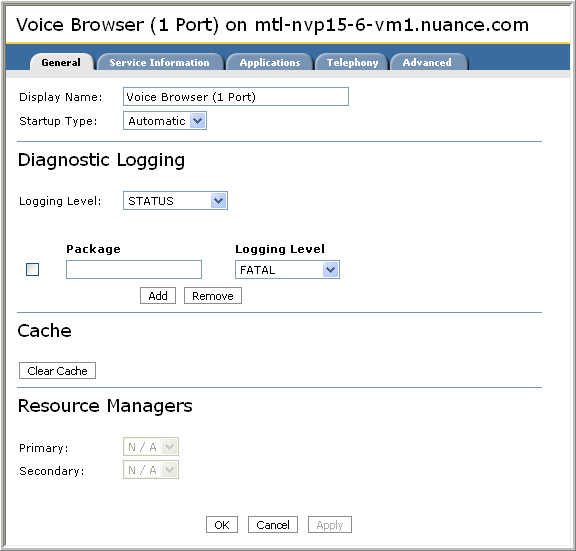
Setting package-level diagnostic logging
Note: Use this feature when instructed by Nuance Technical Support to investigate a problem that requires more detail in the log file.
You can use the Diagnostic Logging section on the General tab to fine-tune the logging levels of different code components in the Voice Browser service Java package. You can specify different levels at the package, subpackage, class, and method levels.
Enter the fully qualified name under the Package column and choose a logging level (ERROR, WARN, STATUS, D_INFO). To add another entry, click Add and enter the name and logging level. To remove an entry select it and click Remove.
The syntax for specifying different components is:
- Package—package.*, for example, nuance.*, nuance.voyager.*, and nuance.voyager.browser.*
- Class—package.class, for example, nuance.voyager.browser.Main
- Inner class—package.class$inner_class, for example, nuance.voyager.browser.Main$inner_class
- Method—package.class:method, for example, nuance.voyager.browser.Main:main
Inheritance rules apply—child components inherit their logging level from the parent component. For example, if you set a level at the class level, then all methods in that class inherit the same level. But once you set a level explicitly on a child, it no longer inherits the level from its parent. Inner or nested classes do not inherit logging levels from the parent class. You must explicitly set these.
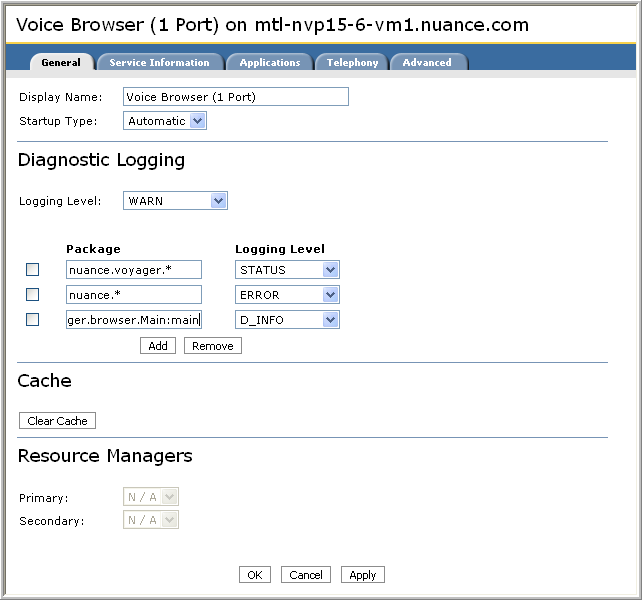
The service applies logging levels from top to bottom. Be aware that entries added later might override entries added earlier. In the following example:
- The service level is WARN. Any package not specified in the Package region inherits this level.
- The first package sets the nuance.voyager.* package (and its subpackages) to STATUS.
- The next package sets the nuance.* (and its subpackages) to ERROR. Since the nuance.* package is a parent to nuance.voyager.*, it overrides the STATUS level.
- The last entry sets nuance.voyager.browser.Main class to DETAIL.
Specifying VoiceXML applications
Use the Applications tab to specify the VoiceXML applications that the Voice Browser service executes for answering calls. (You must publish the applications before specifying them. See Deploying an application.)
The first row specifies the default application. Click Add to insert new rows for each additional application.
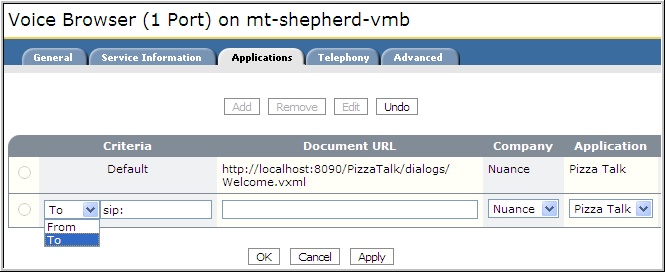
Depending on the criteria you specify, the service executes the same application for all calls (default) or routes calls to other applications based on the number dialed or the caller’s number (the To: and From: criteria). For example:
| Criteria | Cconditions for executing the VoiceXML application. (Click Add to display To and From.) |
|---|---|
| Default |
Execute this VoiceXML application when no other criteria are met. To change the default application, select the row, click Edit, and enter values for the Document URL, Company, and Application fields. |
| To | Execute this VoiceXML application when the caller dials to a certain number (called ID or DNIS). Corresponds to the VoiceXML session.connection.localuri variable. |
| From | Execute this VoiceXML application when the caller dials from a certain number (caller ID or ANI). Corresponds to the VoiceXML session.connection.remoteuri variable. |
The general syntax of the Default Criteria is:
sip:myDNISorANI@hostname[:port]
The exact syntax depends on the telephony type (SIP or NMS), and there are differences for calls on a real network (PBX, gateway, SIP proxy) versus calls on a SIP softphone. For example, if the call goes through a real network, the DNIS or ANI is a phone number. With a SIP softphone, this value could be a phone number, the name of an application, or nvp.
In a real network, the port is determined by your PBX, gateway, or proxy. With a SIP softphone, you can optionally specify a port. The default port is 5060 on the first voice browser service instance, 5070 for the second, 5080 for the third, and so on. (The ports are configured in the role files.)
See the use cases below for more information. Here is a summary of the syntax:
| Telephony type | To/From syntax | When using a SIP softphone... |
|---|---|---|
| SIP |
To: sip:DNIS@hostname
|
The DNIS can be a specific application, a phone number, or nvp. |
|
From: sip:ANI@hostname
|
The ANI depends on the particular phone. See your vendor documentation for more information. For example, if the SIP softphone doesn’t send the caller ID in the SIP INVITE, NVP sets the value to Anonymous. |
|
| NMS |
To: sip:DNIS@anonymous From: sip:ANI@anonymous
|
n/a |
The Voice Browser service implements this routing behavior as follows:
- Evaluate the To criteria
- Evaluate the From criteria
- Use the default application
- Use the Document URL (Enter the URL of the VoiceXML main document that represents the initial page of the application. The syntax is:
http://app_srvr_host:port/app/dialogs/main.vxml
Where:
- app_srvr_host is the name or IP address of the host serving the application.
- port depends on the application server. It is always 8090 for the NVP application container service.
- app/dialogs/main.vxml is the path to the initial page of your application.
This example points to a travel application published on the application server host, mt-saturn: http://mt-saturn:80/MyTravelApp/dialogs/main.vxml
- Company and Application: Choose a value from the list or choose Other... to type your own company and application values. The values will be used to segregate call log files and utterances stored locally (on the host). Note that these values take precedence over that company_name and application_name values set in session.xml. See Developing Applications for Nuance Voice Platform for more information about session.xml.
- Use Session.xml: Check to specify a session.xml file for the particular application. Once checked, a text box appears for entering the pathname of the file. See Specifying a session.xml file for more information.
Restart the voice browser service to have the changes take effect.
Changing the default application
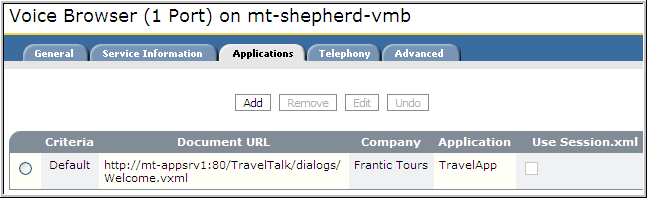
This example changes the default sample application from PizzaTalk to a published travel application at http://mt-appsrv1:80/TravelTalk/dialogs/welcome.vxml.
- Display the voice browser service Application tab at the desired scope: network, host, or service instance. See Scope for more information.
- Select the default application row and click Edit.
- For Document URL, enter http://mt-appsrv1:80/TravelTalk/dialogs/welcome.vxml.
- For Company, choose Other... and enter the company name, for example, Frantic Tours.
- For Application, choose Other... and enter the application name, for example, TravelApp.
When finished, the Applications tab might look like this:
Setting the To criteria
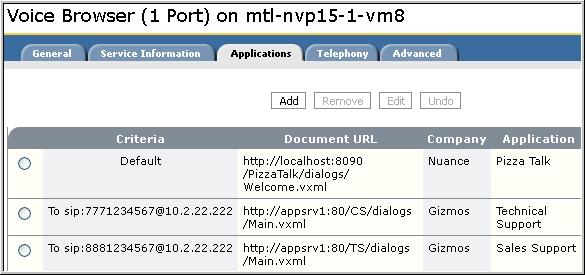
In this example, an application server host is running two applications for the Gizmos company, and you want to route callers dialing (777) 777-7777 to Customer Support and callers dialing (888) 888-8888 to Sales Support.
The To criteria must match exactly what is set in the incoming SIP INVITE. You can determine this from the gateway (or proxy) configuration but it’s easier to place a test call and examine the Voice Browser service logs to get this information. If the logging level is STATUS (default), search the log for “Answered call” to find the relevant information. (Alternatively, change the level to VD_INFO and search for the session.connection.localuri variable.) Example:
- Keep the logging level at STATUS.
- Let’s say that the call goes through a phone network to a gateway, which then sends an INVITE to NVP at mtl-nvp15-1-vm8. The gateway is configured to call NVP at that host’s IP address. Place a test call through the network taking the same path used by the caller.
- Examine the diagnostic log for the Voice Browser service instance that handled the call and search for “Answered call.” The log is at %NUANCE_DATA_DIR%\system\diagnosticLogs\vbs#-browser-instance#.log. Here is the relevant information showing the “to” URI:
LOG,STATUS,...Answered call from sip:5149047800@10.3.22.88 to sip:7777777777@10.2.22.222 on device9.>>>1.0>>>sip5149047800@10.3.22.88>>>sip:7777777777@10.2.22.122>>>9...
The log shows that NVP runs on host 10.2.22.222. You now have the information to configure the voice browser service.
-
Display the Applications tab for the Voice Browser service at the desired scope and specify the To fields. When finished, the tab might look like this:
Setting To/From for a SIP softphone
In a development environment, you test applications with a SIP softphone. To get the URIs for the To and From values, place a test call to NVP and search the diagnostic logs for “Answered call”.
In this example, an SJPhone is installed on host 10.4.44.4 and NVP is installed on host 103.33.3.
For SJPhone, specify the the ANI (caller ID) in the From criteria as Anonymous. (Do this because the SIP softphone doesn’t send a caller ID as part of the URI string.)
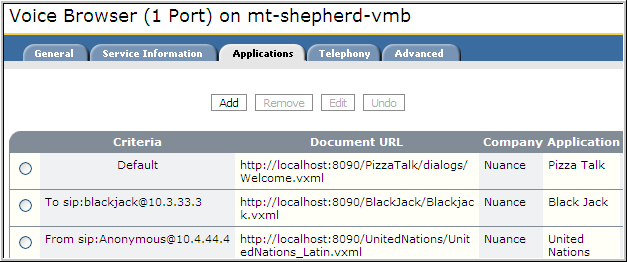
The URL you dial must match the specified criteria exactly. The results are:
- If you place a call to sip:blackjack@10.3.33.3, you get the Black Jack application.
- And if you place a call from sip:Anonymous@10.4.44.4, you get the United Nations application.
- If you place a call to sip:nvp@10.3.33.3, you get the PizzaTalk application. Since the To header in the SIP INVITE didn’t match either the To criteria, the default application is executed in this example.
Specifying a session.xml file
The session.xml is an optional configuration file where you can specify parameter defaults and resources to load for a specific application. For details about these configurations, see Application defaults.
You can specify a session.xml file at the network, cluster, host, or service scope. For example, you might define three session.xml files for three applications at the network scope. Any host subsequently added to the network inherits the settings.
Note: These examples show the NVP application container service, which uses port 8090. In a typical deployment, you’d publish the applications on a third-party application server host and use a valid port number.
To specify a session.xml for individual applications:
- Display the Applications tab for the voice browser service.
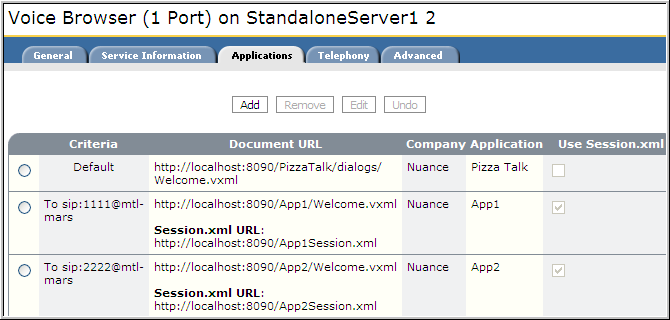
- Add the application and click Use Session.xml.
To specify a session.xml file on an application already added, select the row and click Edit to enable the Use Session.xml field.
- Enter the pathname for the session.xml file. You can specify a file:// or http:// URL. For example:
The Advanced tab shows how these settings are passed internally to the Voice Browser service:

If the Voice Browser service can’t fetch the session.xml, it rejects the call and generates an alarm. This might happen if the service can’t find the file at the specified URL or if the file is invalid.
To change or remove a session.xml file:
- Select the application and click Edit.
- Modify the Session.xml URL field to point to a different session.xml.
- Uncheck the Use Session.XML field to remove the session.xml file.
Specifying a dial plan
Nuance recommends using the dial plan as much as possible. This allows your VoiceXML applications to be independent of the telephony configurations where they are deployed.
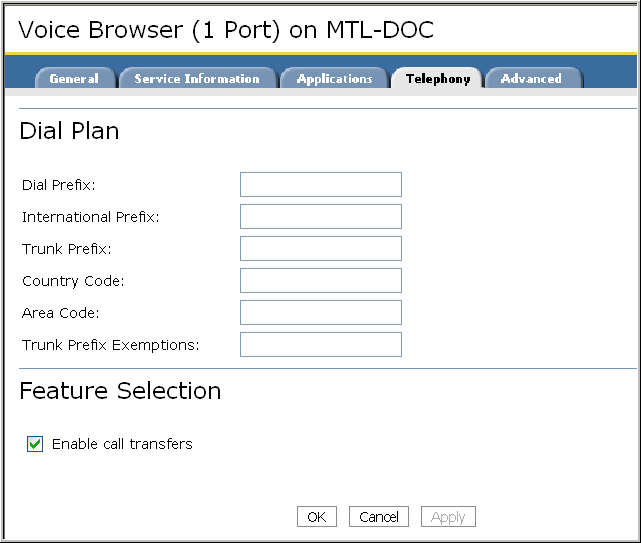
Use the Telephony tab to specify a dial plan. The dial plan transforms the URIs specified in VoiceXML applications and transforms them into valid telephone numbers that can be dialed from where NVP is running.
In the application, specify the URIs as part of the destination string of a call transfer. Examples:
|
Application URI |
Example | Description |
|---|---|---|
| Absolute URI | <transfer dest="tel:+18005551212"/> <transfer dest="sip:+18005551212@10.0.00.0:5070;user=phone"/> |
The URIs begin with + (plus symbol), followed by country code, area code, and local number. The example +18005551212 is a North American number (1 is the country code for the USA and Canada). Alternatively, +441234567890 is a U.K. number (44 is the country code, 1234 is the area or city code, and 567890 is the local number). For SIP, you must specify user=phone as part of the URI. Otherwise NVP ignores the dial plan. |
| Non-absolute | <transfer dest="tel:18005551212"/> <transfer dest="sip:18005551212"/> |
Non-absolute URIs do not begin with a + (plus symbol). The service submits them with no modification. |
In Management Station, use the Telephony tab to specify the Dial Plan:
| Field | Description |
|---|---|
| Dial Prefix |
The prefix that NVP must dial to reach an outside line. For example, in North America, enter 9. |
| International Prefix |
The international dialing prefix for the area where NVP is running. Use this value to signal that the number you are dialing is an international number. For example, in North America, enter 011. |
| Trunk Prefix |
The national dialing trunk prefix of the area where NVP is running. Specify any number that must be dialed before an area code when dialing from within your country but outside your area code. For example, in North America, enter 1. |
| Country Code |
The country code where NVP is running. For example, in North America, enter 1. |
| Area Code |
The area code where NVP is running. For example, in North America enter 514 for Montreal or 781 for Burlington, MA. |
| Trunk Prefix Exemptions |
A comma-separated list of telephone prefixes, or range of prefixes that should be dialed without a trunk prefix. For example, assume you enter 4503,4505-4509:
|
| Enable call transfers |
Check this field if your VoiceXML documents perform call transfers. Uncheck this field if your VoiceXML documents do not perform call transfers. You might do this for security reasons. |
When the application specifies an absolute URI, the Voice Browser service extracts the phone number, removes the + sign, and compares the remaining number against the settings in the dial plan. Depending on any matches, it removes parts of the number and adds different prefixes to dial the call. The flow looks like this:
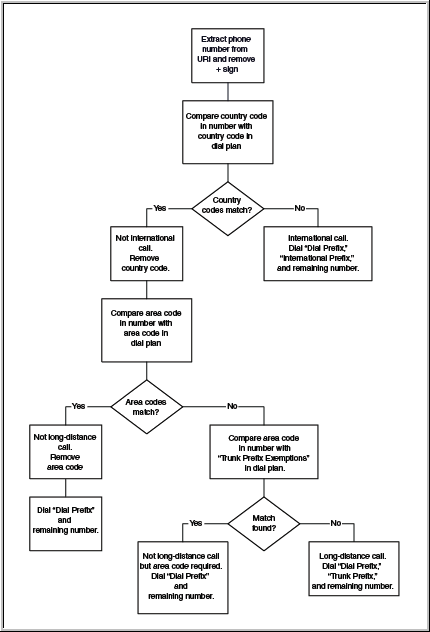
Here are two use case to illustrate how this works. The application specifies these absolute URIs:
+17817918650—Nuance office in Burlington, MA, U.S.
+15149047800—Nuance office in Montreal, QC, Canada
+441483794444—Nuance office in London, U.K.
Example North America dial plan
For this example, assume the Voice Browser service is running in Burlington, MA. The dial plan might look like this:
| Dial plan | Value |
|---|---|
| Dial Prefix | 9 |
| International Prefix | 011 |
| Trunk Prefix | 1 |
| Country Code | 1 |
| Area Code | 781 |
| Trunk Prefix Exemptions | 7813, 7815-7189 |
The service transforms each URI into a valid telephone number based on the dial plan:
| Extracted phone number | Country Codes match? | Area Codes match? | Trunk Prefix Exemptions match? | Add | Dial this number |
|---|---|---|---|---|---|
| 17817918650 | yes | yes | n/a | Dial Prefix | 97918650 |
| 15149047800 | yes | no | no |
Dial Prefix, Trunk Prefix |
915149047800 |
| 441483794444 | no | n/a | n/a |
Dial Prefix International Prefix |
9011441483794444 |
Example Europe dial plan
For this example, assume the Voice Browser service is running in London, U.K. The dial plan might look like this:
| Dial plan | Value |
|---|---|
| Dial Prefix | 9 |
| International Prefix | 00 |
| Trunk Prefix | 0 |
| Country Code | 44 |
| Area Code | 1483 |
| Trunk Prefix Exemptions | 14838-14839 |
This table shows the results:
| Extracted phone number | Country Codes match? | Area Codes match? | Trunk Prefix Exemptions match? | Add | Dial this number |
|---|---|---|---|---|---|
| 17817918650 | no | n/a | n/a |
Dial Prefix International Prefix |
90017817918650 |
| 15149047800 | no | n/a | n/a |
Dial Prefix International Prefix |
90015149047800 |
| 441483794444 | yes | yes | n/a | Dial Prefix | 9794444 |
Setting advanced service properties
The Advanced tab displays the current service property settings. For example:
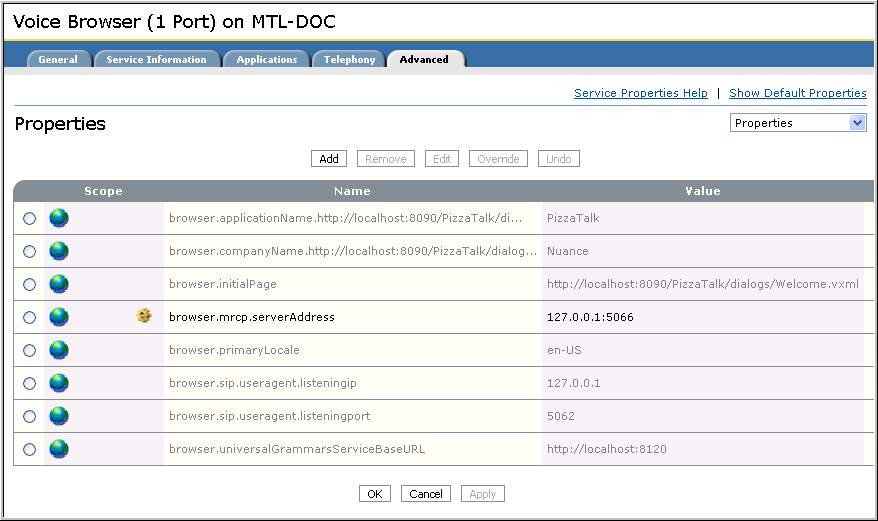
Optional. Use the Advanced tab to specify additional service properties. (The default values are appropriate for most scenarios and there is no need to configure non-default values.
| Service property | Description | Default |
|---|---|---|
|
Creates one diagnostic log file per call. See Generating one log file per call for more information. |
False | |
| browser.LogDirectoryHierarchy | Saves per-call log files to a hierarchical structure that indicates the indicates the company and application name, plus year, month, day, and hour at which the call started. Used with browser.LogPerCall. | False |
| browser.mrcp.nomatch.getConfidence |
Sends the confidence score for REJECTED recognition results to the VXML application. |
False |
| browser.mrcp.serverAddress | Specifies the hostname or IP address and port number the voice browser service uses to communicate with the Speech Server. Required only if the voice browser service and Nuance Speech Server are running on separate hosts. For example, if the Speech Server is running on host saturn, then modify the value to saturn:5066. |
127.0.0.1 (or localhost):5066 127.0.0.1 maps to localhost. |
| browser.tonedetection.tone_event.enable |
Enables or disables a specific tone where tone_event can be answering-machine, fax, sit, and tty. Set to FALSE to disable. See Tone detection for more information. |
True |
