Suspend sending messages
Use the Suspend / Resume Dispatching panel to suspend campaigns. You can either suspend immediately or schedule the suspend to happen in the future. You can also schedule an email reminder to yourself that it's time to suspend or resume manually.
You can suspend a single campaign or suspend a campaign group. Both procedures are described here.
Suspend a campaign
The procedure suspends a single campaign.
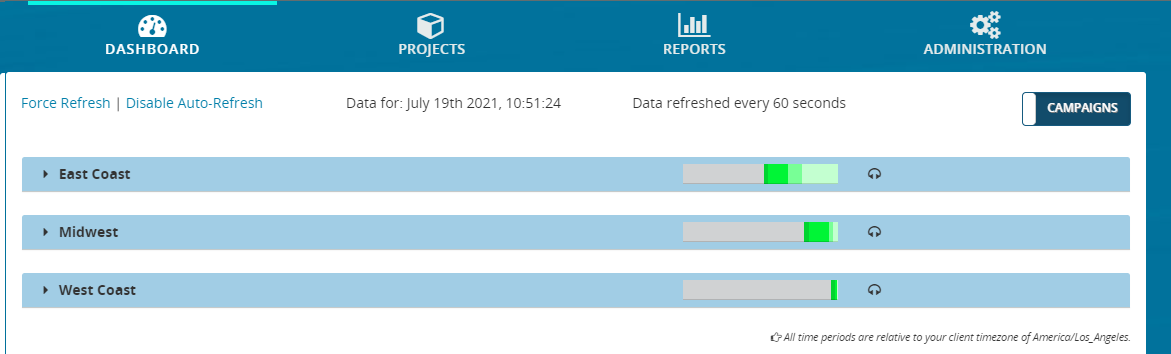
- From the header bar, click DASHBOARD. This displays a list of campaigns:
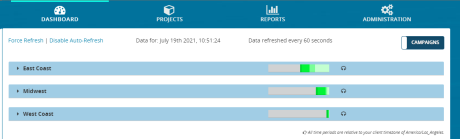
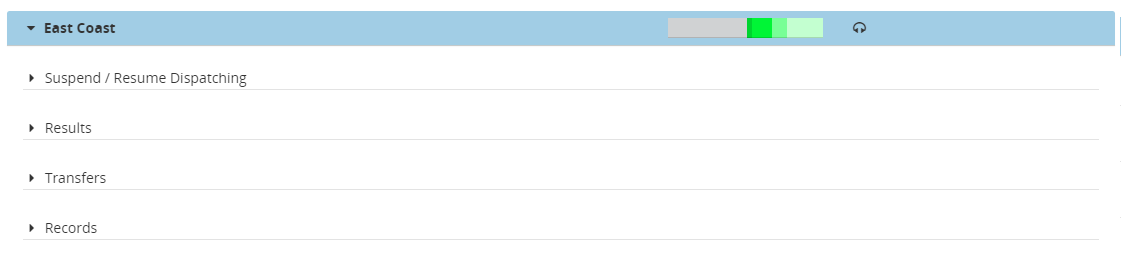
- Locate a campaign and click anywhere on it. This displays the panels for Suspend / Resume Dispatching, Results, Transfers, and Records.
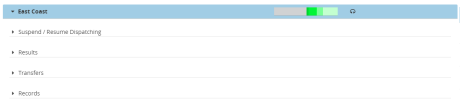
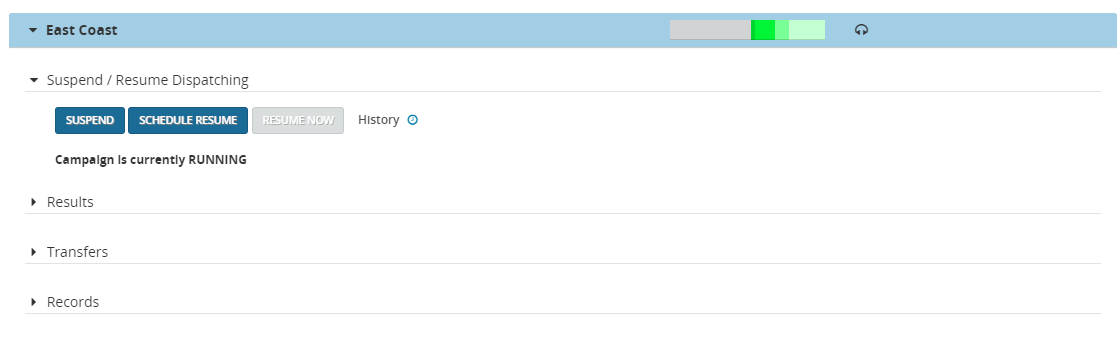
- Click Suspend / Resume Dispatching to display the Suspend / Resume Dispatching panel.
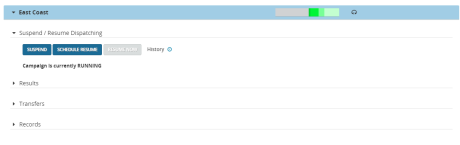
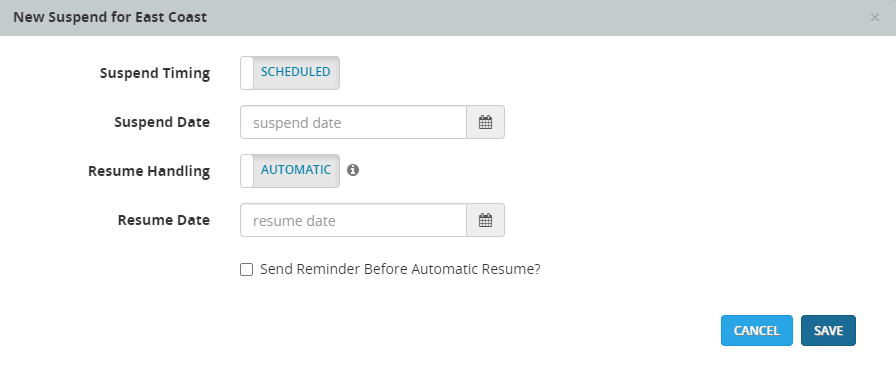
- Click the SUSPEND button to display the New Suspend dialog box.
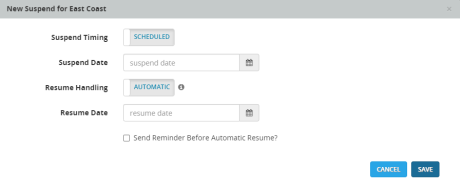
- For Suspend Timing, select either NOW to suspend immediately, or SCHEDULED to suspend at a later date that you specify in Suspend Date.
-
For Resume Handling, select AUTOMATIC to schedule the resume date or MANUAL to schedule an email to remind you to resume manually.
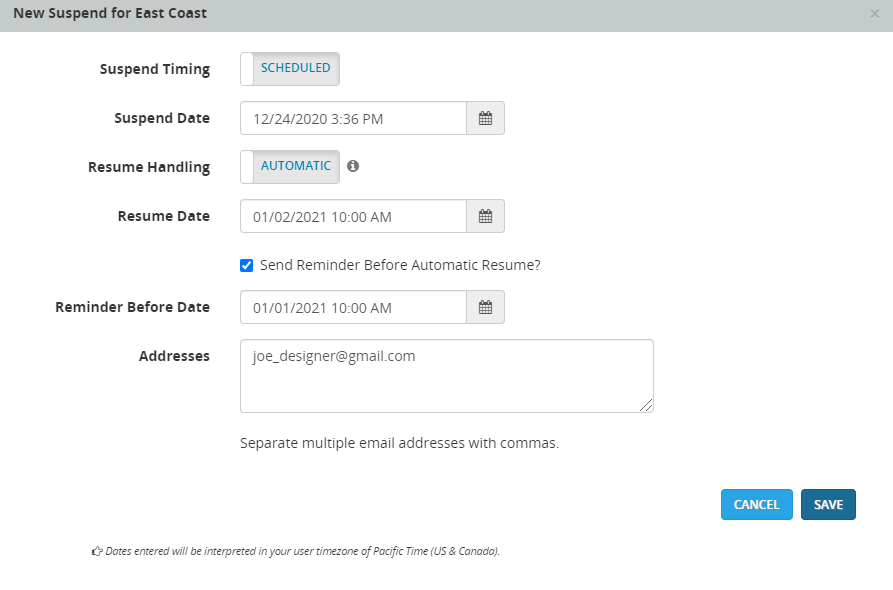
- If you select AUTOMATIC, you must select a Resume Date. If you want to schedule a reminder email before the Resume Date, then click Send Reminder before Automatic Resume?, select Reminder Before Date, and enter one or more email address in Addresses. Use commas to separate multiple email addresses. For example:
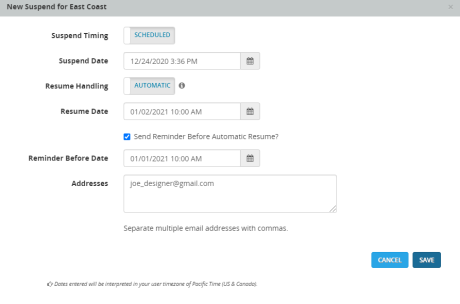
-
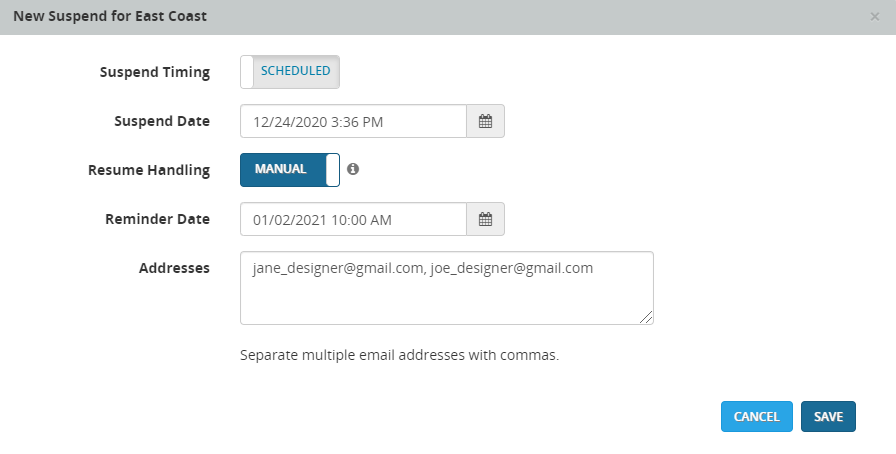
If you select MANUAL, select a Reminder Date and enter one or more email addresses in Addresses. Use commas to separate multiple email addresses. For example:
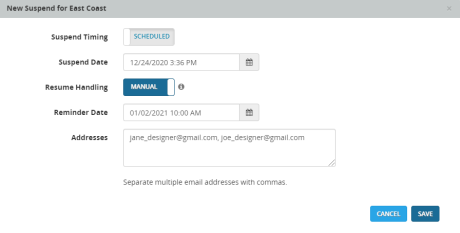
- If you select AUTOMATIC, you must select a Resume Date. If you want to schedule a reminder email before the Resume Date, then click Send Reminder before Automatic Resume?, select Reminder Before Date, and enter one or more email address in Addresses. Use commas to separate multiple email addresses. For example:
- When you are done, click SAVE to save the changes.
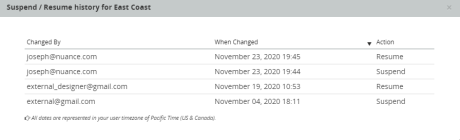
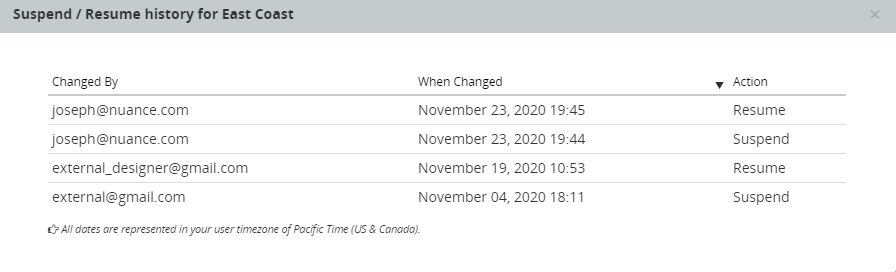
- If you want to view the suspend and resume history for the campaign, click History. This displays the history dialog box. Each line shows the user who scheduled an action (Changed By), the date the action occurred (When changed), and the action. For example:
Suspend a campaign group
The procedure suspends all campaigns in a campaign group. You can either suspend immediately or schedule the suspend to happen in the future. You can also schedule an email reminder to yourself when it's time to suspend or resume manually.
You can suspend individual campaigns in a group without suspending others. To do this, follow the procedure in Suspend a campaign.
- In the header bar, click Dashboard.
- Find the campaign group you want to suspend and click Suspend Group.

- A New Suspend dialog box is displayed:
- For Suspend Timing, select either NOW to suspend immediately, or SCHEDULED to suspend at a later date that you specify in Suspend Date.
-
For Resume Handling, select AUTOMATIC to schedule the resume date or MANUAL to schedule an email to remind you to resume manually.
- If you select AUTOMATIC, you must select a Resume Date. If you want to schedule a reminder email before the Resume Date, then select Send Reminder before Automatic Resume?, select Reminder Before Date, and enter one or more email address in Addresses. Use commas to separate multiple email addresses. For example:
-
If you select MANUAL, select a Reminder Date and enter one or more email addresses in Addresses. Use commas to separate multiple email addresses. For example:
- If you select AUTOMATIC, you must select a Resume Date. If you want to schedule a reminder email before the Resume Date, then select Send Reminder before Automatic Resume?, select Reminder Before Date, and enter one or more email address in Addresses. Use commas to separate multiple email addresses. For example:
- When you are done, click SAVE to save the changes.

To resume a group, see Resume a campaign group.
