Create and edit message content (MOD projects only)
You use the Message Editor to create and edit the content of messages that are sent to consumers. The Message Editor works the same way for voice, SMS, and email messages. You can construct long and complex messages with dynamic elements, such as the consumer's name and account number. You can edit voice, SMS, and email messages:
-
Voice messages can include generated speech, prerecorded audio (prompts), variables, and DTMF
 Dual Tone Multi Frequency, also called touch tones. tones.
 -
SMS messages can include text, variables, breaks, and hyperlinks.
-
Email messages can be either plain text or HTML, and they can include variables and hyperlinks.
The Message Editor supports editing messages in all the languages defined in your project. For details, see Message languages.
Note: You can create and modify message content in MOD projects only. In standard projects, Nuance creates the message content according to the requirements of the client. To make changes to standard projects, contact your Nuance representative.
To open the Message Editor:
-
Select a message and channel node in the Message Tree, described in Manage messages (MOD projects only).
For example, select the Main message message and the Email channel: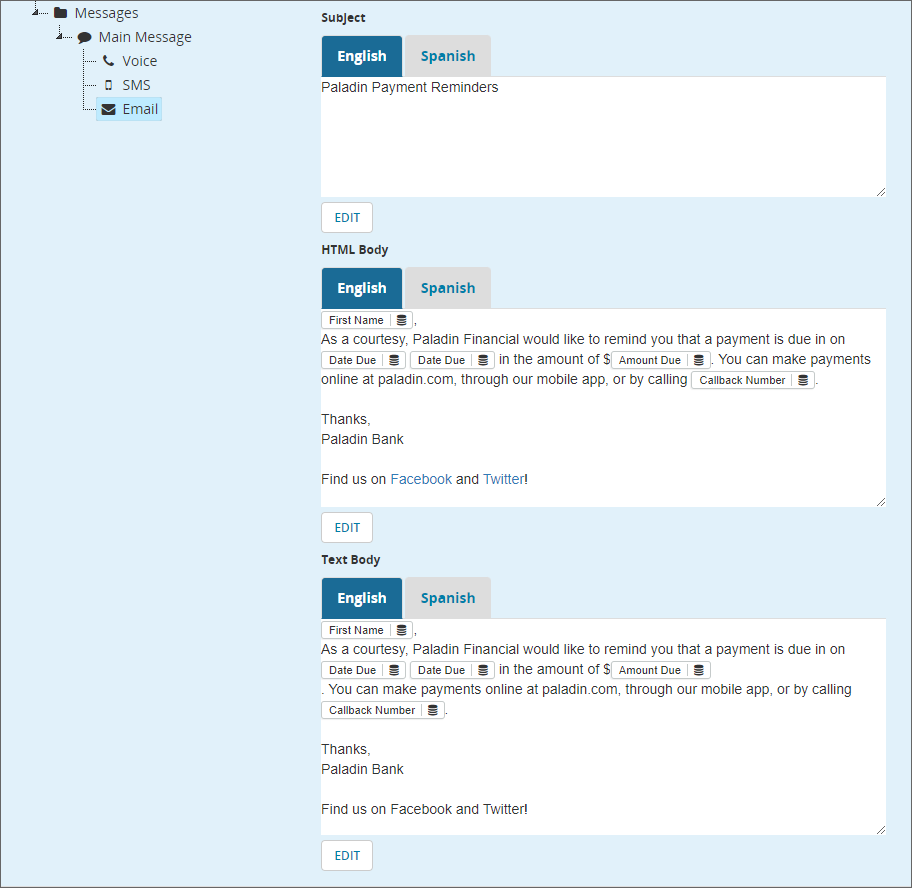
-
Click EDIT.
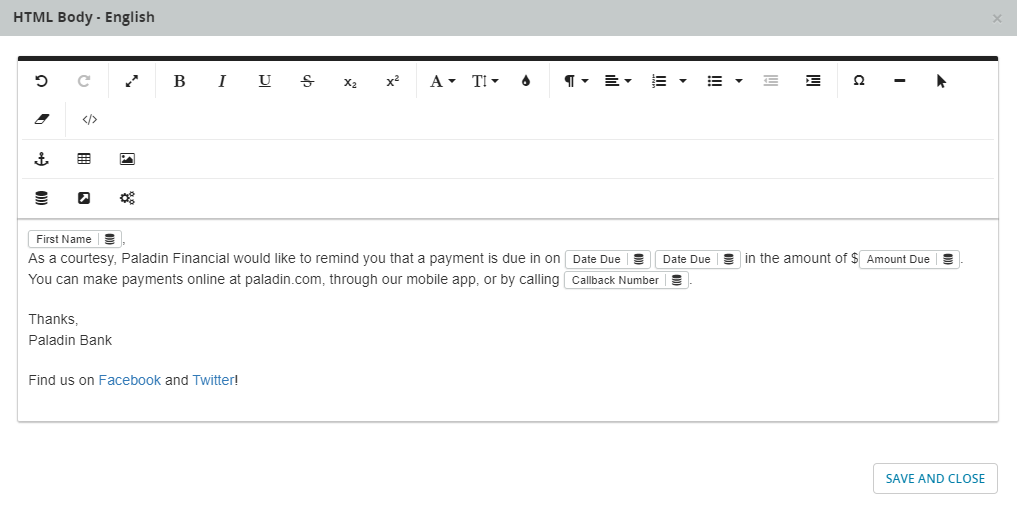
This example shows this email message open in the Message Editor. The toolbar displays the buttons available to use in an HTML email message. An SMS or voice message has a different set of buttons.
-
Create or edit your message content in the Message Editor, using the Message toolbar and the Table toolbar. For detailed descriptions, see Work with the Message Editor.
-
When you are finished creating or editing your message content, click Save and Close, in the bottom-right corner of the Message Editor, to save your changes.
-
Click one of the following options in the top-right corner of the page to save the project containing your message:
-
Publish changes—if your message is ready to send to consumers, you publish a draft project version. For detailed instructions, see Publish, preview, and send messages .
-
Keep as draft—if your message is not ready to send to consumers, but you want to save your changes.
-
Discard this draft and return to Projects—if you want to discard your changes.
-
