Manage messages (MOD projects only)
You manage messages in a project in the Message Tree, which is a hierarchical view of the folders and messages.
-
You can create, rename, and delete folders for organizing your messages.
-
You can move messages between folders.
Note: You can create and modify message content in MOD projects only. In standard projects, Nuance creates the message content according to the requirements of the client. To make changes to standard projects, contact your Nuance representative.
To manage your messages:
- Open the MOD project, as described in Open a project for editing (MOD projects only).
- Click Messages to open the Message Tree.
The following example shows a tree with one message that contains three channels (Voice, SMS, and Email):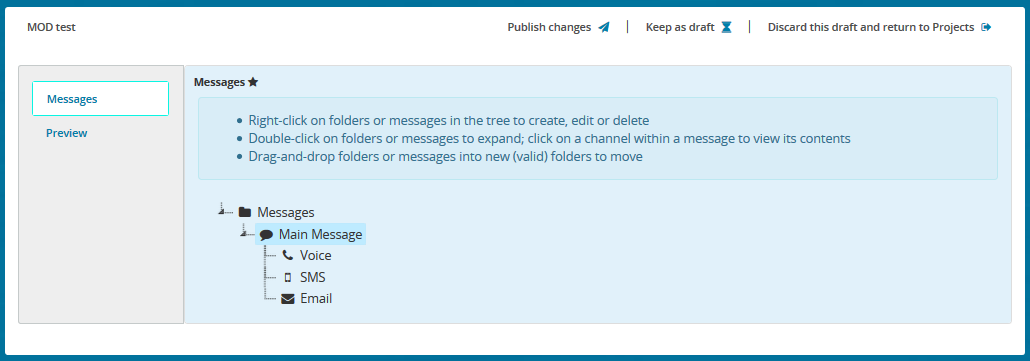
- The root folder is Messages, which contains all other folders and messages. Initially you see the default arrangement, but you can arrange the messages and folders in a way that makes sense for your message operations. You can perform the following operations with folders:
- To display the contents of any folder, click it. To close it, click again.
- To rename a folder, right-click it and select Rename.
- To delete a folder, right-click it and select Delete. The folder must be empty before deletion.
- To create a new folder, right-click on the location where you want to create it and select Create Folder.
- To move a folder, drag it to the new location.
- You can perform the following operations with messages:
- To create a new message, right-click on the folder where you want to create it and select Create Message.
- To display the channels (Voice, SMS, or Email) defined for a message, double-click it. To close it, double-click again.
- To move a message, drag it to the new location.
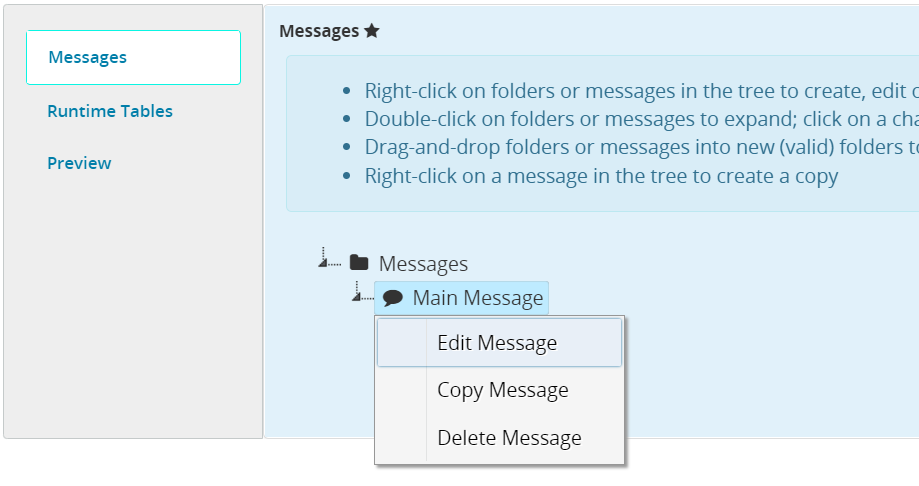
- To modify the message channels defined for a message, right-click it and select Edit Message. This opens the Edit Message dialog box. Select the check boxes for the channels you want to use in the message, then click OK.
- To edit the contents of a message channel, click the message and then click the channel (Voice, SMS, or Email) you want to edit. This displays the contents of the message. Click EDIT to open the Message Editor. For details about the Message Editor, see Create and edit message content (MOD projects only).
- To copy a message, right-click it and select Copy Message. This opens the Copy Message dialog box. Enter values for ID and Name, select the check boxes for the channels you want to copy, then click OK.
- To delete a message, right-click it and select Delete Message.