Preview a message with sample data
After you publish your project, you can use the preview function to test the messages in your project with sample data.
There are two ways to preview a message in your project, depending on how it has been configured.
Preview a project that has been configured for Quick Preview
If your project has been configured for Quick Preview by Nuance, then you can preview its messages from the Projects tab. This method is faster than using Standard Preview. If the Launch Preview button is not displayed for the project, then you cannot use Quick Preview. To use Standard Preview instead, see Preview using Standard Preview. To configure a project for Quick Preview, contact your Nuance representative.
- Click the Projects tab on the header bar to display a list of available projects. For example:

- Click Launch Preview for the project to start Quick Preview. This button is displayed only if the active project version has a preview template that was set up by Nuance.
- If multiple templates are available for your project, then the Select Preview Template dialog box opens.
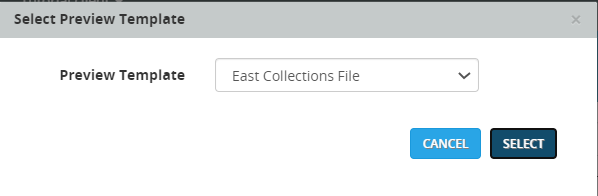
Select a template from the drop-down list, and click Select. - If only one template is available for your project, then this dialog box does not open, because it is not relevant. Proceed to the next step.
- If multiple templates are available for your project, then the Select Preview Template dialog box opens.
The Launch Preview dialog box opens, for example:
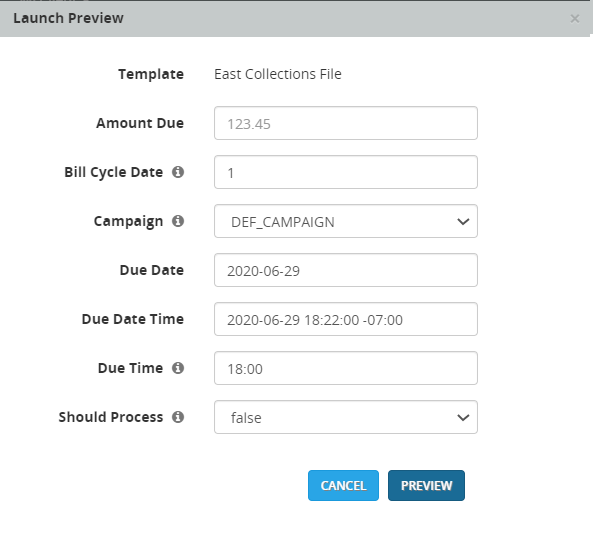
The template determines which fields are displayed.
-
Review each field in the template and provide a value or selection. Values in gray text are default values used in the preview unless you change them.
-
Optional. To display information about a field, mouse-over the
 icon for the field, if available.
If the preview is successful, the Preview Success message opens. If the preview is unsuccessful, the Preview Failure message opens.
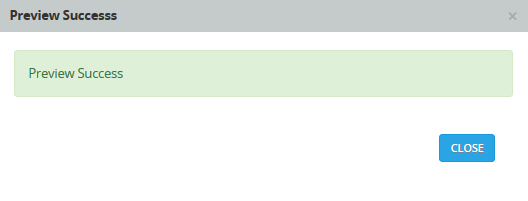
- Click CLOSE to close the message box.
The preview results depend on the preview settings, campaign and segment settings, the time of day when you perform the preview, and many other factors. Even if you configure everything correctly, it may take a few minutes to send the messages or calls.
-
Click the REPORTS tab.
-
Click Preview > Today.
Preview using Standard Preview
You can use Standard Preview for any MOD project.
- Open the project as described in Open a project for editing (MOD projects only).
- On the left navigation bar, click Preview.
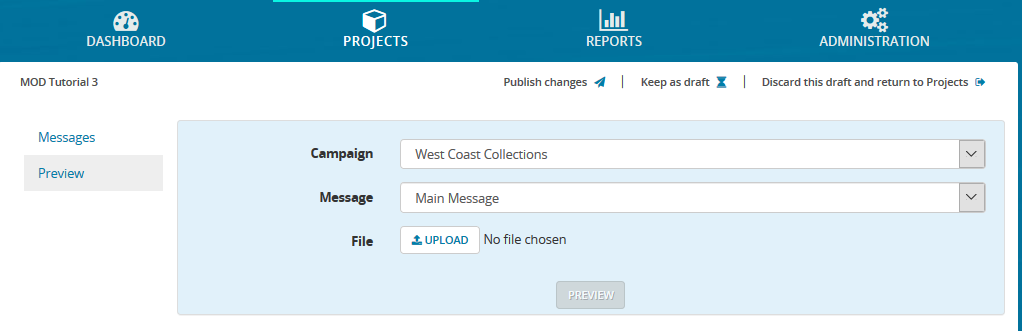
The Preview pane opens: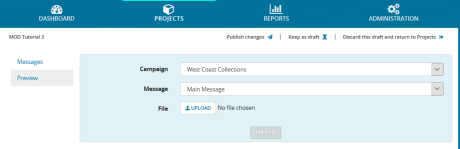
- In the Campaign list, select the campaign to use for the preview. (A campaign is a reusable set of required settings for sending out a message.) The hours and segment settings configured for that campaign will be used to send messages. Note: The hours and segment settings selected for the campaign may prevent messages from being sent when you run the preview. Therefore, before running preview, confirm that your campaign settings support sending out messages immediately. Otherwise, you may wait a long time to see message activity.
- In the Message list, select the message to use for the preview. The drop-down list displays all messages configured in the Messages pane.
- Click Upload to open the upload dialog box and browse to the input file to use. This file includes the consumers to contact, contact information, message content to include, such as appointment date and time.
- Ensure that the file has the correct format (number of columns, data types etc.) for your project and that it is named correctly, as specified by your Nuance representative, so it will be recognized by the project. The maximum supported file size is 26 MB. For example, the file content may be similar to the following:
- Click PREVIEW.
- After a few seconds, a Preview Complete dialog box is displayed. You can click the interaction and event IDs in the dialog box to see details of interactions and events. When you're finished viewing the details, click CLOSE.
- If the preview contents look correct, click PREVIEW. Otherwise, click CANCEL.

The results of the preview depend on the preview settings, campaign and segment settings, the time of day when you perform the preview, and many other factors. Even if you configure everything correctly, it may take a few minutes to send messages or calls. To view the preview status:
-
Clicking the REPORTS tab.
-
Click Batches > Today.
