Send messages to consumers
After you preview your project using test data and confirm that everything is working as expected, you can publish your project and send messages to your consumers. The process for a standard project is slightly different from an MOD project. Both processes are described below.
Before starting the process, you should prepare an input file containing information about the consumers you want to contact. Ensure that the file has the correct format (for example, the number of columns and datatypes) for your project and is named correctly so it will be recognized by the project, as specified by your Nuance representative. The maximum supported file size is 26 MB. Here's an example of an input file. Your file format may differ:

Send messages using an MOD project
Use the following process to send messages using MOD projects. For other projects, see Send messages using a standard project.
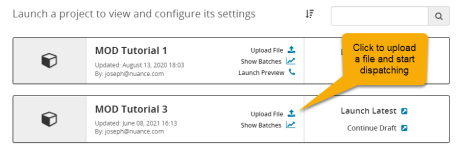
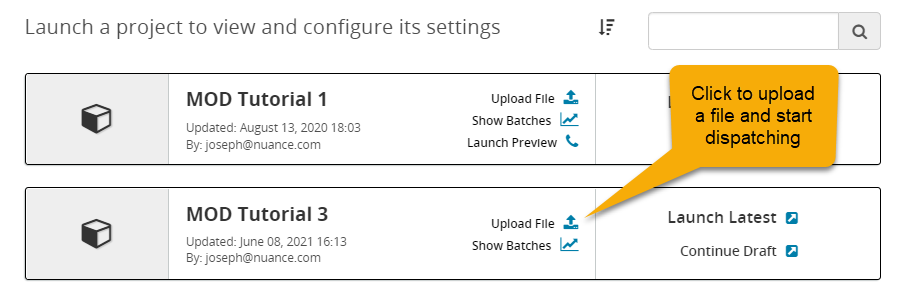
- Click the PROJECTS tab on the header bar to display the list of projects. Find the project you want to use for messaging.
- Click Upload file:
- The Upload dialog displays. Click Choose File to browse to the input file you prepared.
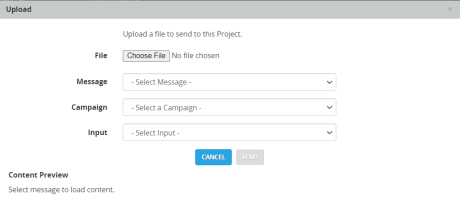
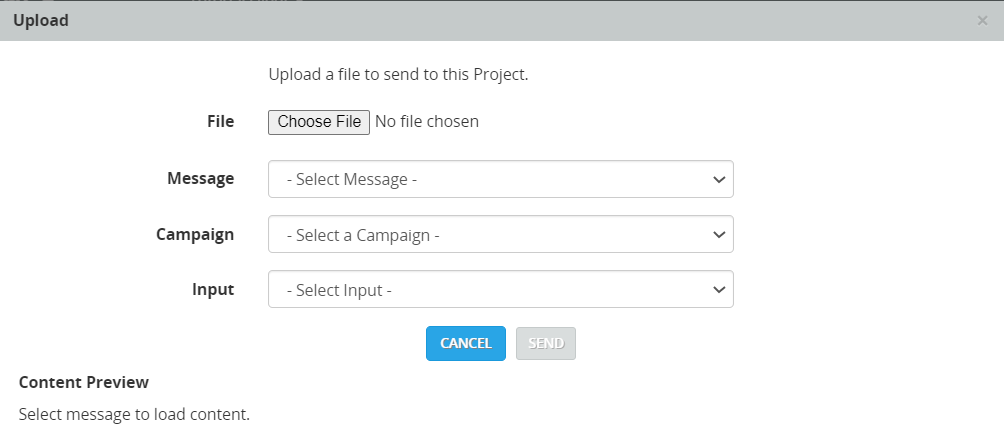
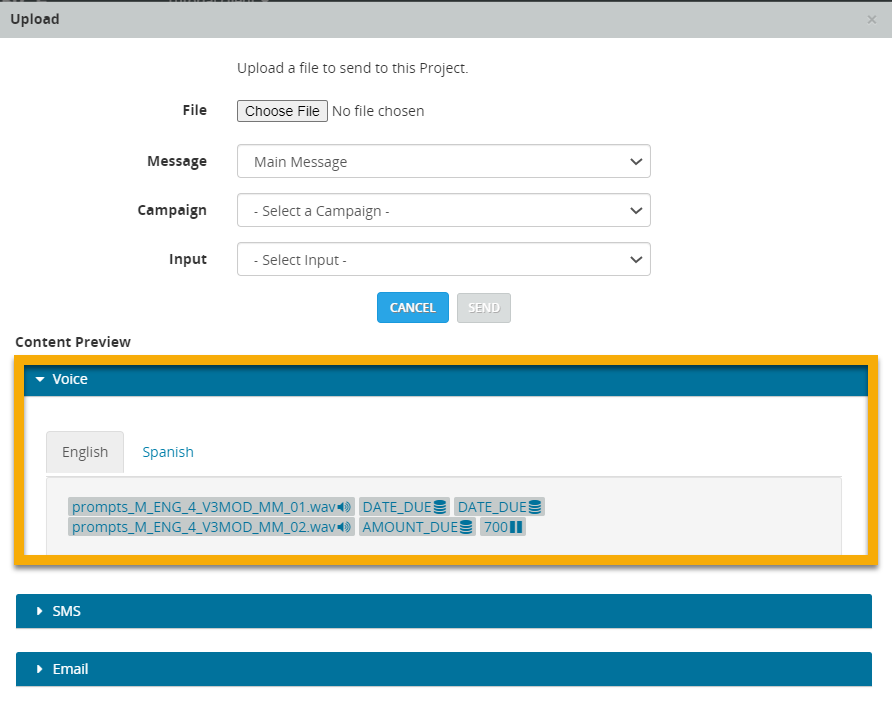
- For Message, select the message you want to use. After you select a message, a preview of the message's content is displayed in the Upload dialog box. Here's an example of a Content Preview for a voice message.
- For Campaign, select the campaign to use. The hours settings configured for that campaign are used to schedule messages. If the current time is outside of a messaging window, the messages are held until the window hours start.
- For Input, select an input configuration asset. This is a file that specifies input settings. If more than one asset is available for selection, contact your Nuance representative for guidance.
- To start sending messages, click SEND.
- If you configured everything correctly, input records are processed and prepared for sending at the time determined by your campaign and other settings. To see the results of record processing and dispatching, see View reports.To check the status of the records in real time, see Dashboard tab.
Send messages using a standard project
Use the following process to send messages using projects that are not MOD projects.
- Click the Projects tab on the header bar to display the list of projects. Find the project you want to use for messaging.
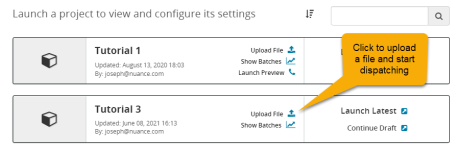
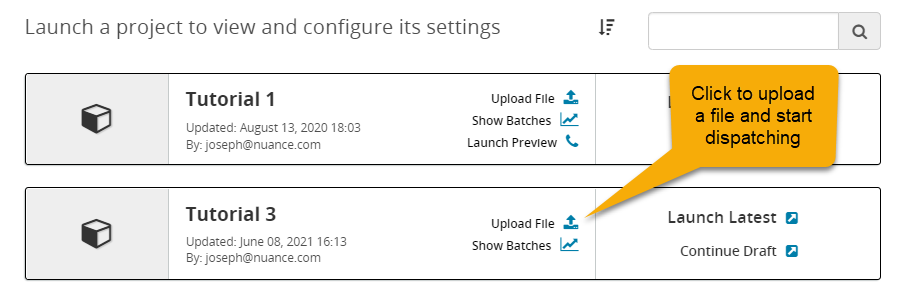
- Click Upload file.
- The Upload dialog opens. Click Choose File to browse to the input file you prepared.
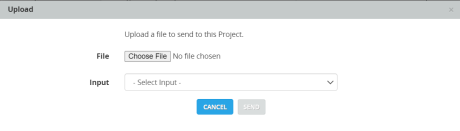
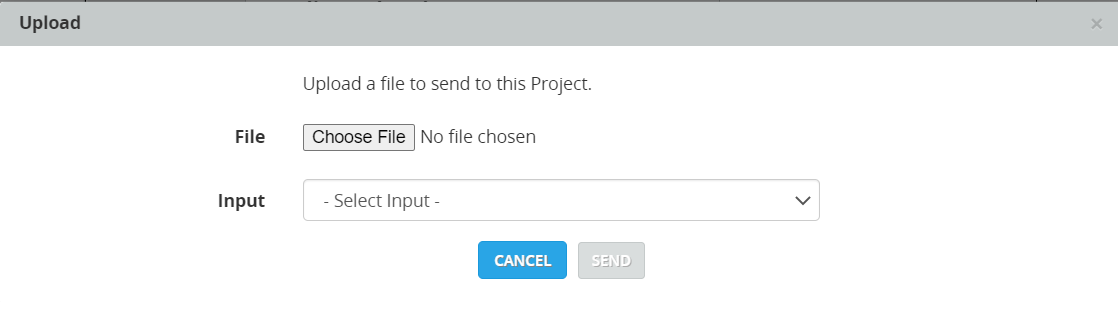
- For Input, select an input configuration asset. This is a file that specifies input settings. If more than one asset is available for selection, contact your Nuance representative for guidance.
- To start sending messages, click SEND.
- If you configured everything correctly, input records are processed and prepared for sending at the time determined by your campaign and other settings. To see the results of record processing and dispatching, see View reports.To check the status of the records in real time, see Dashboard tab.
