View Delivery reports
Delivery reports display information about deliveries. Each delivery could be a voice, SMS, or email message. There four options to generate reports about deliveries:
-
Today: Shows all deliveries made so far for today's date.
-
Advanced Search: Allows you to query deliveries for a date range, specific segments, media addresses, result times and other criteria.
-
Result Summary: Shows a pie chart indicating the breakdown of deliveries by result.
Click Reports in the header bar to display these four options in the left navigation bar:
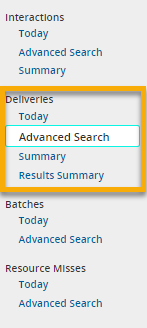
Use of these options is explained below.
Note: For dates, select either when created or when updated, which determines whether the date used for an entity is the original date (when created) or the most recent update (when updated).
Note: Queries cannot return delivery data older than 30 days.
Show deliveries for today
The Today option shows deliveries for today's date. (This option is a shortcut to an Advanced Search that shows all interactions for today.)
- Open Composer and click Reports on the top menu bar.
- On the left nav bar, find the environment you want (RUNTIME or CONFIGURATION ).
- Under Deliveries, click Today.
- The report showing deliveries for today's date is displayed. Only deliveries made up to the current time are shown. If more deliveries are made later, they won't show up here until you query again.
Query using Advanced Search
Advanced Search allows you to query for a list of deliveries. You can query by date range, segments, media addresses, result types, and other criteria. If you query without specifying a date range, the query returns deliveries since the beginning of the day. Queries cannot return delivery data older than 30 days.
In addition, you can query for a specific delivery ID by using the Delivery Id option under Get Delivery.
To query using Advanced Search:
- Open Composer and click Reports on the top menu bar.
- On the left nav bar, find the environment you want (RUNTIME or CONFIGURATION ).
- Under Deliveries, click Advanced Search.
- Under List of Deliveries, enter one or more of the following fields: Date Range, Segment, Media Address, Result Type, Final Mark, and Limit. Then click Search.
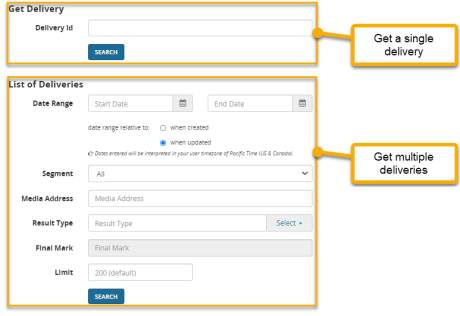
- The report will display.
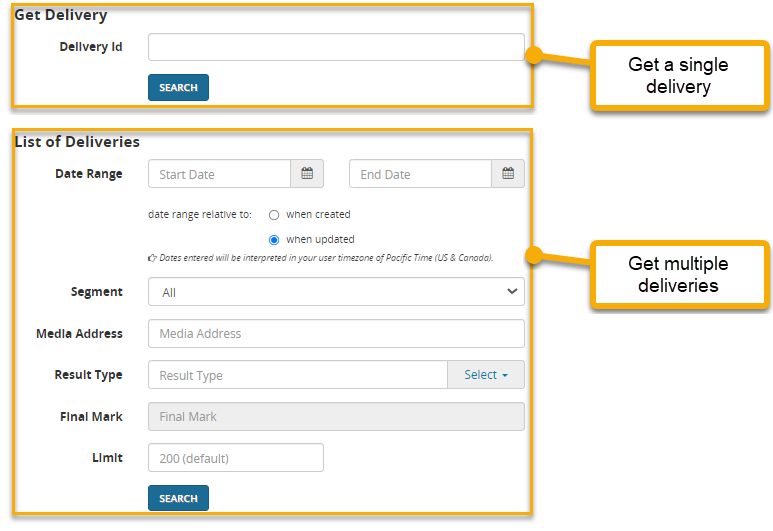
Here is a sample deliveries report showing a list of deliveries:
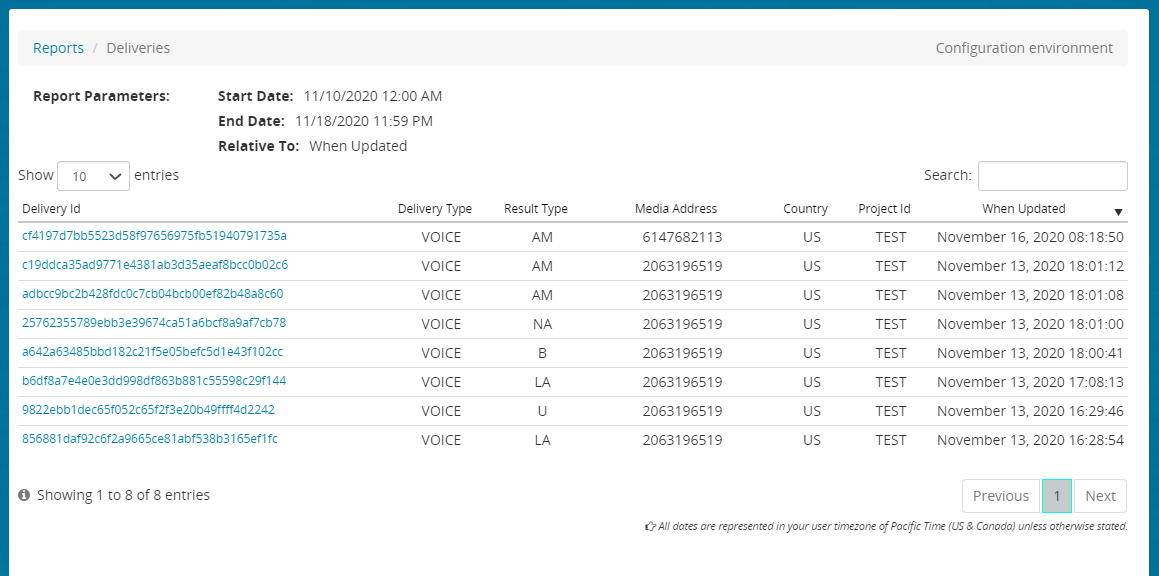
Click a row to display a delivery detail page:
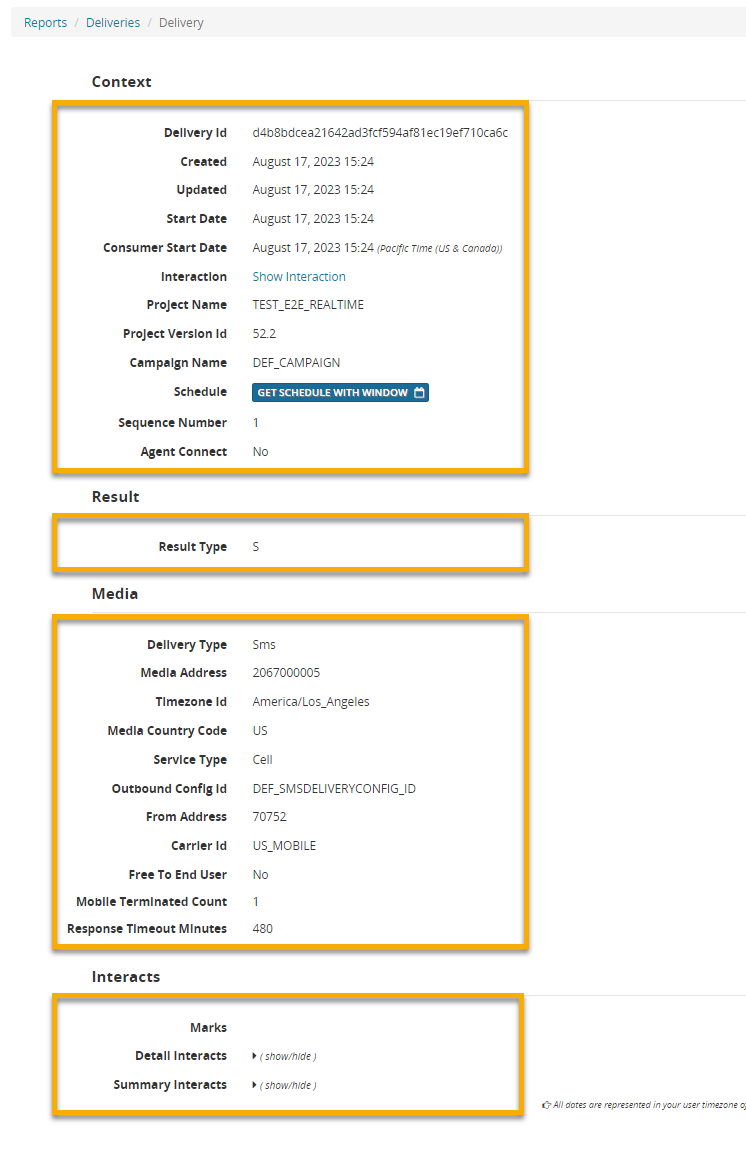
Depending on the delivery and media type, this page could include sections for: Context, Result, Media, Transfers, and Interacts. From here, you have options to drill down deeper:
- Click Context / Show Interaction to display details about the interaction. For more information about this page, see View Interaction reports.
- Click Context / Get Schedule with Window to display details about the schedule and windows, if any.
- Click Interacts / Detail Interacts to display a list of detail interacts and their values. Detail interacts are user-defined name/value pairs.
- Click Interacts / Summary Interacts to display a list of summary interacts and their values. Summary interacts are user-defined name/value pairs with a small number of possible values. This enables their display as a pie chart.
For example, an interact variable could be defined as "Language Chosen". The possible values could be "English" and "Spanish".
Query using Summary
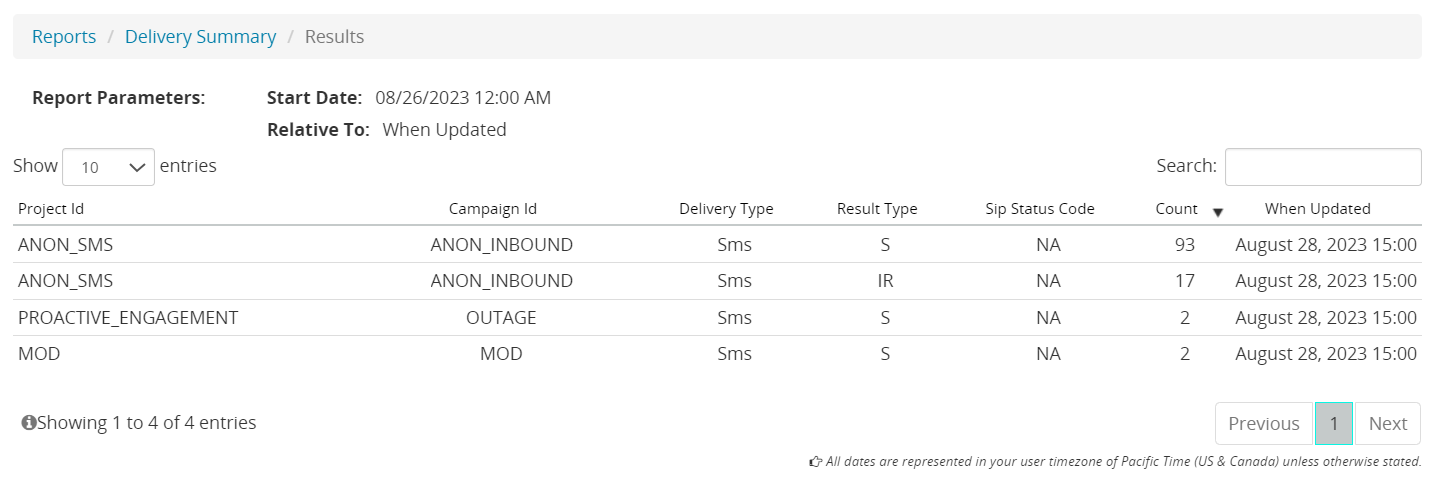
The Summary option shows hourly summaries of results. Each line shows data for a single result type for a single project for a single hour. You can query by projects, campaigns, and delivery types.
- Open Composer and click Reports on the top menu bar.
- On the left nav bar, find the environment you want (RUNTIME or CONFIGURATION ).
- Under Deliveries, click Summary.
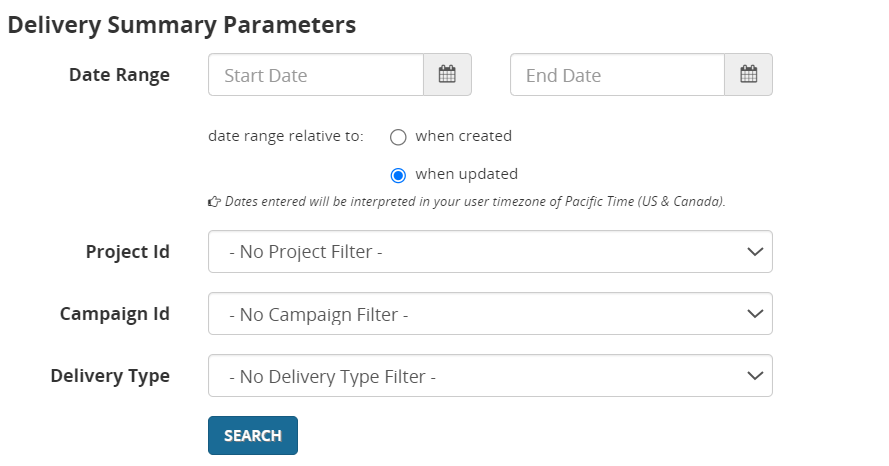
- Enter one or more of the following fields: Date Range, Project Id, Campaign Id, and Delivery Type. Then click Search.
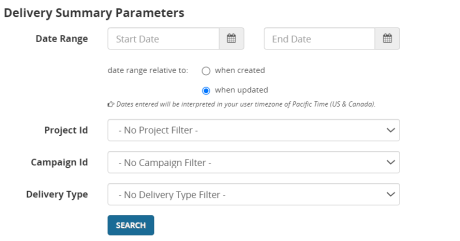
- The summary report should display:
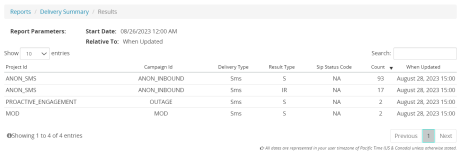
Query using Results Summary
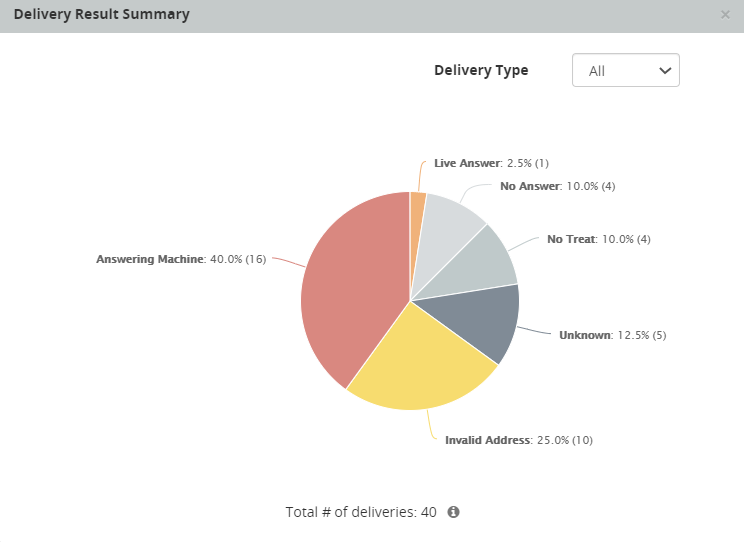
The Results Summary option displays a pie chart indicating the breakdown of deliveries by result. You can query by date range, projects, and campaigns. You can also filter the results by Delivery Type.
- Open Composer and click Reports on the top menu bar.
- On the left nav bar, find the environment you want (RUNTIME or CONFIGURATION ).
- Under Deliveries, click Results Summary.
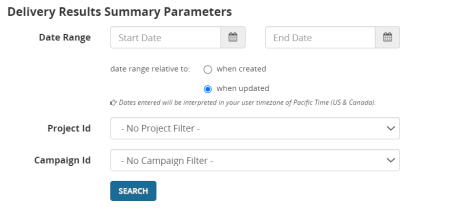
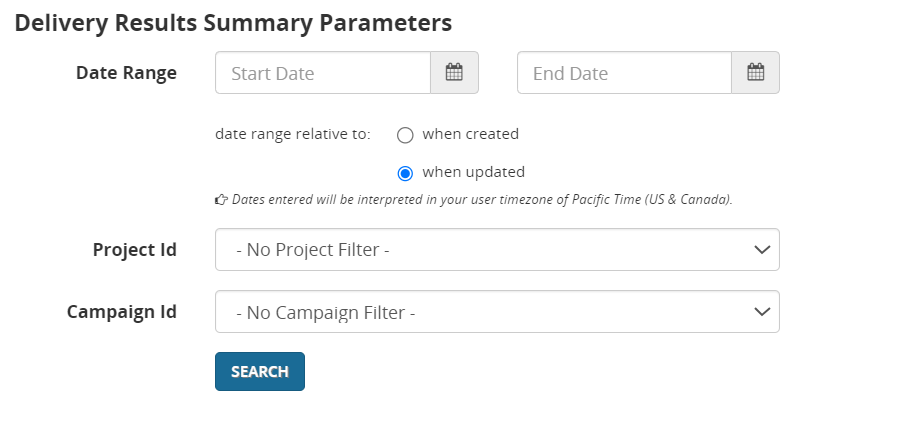
- Enter one or more of the following fields: Date Range, Project Id, Campaign Id. Then click Search.
- The report will display.
Here is a sample results summary report:
-
Use the Delivery Type dropdown to filter the results by media type. Only media types that have been used in deliveries are shown in the dropdown. You can filter by media type or show all media
- To see details about the query parameters used in the search, hover the mouse over the
 icon.
icon. -
For details about the result types used in the reports, see the Result code reference.
- Click Reports to return to the query page.
