Manage business rules in the user interface
The Rules tab of the Business Rules page displays all business rules, their current status, and some attributes. From this tab, you can create, edit, clone, and test business rules.
To open this tab, navigate to Administration > Program Management > Business Rules.
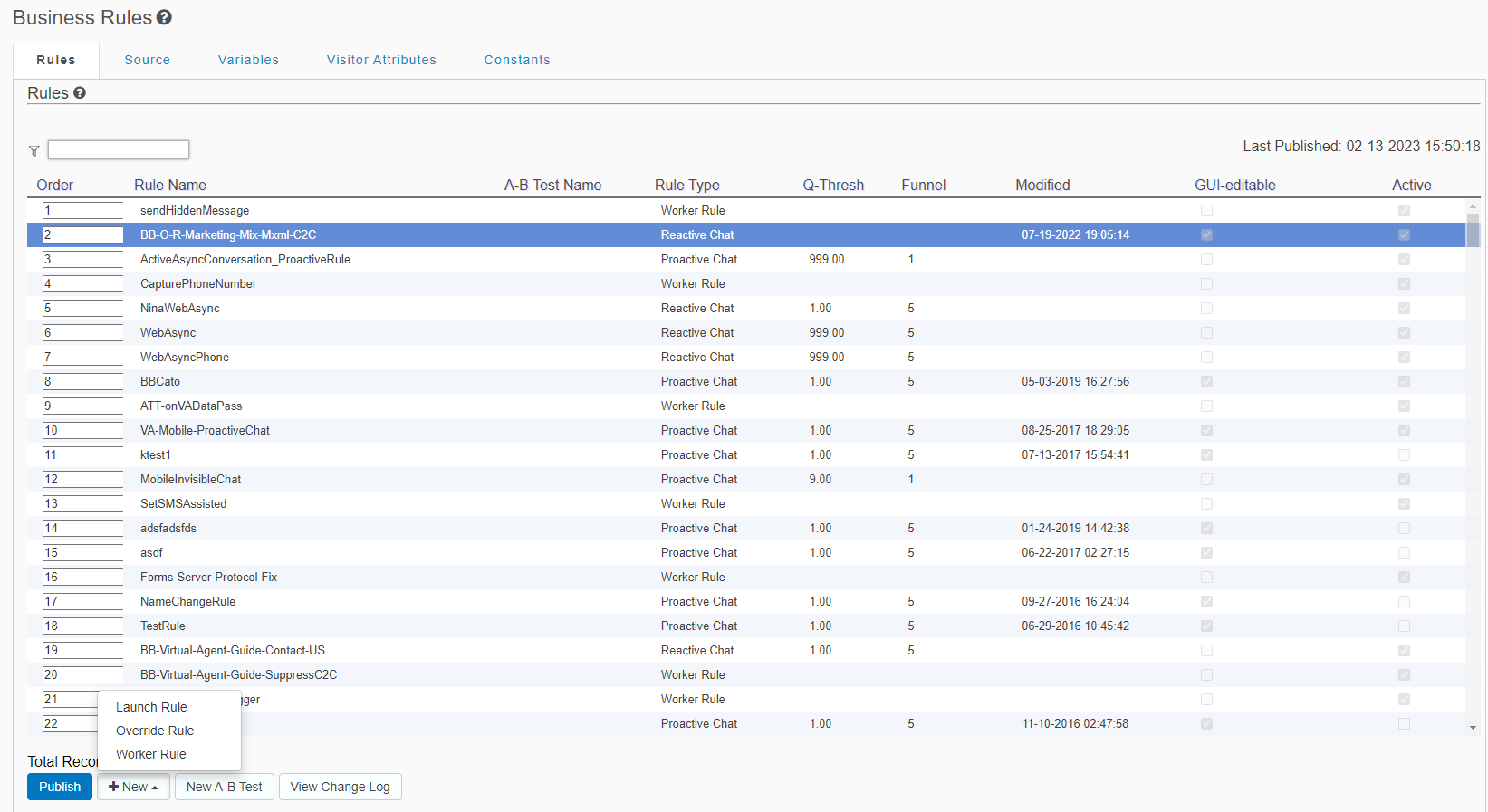 The Rules tab enables you to view, manage, and create business rules.
 columns. All columns are read-only unless otherwise specified:
| Column Name | Description |
|---|---|
| Order |
Priority for executing this business rule relative to other business rules. To change the priority, enter a different number. |
| Rule Name | Name of the rule. |
| A-B Test | List of A-B test names. |
| Rule Type |
The rule has the following rule type:
|
| Q-Thresh | The Q-threshold, which is the percentage of chat slots reserved for an agent group before chats are queued. For a detailed explanation, see Design when to engage. |
| Funnel |
Sets a funnel level for the rule so that if a proactive chat is launched, it will not launch again unless the user moves to a more important funnel level (with a lower number). The default value is 5. For a detailed explanation, see Proactive chat funnels. |
| Modified | Date and time this rule was last modified. |
| GUI-editable |
Indicates whether this rule is editable in the user interface.
|
| Active |
Indicates whether this is active. To change a rule's activation status:
|
Add a business rule
-
Click New and then select one of the following:
-
In the Create Rule page, complete the following tabs:
- General tab, described in Manage general settings for a business rule
- Routing tab, described in Manage routing for a business rule
- Conditions tab, described in Manage conditions for a business rule
- Actions tab, described in Manage actions for a business rule
- Click Save.
Edit a business rule
-
Double-click a row in the table.
-
In the Edit Rule page, update the following tabs:
- General tab, described in Manage general settings for a business rule
- Routing tab, described in Manage routing for a business rule
- Conditions tab, described in Manage conditions for a business rule
- Actions tab, described in Manage actions for a business rule
- Click Save.
Clone a business rule
- In the table, right-click on the rule to duplicate, and select Clone from the context menu.
- The Clone Business Rule page opens, displaying the rule attributes from the original rule.
- Edit the following tabs as required, including changing the rule name.
- Manage general settings for a business rule
- Manage routing for a business rule
- Manage conditions for a business rule
- Manage actions for a business rule
- Click Save.
Create A-B tests
- Either right-click a business rule and click the New A-B Test button, or select a business rule with an existing A-B test attribute and select Edit A-B Test from the context menu.
- Enter a test name and description.
- To set the same distribution level to each business rule check the Equal Distribution box.
- To set different levels, clear the Equal Distribution box and enter a value in the Distribution fields. Make sure all of your distribution values total 100%.
- Click the red X to delete a business rule.
- Click Save. The Business Rules table displays in the A-B Test column. You can now edit each business rule individually.
Select an A-B test winner
- After you run your tests, you will keep the best (winning) rule and delete the other rules.
- Select one of the test rule you want to modify and click End Test.
- Click the red X to delete the losing Business Rules.
- When a business rule emerges as a winner, it can be renamed, if necessary.
- Click End Test at the bottom of the window.
- Click Confirm. The test will be deleted along with the losing Business Rules.
Publish business rules
To push all changes to business rules to the production environment, click Publish.
Other tabs on the Business Rules page
The Business Rules page also has the following other tabs:
- The Source tab displays the editable source XML for all business-rule settings. For details, see Manage business rules in XML.
- The Variables tab defines variables to use in business rules. For details, see Manage variables for business rules.
- The Visitor Attributes tab defines visitor attributes to use in business rules. For details, see Manage visitor attributes for business rules.
- The Constants tab defines constants for business rules. For details, see Manage constants for business rules.
