|
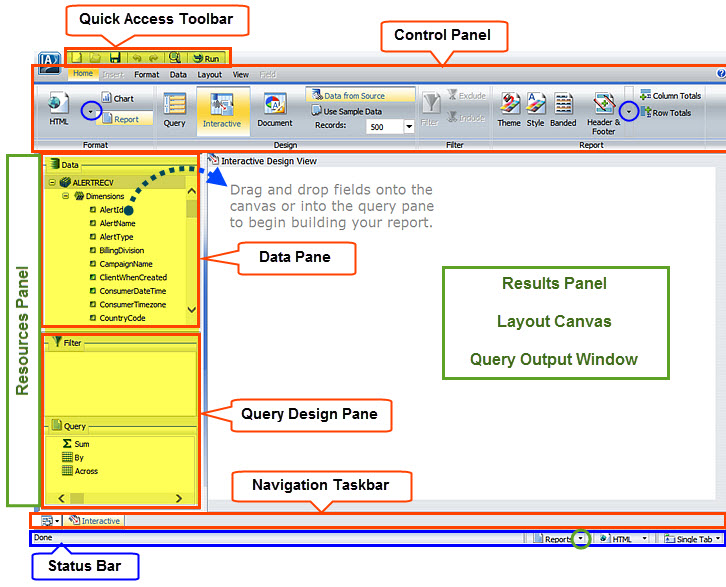
Application Main Menu
|
Click the IA button to display the Main Menu. Of the options available, you can use Save, Save As, and Run. Other options are not currently available.
- To create a new template, exit and launch a new template from the Report Creator tab.
- To open an existing template, exit Report Creator, go to the template list and open the template there.
|
|
Quick Access Toolbar
|
Displays the most commonly used functions in a toolbar that is always visible.
- Of the options available, you can use Save, Undo, Redo, View Code, and Run.
- The New and Open functions are not currently available.
|
|
Control Panel
|
Displays property controls using highly visible icons that are grouped logically by functionality in each tab of the Control Panel.
- Tabs include Home, Insert, Format, Data, Layout, View, Field, and Series (charts only).
|
|
Resources Panel
|
Contains a data pane that displays the fields from the selected data source.
- Also displays the Query Design pane below the Data pane except in Query Design view.
|
|
Results Panel
|
Displays the Query Design pane in Query Design view, the Layout Canvas in Interactive and Document view, or the Output window if you have run a report.
|
|
Navigation Task Bar
|
Displays groups and icons to provide different views and quick access to all active reports and report output.
|
|
Status Bar
|
Displays the status of the last selected action, the name of the current report, an output format button showing the selected format, and an output target button showing the selected option for displaying new output windows or tabs.
|