Monitor and manage campaigns
A campaign is a reusable set of required settings for sending out a message. These settings include the realtime throttle to use, the dispatch rate, dispatch strategy, and consumer and call center hour codes. You can apply a campaign to multiple messages in different projects.
You use the Campaigns view to view the realtime status of your campaigns, including results of sending messages, transfer activity, and records in inventory. You can also suspend and resume sending for a campaign, and cancel sending records still in inventory. An indicator bar on each campaign panel displays the number of records that have completed sending and the number of records that are in inventory, along with their expected sending time.
This example of the Campaigns tab shows three campaigns. Each campaign has an indicator bar showing the number of completed records and records still in inventory (with their scheduled sending time indicated by colored bands). A headset icon indicates that transfers have taken place recently in the campaign.
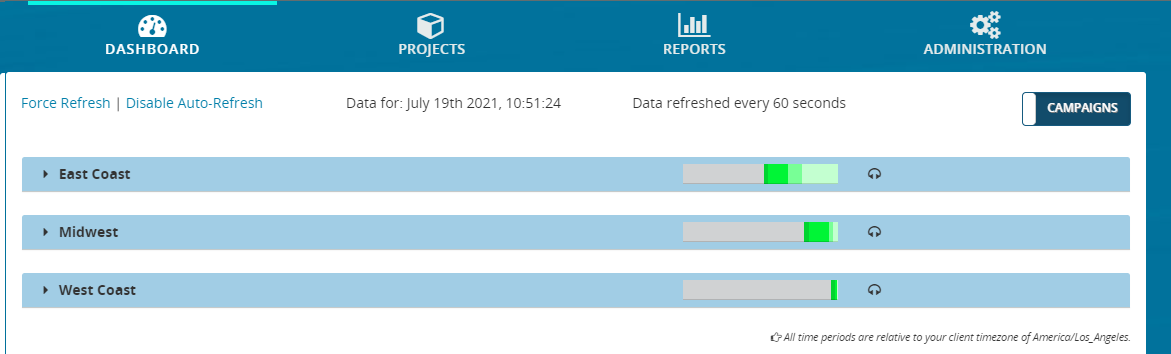
When a record is loaded, it is assigned to a campaign based on your project's business logic, and it is accounted for in the campaign's indicator bar. Each indicator bar is divided into colored bands showing the status of records in inventory. Completed records are indicated by the gray band. Records scheduled for sending are shown in various shades of green, with the darkest green shade denoting records ready to send immediately and the lightest shade denoting records scheduled to be sent in 30 minutes or more. The size of each colored band is proportional to the percentage of records in that status. For example, if 50 percent of the loaded records were completed, then the gray band will occupy 50 percent of the indicator bar. After all records are completed, the bar will be 100 percent gray. Hover over a colored band to see the number of records it contains.
The indicator bar uses the following colors and icons to show status:


By default, the dashboard displays only the first 50 campaigns. To show additional campaigns at the bottom of the list, click Load More. Each time you click this, the list continues growing until all your campaigns are displayed on the dashboard.
The display automatically refreshes the data every 60 seconds.
-
To display the most recent data, click Force Refresh.
You can perform the following actions in the Campaign view:
| Action | Description |
|---|---|
| Suspend sending messages |
Suspend a campaign that is in progress, and: |
| Resume sending messages | Resume a suspended campaign to resume sending messages. |
| View campaign delivery results | View the realtime results of message delivery attempts for a campaign. You can filter these results by time period and media type. |
| View campaign transfers | View the realtime status of agent transfers for a campaign. You can filter these results by time period. |
| View campaign record status | View the realtime status of the records in a campaign. View detailed data about loaded records by time period and about inventory. |
| Cancel records in inventory | Cancel sending records that are currently in inventory. |
